Got the VCF 5.X env stood up after few attempts. It was fun and good learning too.
Planning / Design phase plays an important role in VCF deployment. I would say, deployment is just a day task, however, planning goes on for weeks. I would specifically like to emphasize on ‘Licensing’. VCF can be deployed in either subscriptions based licensing model or perpetual. I will discuss about this in later blogs in this series.
Imp Note: You cannot return to using a perpetual license without doing a full bring-up rebuild.
License calculator is available for download in following KB.
https://kb.vmware.com/s/article/96426
This series of VCF 5.X includes following parts,
VCF 5.0 Series-Step by Step-Phase1 – Preparation
VCF 5.0 Series-Step by Step Phase2 – Deployment Parameters Excel sheet
VCF 5.0 Series-Step by Step-Phase3 – Deployment
VCF 5.0 Series-Step by Step-Phase4 – Post Deployment Checks
Let’s get into “Preparation” phase and start preparing the infrastructure for VCF deployment.
The deployment of VMware Cloud Foundation is automated. We use VMware Cloud Builder initially to deploy all management domain components. The following components / options have been removed from 5.X initial deployment, compared to previous versions.
Application Virtual Networks (AVN’s)
Edge Deployment
Creation of Tier-1 & Tier-0
BGP peering
All of it can only be configured via SDDC manager after successful deployment. Hence, it has become little easy when it comes to the deployment.
Due to the multiple attempts of deployment, I am able to jot down the high-level deployment flow here, which is automated and performed by the Cloud Builder once you start the deployment.
After the validation, CB performs the following step to configure the VCF env.
Connect to 1st target ESXi host and configure single host VSAN datastore.
Start the vCenter deployment on 1st VSAN enabled host.
After successful deployment of vCenter, Create Datacenter object, Cluster and adds remaining 3 hosts in the cluster.
Configure all vmk’s on all 4 hosts.
Create VDS and add all 4 hosts to VDS.
Configure disk group to form a VSAN datastore on all hosts.
Deploy 3 NSX managers on management port group and Configure a VIP.
Add Compute Manager (vCenter) and create required transport zones, uplink profiles & network pools.
Configure vSphere cluster for NSX (VIBs installation)
Deploy SDDC manager.
And some post deployments tasks for cleanup.
Finish.
And this is what you would expect after the successful deployment. 😊

Believe me, it’s going take multiple attempts if you are doing it for the first time.
Let’s have a look at the Bill of Materials (BOM) for Cloud Foundation version 5.0.0.0 Build 21822418.
| Software Component | Version |
| Cloud Builder VM | 5.0-21822418 |
| SDDC Manager | 5.0-21822418 |
| VMware vCenter Server Appliance | 8.0 U1a -21815093 |
| VMware ESXi | 8.0 U1a -21813344 |
| VMware NSX-T Data Center | 4.1.0.2.0-21761691 |
| Aria Suite Lifecycle | 8.10 Patch 1 -21331275 |
It’s always a good idea to check release notes of the product before you design & deploy. You can find the release notes here.
Some of the content of this blog has been copied from my previous blog (VMware vCloud Foundation 4.2.1 Step by Step) since it matches with version 5.0 too.
Let’s discuss and understand the high level installation flow,
Configure TOR for the networks that are being used by VCF. In our case, we have VyOS router.
Deploy a Cloud Builder VM on standalone source physical ESXi.
Install and Configure 4 ESXi Servers as per the pre-requisites.
Fill in the “Deployment Parameters” excel sheet carefully.
Upload “Deployment Parameter” excel sheet to Cloud Builder.
Resolve the issues / warning shown on the validation page of CB.
Start the deployment.
Post deployment, you will have a vCenter, 4 ESXi servers, 3 NSX managers & SDDC manager deployed.
Additionally, you can deploy VI workload domain using SDDC manager. This will allow you to deploy Kubernetes cluster and vRealize Suite components.
You definitely need huge amount of compute resources to deploy this solution.
This entire solution was installed on a single physical ESXi server. Following is the configuration of the server.
HP ProLiant DL360 Gen9
2 X Intel(R) Xeon(R) CPU E5-2650 v3 @ 2.30GHz
512 GB Memory
4 TB SSD
Am sure it is possible in 256 gigs of memory too.
Let’s prepare the infra for VCF lab.
I will call my physical esxi server as a base esxi in this blog.
So, here is my base esxi and VM’s installed on it.
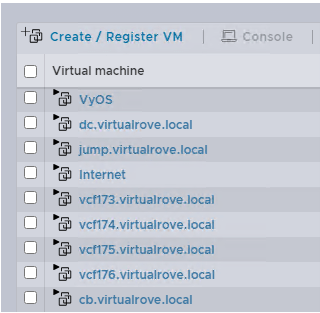
VyOS – This virtual router will act as a TOR for VCF env.
dc.virtaulrove.local – This is a Domain Controller & DNS Server in the env.
jumpbox.virtaulrove.local – To connect to the env.
vcf173 to vcf176 – These will be the target ESXi’s for our VCF deployment.
cb.virtaulrove.local – Cloud Builder VM to deploy VCF.
Here is a look at the TOR and interfaces configured…
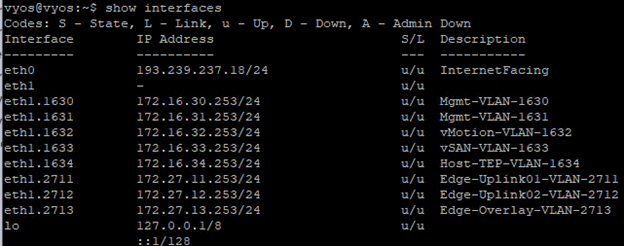
Follow my blog here to configure the VyOS TOR.
Network Requirements: Management domain networks to be in place on physical switch (TOR). Jumbo frames (MTU 9000) are recommended on all VLANs or minimum of 1600 MTU.

Following DNS records to be in place before we start with the installation.

Cloud Builder Deployment:
Cloud Builder is an appliance provided by VMware to build VCF env on target ESXi’s. It is a one time use VM and can be powered off after the successful deployment of VCF management domain. After the deployment, we will use SDDC manager for managing additional VI domains. I will be deploying this appliance in VLAN 1631, so that it gets access to DC and all our target ESXi servers.
Download the correct CB ova from the downloads,

We also need excel sheet to downloaded from the same page.
‘Cloud Builder Deployment Parameter Guide’

This is a deployment parameter sheet used by CB to deploy VCF infrastructure.
Deployment is straight forward like any other ova deployment. Make sure to you choose right password while deploying the ova. The admin & root password must be a minimum of 8 characters and include at least one uppercase, one lowercase, one digit, and one special character. If this does not meet, then the deployment will fail which results in re-deploying ova.

Nested ESXi Installation & Prereqs
With all these things in place, our next step is to deploy 4 nested ESXi servers on our physical ESXi host. These will be our target hosts for VCF deployment. Download the correct supported esxi version ISO from VMware downloads.

All ESXi should have an identical configuration. I have following configuration in my lab.

vCPU: 12
2 Sockets, 6 cores each.
CPU hot plug: Enabled
Hardware Virtualization: Enabled
HDD1: Thick: ESXi OS installation
HDD2: Thin VSAN Cache Tier
HDD3: Thin VSAN Capacity Tier
HDD4: Thin VSAN Capacity Tier

And 2 network cards attached to Trunk_4095. This will allow an esxi to communicate with all networks on the TOR.
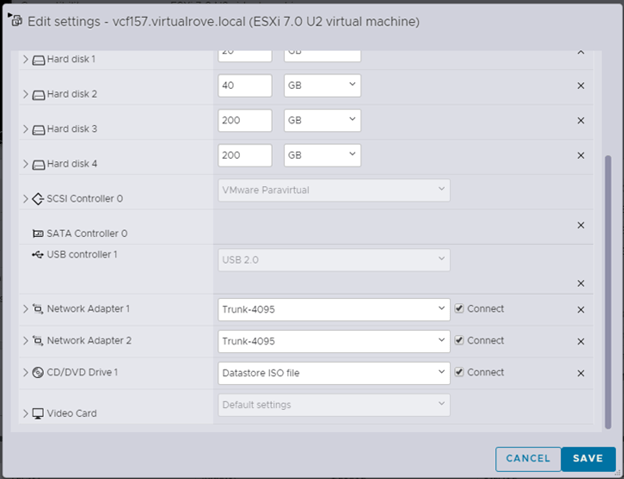
Map the ISO to CD drive and start the installation.
I am not going to show ESXi installation steps, since it is available online in multiple blogs. Let’s look at the custom settings after the installation.
DCUI VLAN settings should be set to 1631.
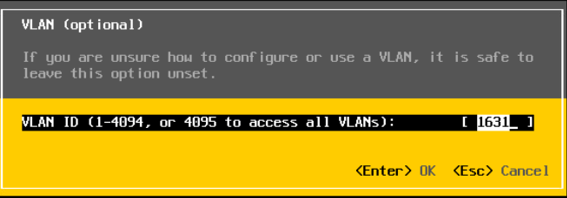
IPv4 Config

DNS Config

And finally, make sure that the ‘Test Management Network’ on DCUI shows OK for all tests.
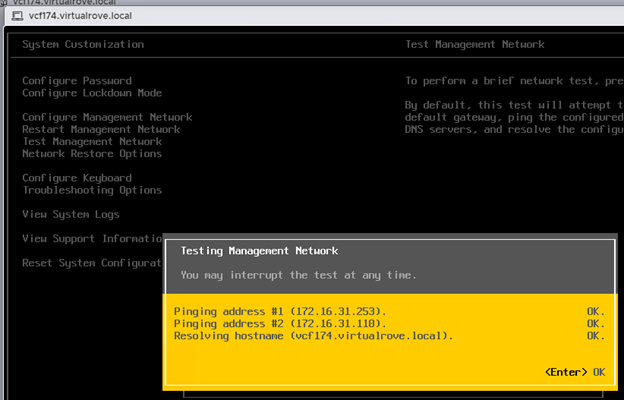
Repeat this for all 4 nested esxi.

I have all my 4 target esxi severs ready. Let’s look at the ESXi configuration that has to be in place before we can utilize them for VCF deployment.
All ESXi must have ‘VM network’ and ‘Management network’ VLAN id 1631 configured.
NTP server address configured on all ESXi.
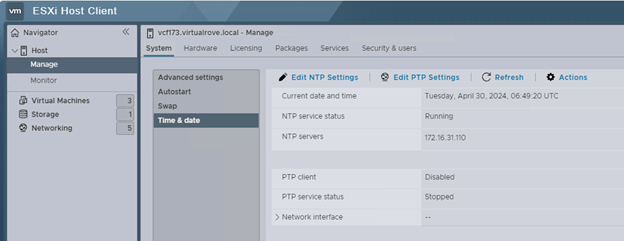
SSH & NTP service to be enabled and policy set to ‘Start & Stop with the host’

All additional disks to be present on an ESXi as a SSD and ready for VSAN configuration. You can check it here.

If your base ESXi has HDD and not SSD, then you can use following command to mark those HDD to SSD.
You can either connect to DC and putty to ESXi or open ESXi console and run these commands.
esxcli storage nmp satp rule add -s VMW_SATP_LOCAL -d mpx.vmhba1:C0:T1:L0 -o enable_ssd
esxcli storage nmp satp rule add -s VMW_SATP_LOCAL -d mpx.vmhba1:C0:T2:L0 -o enable_ssd
esxcli storage nmp satp rule add -s VMW_SATP_LOCAL -d mpx.vmhba1:C0:T3:L0 -o enable_ssd
esxcli storage core claiming reclaim -d mpx.vmhba1:C0:T1:L0
esxcli storage core claiming reclaim -d mpx.vmhba1:C0:T2:L0
esxcli storage core claiming reclaim -d mpx.vmhba1:C0:T3:L0
Once done, run ‘esxcli storage core device list’ command and verify if you see SSD instead of HDD.

Well, that should complete all our pre-requisites for target esxi’s.
Till now, we have completed configuration of Domain controller, VyoS router, 4 nested target ESXi & Cloud Builder ova deployment. Following VM’s have been created on my physical ESXi host.

I will see you in the next post. Will discuss about “Deployment Parameters” excel sheet in detail.
Hope that the information in the blog is helpful. Thank you.
Are you looking out for a lab to practice VMware products…? If yes, then click here to know more about our Lab-as-a-Service (LaaS).
Leave your email address in the box below to receive notification on my new blogs.
 Welcome to VirtualRove.COM