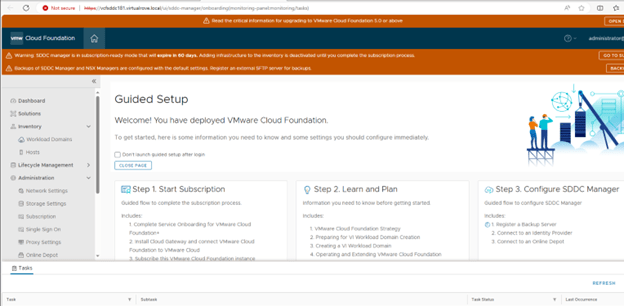
It’s time to check VCF environment and do some post checks. Here is the SDDC manager after the deployment,
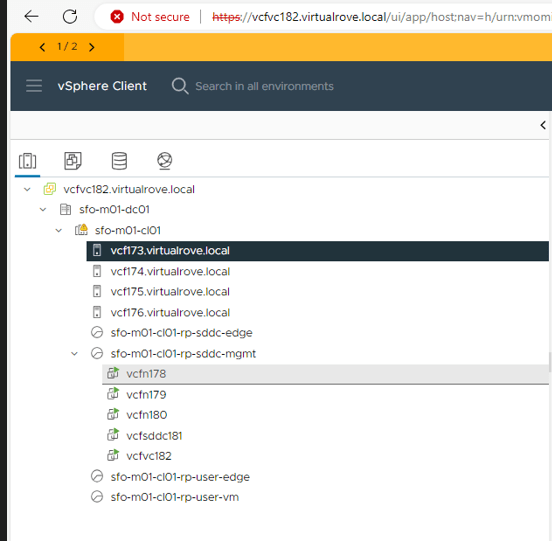
Host & Clusters view,
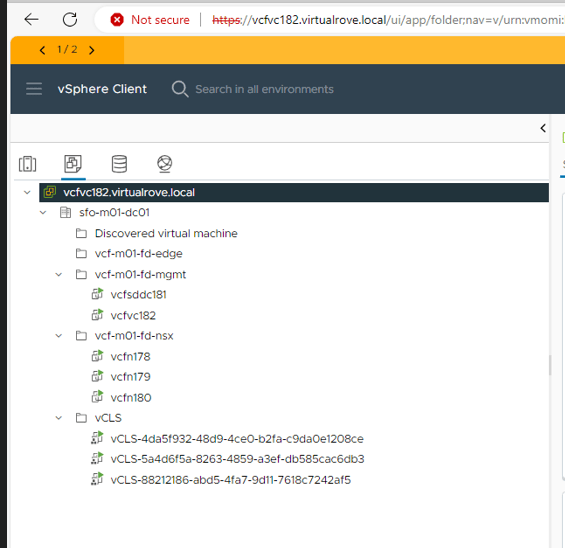
VM’s & Templates,
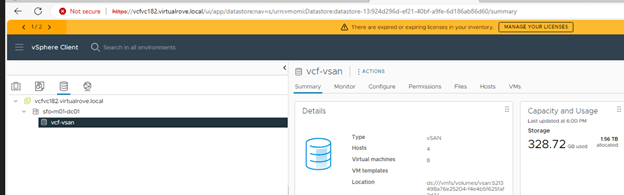
Datastore,
And Networking,
Let’s look at the NSX env,
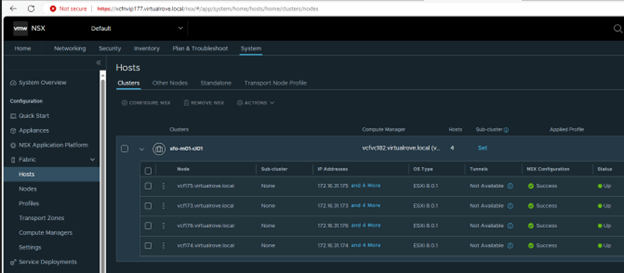
All management hosts have been prepared for nsx,
Host configuration on one of the host in this cluster, “vcf-vds01” configured for NSX. TZ, Uplink profile & IP pool created and configured already.
vCenter Virtual switch view on one of the host,
NSX already have backup configured, And the last backup was successful.
If you look at the backup config, it has configured sddc as a backup server,
Lets have a look at the SDDC manager dashboard,
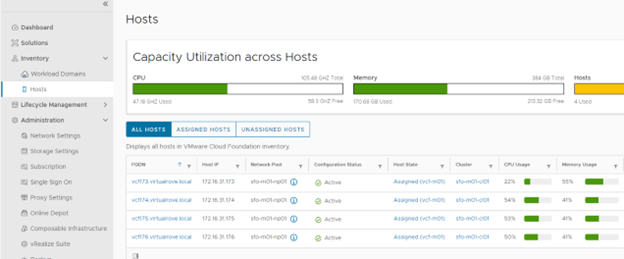
Host view on SDDC shows as expected,
Workload Domain view shows our management domain,
Click on the management domain name to check details,
Host tab on under the management domain shows host details again,
Edge clusters are empty. You get an option to deploy edge clusters for mgmnt domain. I will be writing separate blog on it,
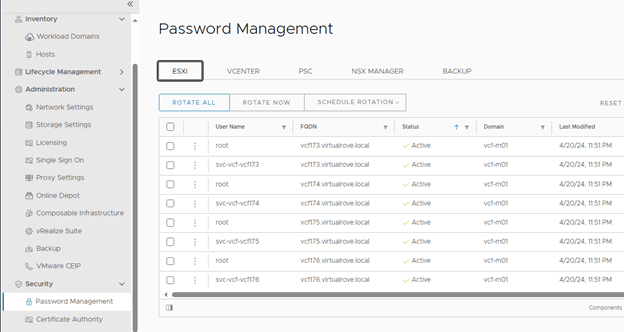
Password management options allows you to create / edit passwords for all SDDC components at one place. You can also schedule password rotation for all components.
As discussed in the first blog of this series, here is the option to subscribe to licenses,
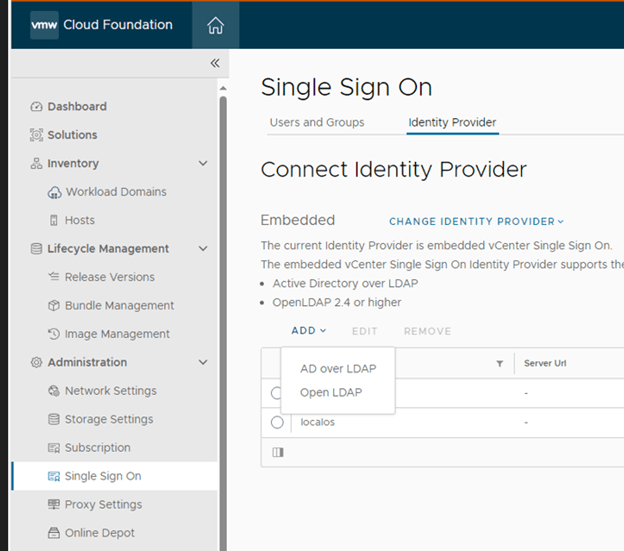
Like other products of VMware, you get an option to integrate AD,
Option to deploy vRealize Suite from SDDC,
Well, that’s all for this post. Keep following for upcoming blogs on VCF 5.X.
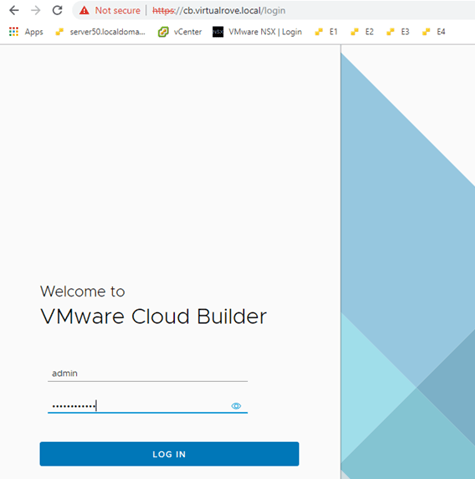
Login to Cloud Builder VM and start the deployment process.
Select “vCloud Foundation” here,
The other option “Dell EMC VxRail” to be used when your physical hardware vendor is Dell.
VxRail is hyper-converged appliance. It’s a single device which includes compute, storage, networking and virtualization resources. It comes with pre-configured vCenter and esxi servers. Then there is a manual process to convert this embedded vCenter into user manage vCenter, and that’s when we use this option.
Read all prereqs on this page and make sure to fulfill them before you proceed.
Scroll down to check remaining prereqs,
Click next here.
Earlier versions of VCF gave an option to download the “Deployment Parameter” excel sheet on this page.
You must download this sheet from the same place where you downloaded the vcf ova from.
Its time to start the actual deployment. We will resolve the issues as we move on. Let’s upload the “Deployment Parameter” sheet to Cloud Builder and begin the deployment.
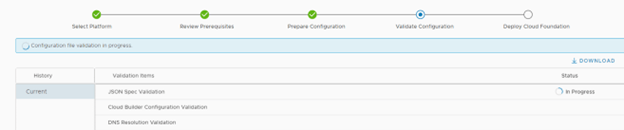
Upload the file and Next. CB validates everything that is required for the complete deployment in this step.
To understand & troubleshoot the issues / failures that we might face while deploying VCF, keep an eye on vcf-bringup.log file. The location of the file is ‘/opt/vmware/bringup/logs/’ in cloud builder. This file will give you live update of the deployment and any errors which caused the deployment to fail. Use ‘tail -f vcf-bringup.log’ to get the latest update on deployment. PFB.
Let’s continue with the deployment…
“Error connecting to ESXi host. SSL Certificate common name doesn’t match ESXi FQDN”
Look at the “vcf-bringup.log” file.
This is because the certificate for an esxi gets generated after it was installed with default name and not when we rename the hostname. You can check the hostname in certificates. Login to an ESXi > Manage> Security & Users> Certificates
You can see here, Even if the hostname on the top shows “vcf157.virtualrove.local, the CN name in certificate is still the “localhost.localdomain”. We must change this to continue.
SSH to the esxi server and run following command to change the hostname, fqdn & to generate new certs.
esxcli system hostname set -H=vcf157 esxcli system hostname set -f= vcf157.virtualrove.local cd /etc/vmware/ssl /sbin/generate-certificates /etc/init.d/hostd restart && /etc/init.d/vpxa restart Reboot
You need to do this for all hosts by replacing the hostname in the command for each esxi respectively.
Verify the hostname in the cert once server boots up.
Next, Hit retry on cloud builder, and we should be good.
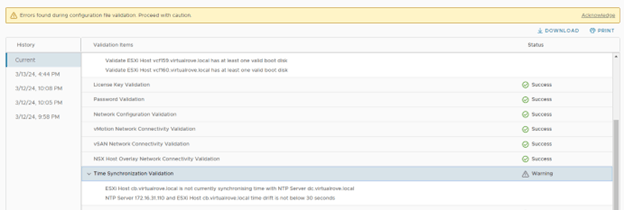
Next, warning for vSAN Disk Availability Validate ESXi host has at least one valid boot disk.
Not sure about this one. Double checked and confirm that all disks are available on the esxi host. I will simply ignore this.
Next, warnings for NTP. Host cb.virtaulrove.local is not currently synchronising time with NTP Server dc.virtaulrove.local NTP Server 172.16.31.110 and host cb.virtaulrove.local time drift is not below 30 seconds
For ESXi, Restart of ntpd.service resolved issue. For CB, I had to sync the time manually.
Steps to manually sync NTP… ntpq -p systemctl stop ntpd.service ntpdate 172.16.31.110 Wait for a min and again run this ntpdate 172.16.31.110 systemctl start ntpd.service systemctl restart ntpd.service ntpq -p
verify the offset again. It must be closer to 0. Next, I locked out root password of Cloud Builder VM due to multiple logon failure. 😊
This is usual since the passwords are complex and sometimes you have to type it manually on the console, and top of that, you don’t even see (in linux) what you are typing.
Anyways, it’s a standard process to reset the root account password for photon OS. Same applies to vCenter. Check the small writeup on it on the below link.
Next, Back to CB, click on “Acknowledge” if you want to ignore the warning.
Next, You will get this window once you resolve all errors. Click on “Deploy SDDC”.
Important Note: Once you click on “Deploy SDDC”, the bring-up process first builds VSAN on 1st ESXi server from the list and then it deploys vCenter on 1st ESXi host. If bring-up fails for any reason and if you figured out that the one of the parameter in excel sheet is incorrect, then it is tedious job to change the parameter which is already uploaded to CB. You have to use jsongenerator commands to replace the existing excel sheet in the CB. I have not come across such a scenario yet, however there is a good writeup on it from good friend of mine.
So, make sure to fill all correct details in “Deployment Parameter” sheet. 😊
Let the game begin…
Again, keep an eye on vcf-bringup.log file. The location of the file is ‘/opt/vmware/bringup/logs/’ in cloud builder. Use ‘tail -f vcf-bringup.log’ to get the latest update on deployment.
Installation starts. Good luck. Be prepared to see unexpected errors. Don’t loose hopes as there might several errors before the deployment completes. Mine took 1 week to deploy when I did it first time.
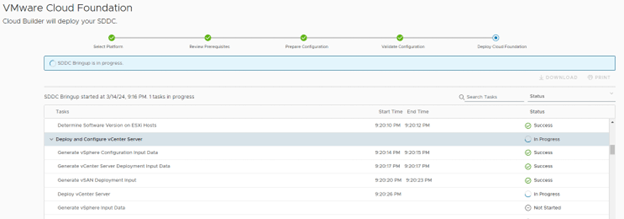
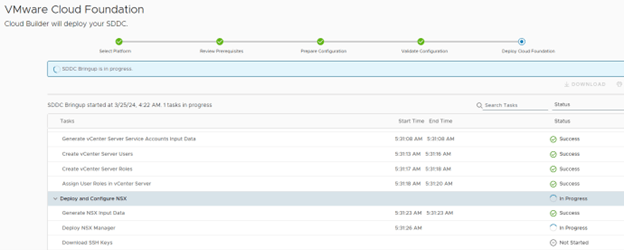
Bring-up process started. All looks good here. Status as “Success”. Let’s keep watching.
It started the vCenter deployment on 1st VSAN enabled host.
You can also login to 1st esxi and check the progress of vCenter deployment.
vCenter installation finished. Moved to NSX deployment.
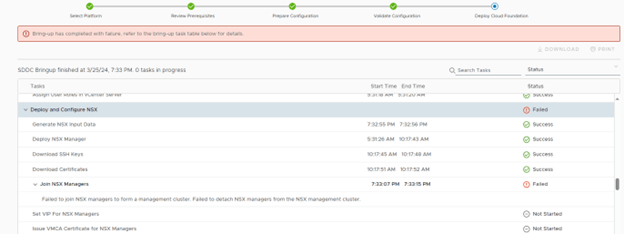
Failed at NSX deployment stage,
Failed to join NSX managers to form a management cluster. Failed to detach NSX managers from the NSX management cluster.
I logged into the all 3 NSX managers and found that one of the NSX manager were showing Management UI: DOWN on the console. Restarted the affected NSX manager and it was all good.
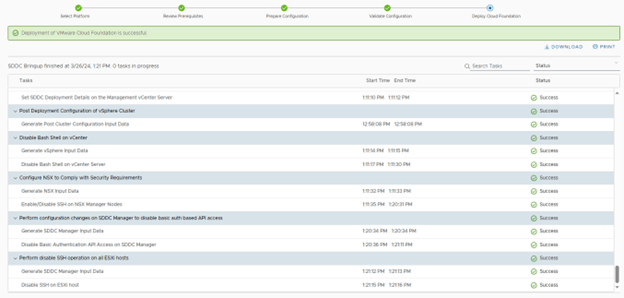
Retry on the CB did not show that error again. And finally, it finished all tasks.
Click Finish. And it launches another box.
That was fun. We have successfully deployed vCloud Foundation version 5.0
There are multiple tests that can be performed to check if the deployed environment is redundant at every level. Time to verify and do some post deployment checks. I will cover that in next post.
Additionally, use this command ‘systemctl restart vcf-bringup’ to pause the deployment when required.
For example, in my case NSX-T manger was taking time to get deployed, and due to an interval on cloud builder, it used to cancel the deployment assuming some failure. So, I paused the deployment after nsx-t ova job got triggered from CB and hit ‘Retry’ after nsx got deployed successfully in vCenter. It picked it up from that point and moved on.
Hope you enjoyed reading the post. It’s time for you to get started and deploy VCF. Feel free to comment below if you face any issues.
We have prepared the environment for VCF deployment. Its time to discuss the “Deployment Parameters” excel sheet in detail. Following are lists of blogs in this series.
“Introduction” sheet from the deployment parameter.
Go through this carefully and make sure that you have everything in place that is needed for the deployment. NO edits on this sheet.
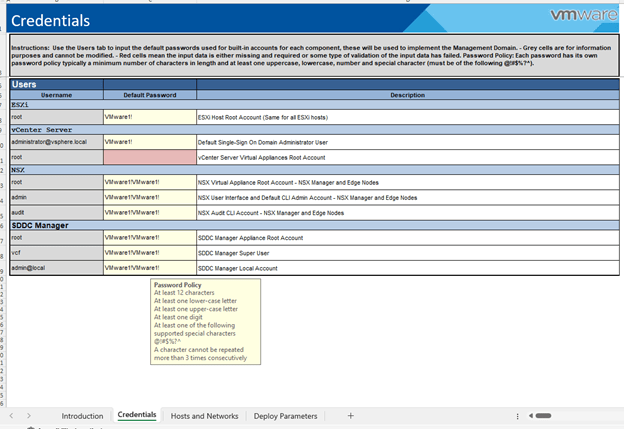
Next, “Credentials” sheet.
Check the password policy and make sure to generate passwords accordingly. It fails at validation if its not meet.
Any unacceptable values cell turns to RED in this entire sheet.
Moving on to next sheet “Hosts and Networks”.
Couple of things to discuss here,
Management Domain Networks – All networks should be pre-created on the TOR.
Here is the screenshot from my TOR.
Management Domain ESXi Hosts – All IP’s to be reserved and DNS records in place.
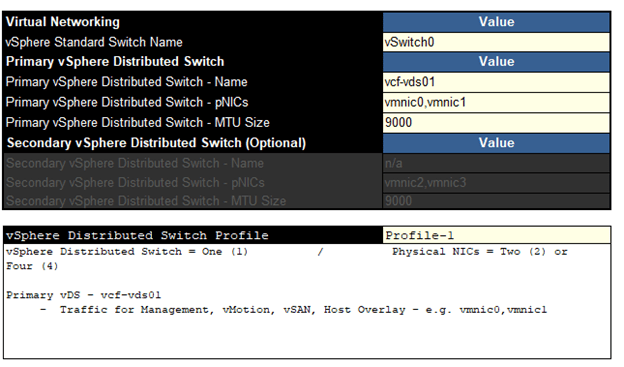
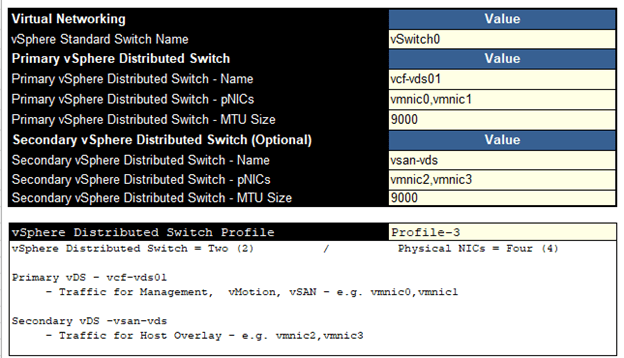
Moving onto “vSphere Distributed Switch Profile” in this sheet. It has 3 profiles. Let’s talk about available options.
Profile-1
This profile will deploy a single vDS with 2 or 4 uplinks. All network traffic will flow through the assigned nics in this vDS.
Profile-2
If you want to split the VSAN traffic on dedicated pnics, choose this option.
This one deploys 2 VDS. You can see that the first vDS will carry management, vMotion, Host Overlay traffic and the other one is for VSAN. Each vDS can have up to 2 pnics.
Profile-3
This one also deploys 2 vDS, just that the VSAN traffic is merged into 1stvds and 2nd vds only carries host overlay traffic.
Select the profile as per your business requirement and move to next step. For this lab, I have selected the 1st profile.
Moving to the “NSX Host Overlay Network” – You have an option to enable DHCP on 1634 vlan or define values manually.
Next – “Deploy Parameters” sheet,
Define all parameters here carefully. Again, If something is not good, the cell would turn RED.
As discussed in 1st blog in this series, VCF has now introduced subscription-based licensing. If you select “NO”, then you have to manually enter license keys here. If yes, a note appears in RED,
Just found out that the vmware kb’s are redirecting to Broadcom already. 😊
“During bring-up, in subscription licensing mode, the management domain is deployed in evaluation mode. It is expected that you complete the subscription process for VMware Cloud Foundation+ within 60 days. After the period has expired, you cannot do any actions related the workload domains, such as add or expand workload domain, add or remove cluster, add or remove host”
One caveat here, if you deploy the stack in subscription-based model, the SDDC manager does not allow perform any additional operations until you finish the subscription process. In short, it is of no use until you finish the subscription.
Let me show you,
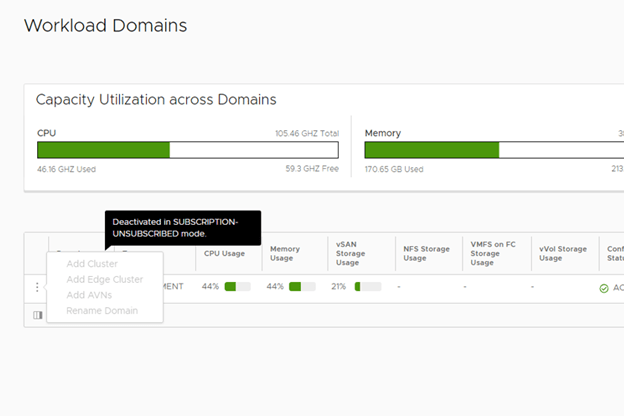
This screenshot was captured when I deployed it subscription model. This is what you see when you deploy it in subscription model and do not activate it,
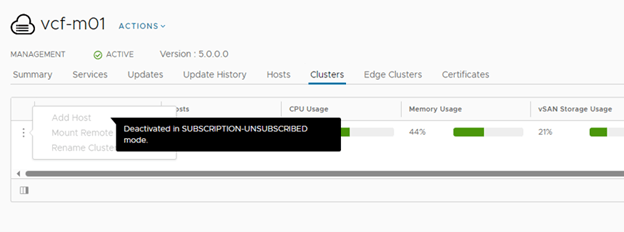
All additional config options will be grayed out. You see a msg there “Deactivated in Subscription-Unsubscribed mode.”
Any changes to “Workload Domain” will be blocked.
No adding hosts to mgmnt domain,
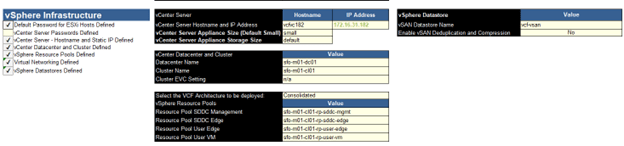
Back to Deploy Parameter, So, make your choices wisely and plan it accordingly. Moving to “vSphere Infra” section in the deployment parameters sheet.
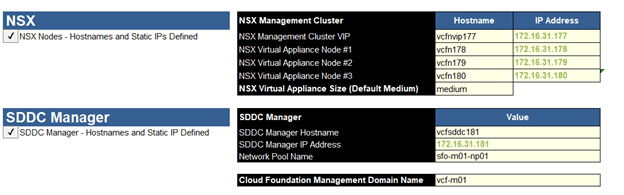
And finally, the NSX & SDDC section,
We are all set to upload this “Deployment Parameter” sheet to Cloud Builder and begin the deployment. That is all for this blog. We will perform the actual deployment in next blog.























 Welcome to VirtualRove.COM