Let’s get started with some documentation around adding / commissioning new host in an existing workload domain.
Add a Host to a vSphere Cluster Using the SDDC Manager UI
Verify that a host is available in the SDDC Manager inventory. For information on commissioning hosts, see Commission Hosts.
Commission Hosts
- Hosts that use vSAN storage can only be used with vSAN-based workload domains.
- Hosts that use NFS storage can only be used with NFS-based workload domains.
- Hosts that use VMFS on FC storage can only be used with VMFS on FC-based workload domains.
- Hosts that use vVols storage can only be used with vVols-based workload domains.
Ensure that a network pool supports the storage type you select for a host (vSAN, NFS, VMFS on FC, vVols).
Commissioning a host adds it to the VMware Cloud Foundation inventory. The host you want to commission must meet the checklist criterion below.
Ensure that each host you are commissioning meets the following criteria:
- Hosts for vSAN-based workload domains are vSAN-compliant and certified on the VMware Hardware Compatibility Guide.
- Hosts for NFS-based workload domains are certified on the VMware Hardware Compatibility Guide.
- Hosts for VMFS on FC-based workload domains are certified on the VMware Compatibility Guide. In addition, the hosts must have supported FC cards (Host Bus Adapters) and drivers installed and configured. For compatible FC cards, see the VMware Compatibility Guide.
- Hosts for vVols-based workload domains are certified on the VMware Hardware Compatibility Guide.
- For vVols on FC-based workload domains, ensure that all ESXi hosts have access to the FC array before launching the workflow.
- For vVols on NFS-based workload domains, ensure that all ESXi hosts must be able to reach the NFS server from the NFS network assigned in the IP pool.
- For vVols on iSCSI-based workload domains, ensure that the iSCSI software initiator must be enabled on each ESXi host and the VASA provider URL must be listed as the dynamic target.
- Two NIC ports with a minimum 10 Gbps speed. One port must be free, and the other port must be configured on a standard switch. This switch must be restricted to the management port group.
- Host has the drivers and firmware versions specified in the VMware Hardware Compatibility Guide.
- A supported version of ESXi is installed on the host. See the VMware Cloud Foundation Release Notes for information about supported versions.
- DNS is configured for forward and reverse lookup and FQDN.
- Host name must be same as the FQDN.
- Self-signed certificate regenerated based on FQDN of host.
- Management IP address is configured on the first NIC port.
- Host has a standard switch and configured with 10 Gbps speed default uplinks starting with vmnic0 and increasing sequentially.
- Hardware health status is healthy without any errors.
- All disk partitions on HDD and SSD are deleted.
- Network pool must be created and available before host commissioning.
- Hosts for the vSAN-based workload domain must be associated with the vSAN enabled network pool.
- Hosts for the NFS-based workload domain are associated with the NFS enabled network pool.
- Host is configured with an appropriate gateway. The gateway must be part of the management subnet.
Before we get started, Here is new host config that will get added to existing management vi workload domain.
Hostname: esxi124.virtualrove.vr
Memory: 16 GB
pNICS: 2
Disks: 20gb 100gb 100gb , Total 220 RAW storage which will get added to existing VSAN storage.
VM network vlan changed to VLAN 1630
NTP settings updated to use NTP server as “172.16.31.110”
SSH and NTP service configured to “Start and Stop with the host”
And regenerated self-sign certs for esxi. I have listed steps to regenerate in my previous blogs.
Login to SDDC Manager > Hosts > Commission Hosts,
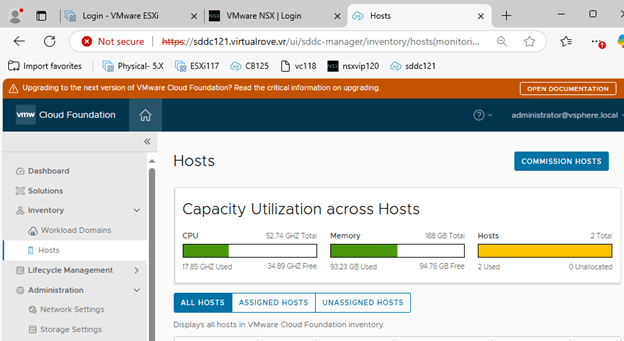
Make sure all pre-requisites are met, Select All,

Next,
Enter the required information and click on ADD
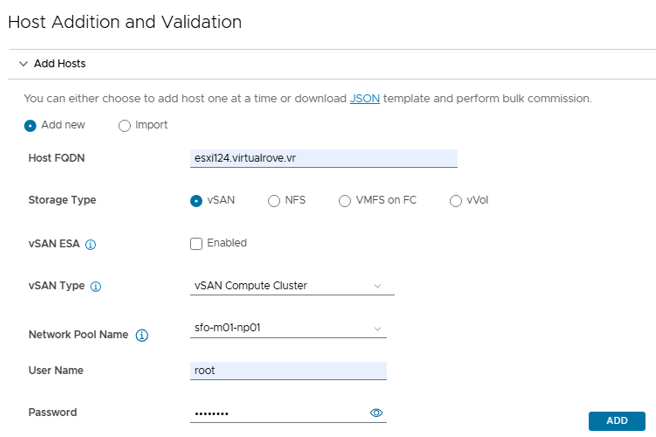
I have unchecked vSAN ESA, since am not using VSAN ready nodes as well as NO vLCM images.
vSAN ESA is only supported in workload domains that use vLCM images.
vSAN Type is vSAN Compute Cluster.

Also, Select the existing “Network Pool” from the drop-down menu for vMotion & VSAN network,

Same can be verified on on SDDC manager under “Network Settings”

Once the host has been added, Turn on the radio button “Confirm All Finger Prints” and “VALIDATE ALL”
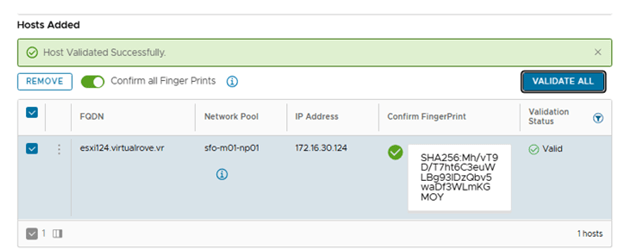
Review & Finish,

Monitor “ Commissioning host(s) esxi124.virtualrove.vr to VMware Cloud Foundation” task in SDDC task list,
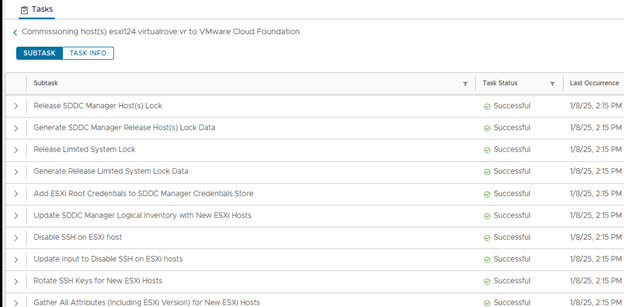
Once finished, host will appear in the “UNASSIGNED HOSTS”

Lets get the new host added to the existing management vi domain after commissioning it,
SDDC UI > Select Management Workload Domain > Clusters Tab > Click 3 dots to “ADD Hos”

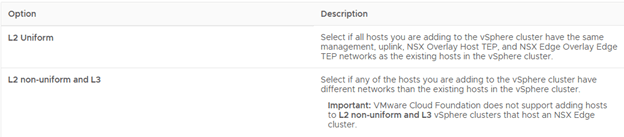
Select the commissioned host and select “L2 Uniform”
Important: VMware Cloud Foundation does not support adding hosts to L2 non-uniform and L3 vSphere clusters that host an NSX Edge cluster.
Finish.
Monitor the “Adding new host(s) to cluster” in SDDC task list,

On a high level, following steps are performed in “Adding new host to cluster”,
After initial validation, it adds the host to the cluster,
Adds host to VDS
Configures all vmknics
Removes STD switch
Configures HA
Adds it to NSX by adding required transport zone as per the TNP and prepares it for NSX.
And finally makes it available for workload migration / new workload.
Let’s review the environment after adding the host.
Host & Clusters view with all vmknics,

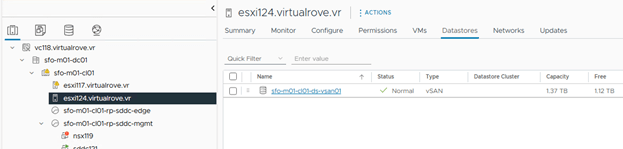
VSAN Storage added to existing cluster,
Hosts on SDDC Manager,

Workload domain host view,

New host has been prepared for NSX and ready for vlan backed segment,

That’s it for this post. Hope that it was helpful. We will add an edge cluster in our next blog.
Are you looking out for a lab to practice VMware products…? If yes, then click here to know more about our Lab-as-a-Service (LaaS).
Leave your email address in the box below to receive notification on my new blogs.
 Welcome to VirtualRove.COM