With vCloud Foundation 5.2 version, you can import / convert your existing vSphere infrastructure as well as NSX env into the VCF and start managing it from SDDC manager.
VCF import tool will help to achieve the same. The download link can be found here,
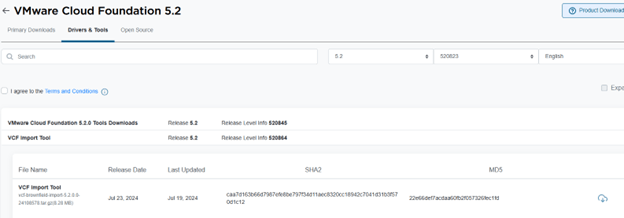
Let’s discuss some prerequisites before we move on,
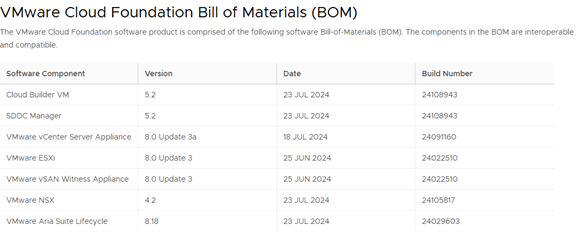
Existing vSphere versions should be aligned with VCF 5.2 BOM. (ESXi & vCenter)
No standard switch supported.
DRS should be in fully automated mode and HA enabled on the cluster.
Common / Shared storage between the hosts. (VSAN skyline health check compatible or with NFS3 version or FC storage)
VDS should have physical uplinks configured.
vCenter & SDDC Manager should be installed in the same cluster that we are converting. SDDC manager can be downloaded from the same location as VCF import tool.
Cluster with vCenter should have minimum of 4 hosts.
Here is the VCF 5.2 BOM for your reference,
Let’s get into lab and review the existing env,

I have a 4 hosts VSAN cluster with vCenter and SDDC installed in it. Remember, VSAN is not a requirement for this setup.
Review the ESXi & vCenter version,


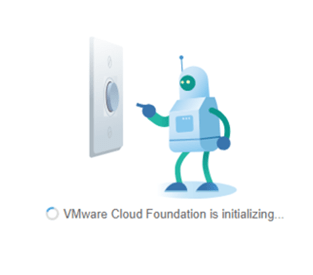
SDDC manager installation is pretty simple and straightforward. You just need to download the ova and import it into the cluster. It will ask for some common parameters like hostname, ip schema & passwords for defined users. Once the SDDC boots up, you will see this on the screen of SDDC url,
“VMware Cloud Foundation is initializing… ”
Additionally, I have one single vds with 2 uplinks and some common port groups configured,

Let’s get into action and start working on getting this env into VCF.
WinSCP to SDDC appliance using VCF user and upload the VCF Import tool to vcf directory on SDDC,

Next, SSH to SDDC appliance,

Check the if the file has been uploaded and then extract the tar file using ‘ tar xvf’ command,

You will see multiple files getting extracted in the same directory,

Next, get into the ‘vcf-brownfield-toolset’ directory to run further commands,

The python script (vcf_brownfield.py) is located under “vcf-brownfield-toolset” directory.
We need to runt this script using some additional parameters,
python3 vcf_brownfield.py convert –vcenter {vcenter-fqdn} –sso-user administrator@vsphere.local –domain-name {WLD-Name} –nsx-deployment-spec-path {NSx-Specifications-JOSN-Path} OR –skip-nsx-deployment
Replace the parameters to match with your env. And check the env compatibility by changing the parameter to “check” instead of “convert”.
“CHECK” – Checks whether a vCenter is suitable to be imported into SDDC Manager as a workload domain.
python3 vcf_brownfield.py check –vcenter vcfvc182.virtualrove.local –sso-user administrator@vsphere.local –domain-name imported-vcf –skip-nsx-deployment
All other supported parameters can be found here,
I am skipping the nsx part of it by adding “–skip-nsx-deployment” towards the end of the command.

Next, script needs vCenter SSO credentials

Confirm thumbprint,

Monitor the script,

After finishing all required checks, it loads the summary,

As we can see, 2 checks have been failed out of 89. It has also generated CSV file on SDDC manager. Lets have look at the logs and fix things as needed,
On SDDC manager, navigate to Output folder and download the CSV file,

The downloaded CSV file is easy to read, It shows the issue description and remediate it,
here is the sample…

Apply the filter for ‘Status’ column to see ‘VALIDATION_FAILED’.
As we see, it is complaining about HA / DRS being disabled on the cluster. I did that on purpose.
And the next one is ‘WARNING’ and not an ‘ERROR’. However, found following article which talks about that warning,
“ESXi upgrade policy validation across vCenter and SDDC Manager”
ESX Upgrade Policy Guardrail Failure
This issue causes a warning only. You can proceed with the convert or import process without remediating the issue.
Hence, fixed the HA and ran the ‘CONVERT’ command,
Imp Note: Remember to take a snapshot of SDDC Manager before you run the CONVERT command.

Next, we can see that one check is failed and it still gave an option to move on,

Next, we get an option to select primary storage for VCF env. I had iSCSI datastore too,
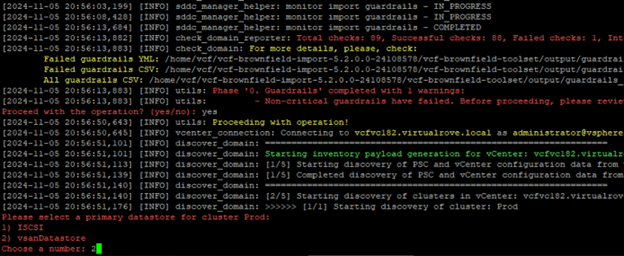
Final confirmation and the game begins,

Monitor the green parent tasks,

Populating inventory in SDDC,

Navigating to SDDC Manager URL,
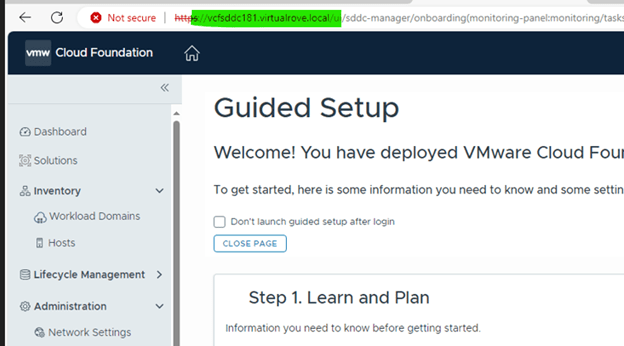
You will also notice a task in progress on SDDC Manager, ‘Initialize Imported Domain’

Click on the task to check details. It will help you to troubleshoot if something breaks,

Lets check the vCenter once all tasks have been completed. Notice that the vCenter inventory has a new resource pool.

Script shows completed on SDDC manager ssh session.

Review the SDDC UI,

“imported-vcf” that’s the name of the domain we had specified in the script,

Hosts,
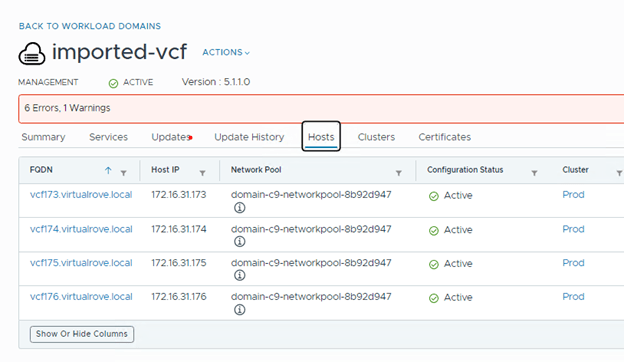
We have successfully converted our existing vSphere env into the VCF.
Next, You can plan on getting NSX configured in the management domain and then additional VI Workload Domains.
Before we finish, wanted to share some more reports (guardrails_report_vcf) from failed VCF validation.
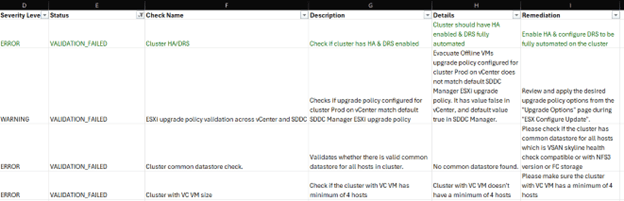

Well, that’s all I had for this post. Stay tuned for next couple of blogs on VCF.
Detailed information on available operation in python script can be found here,
When you are using the VCF Import Tool, certain guardrail messages may require you to perform a manual update to the SDDC Manager database. If you encounter any of these guardrail issues, modify the example commands to resolve the issues.
Thank You.
Are you looking out for a lab to practice VMware products…? If yes, then click here to know more about our Lab-as-a-Service (LaaS).
Leave your email address in the box below to receive notification on my new blogs.
 Welcome to VirtualRove.COM