If an Edge deployment fails in VMware Cloud Foundation (VCF) 9 because of incorrect input values or an incomplete configuration, you may need to clean up the partially created networking objects before you can try again. In this post, I walk through the cleanup process using the VCF 9.0.2 user interface and show which objects need to be removed from both NSX and vCenter.
In my case, the Edge deployment was started with incorrect values by mistake. That left behind partial configuration that prevented a clean redeployment. The goal of this cleanup is to remove all of the network objects associated with the failed deployment so the Network Connectivity workflow can be run again from the beginning.
I started the edge deployment and provided some wrong values by mistake. And now we have to delete it so that it can be redeployed using correct values.
In earlier VCF 5.x environments, this type of cleanup often required the Edge Cluster Deployment Removal Tool. In VCF 9.x with “External Connectivity” configured, most of the cleanup can be completed through the UI.
What the Failed Deployment Looks Like
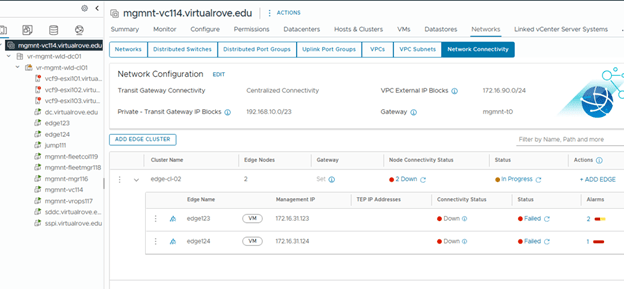
Below is an example of the failed Edge deployment as seen in the VCF workflow and in the NSX UI.
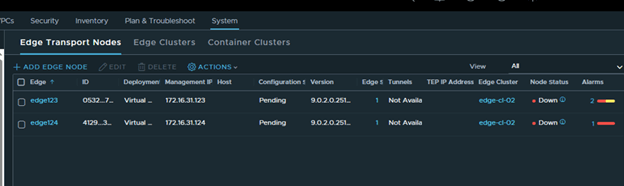
One of the most visible symptoms is that all interfaces on the Tier-0 gateway remain down, including all configured BGP neighbors. This confirms that the deployment did not complete cleanly and that the remaining objects need to be removed before retrying.
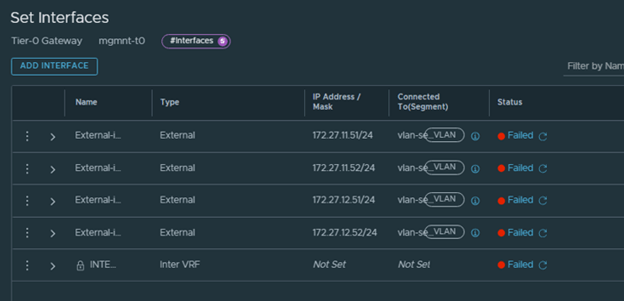
Step 1: Detach the External Connection from the Default Transit Gateway
Start by removing the external connection attached to the Default Transit Gateway. This is an important first step because the downstream objects cannot always be removed cleanly while that connection is still attached.
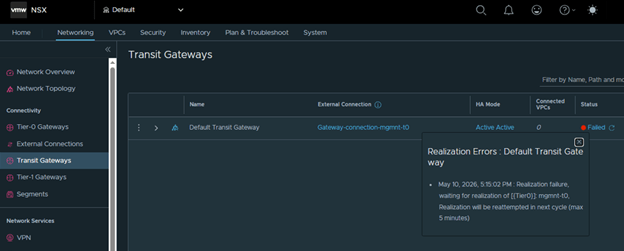
Open the gateway configuration, edit the connection settings, and remove the attached external connection.
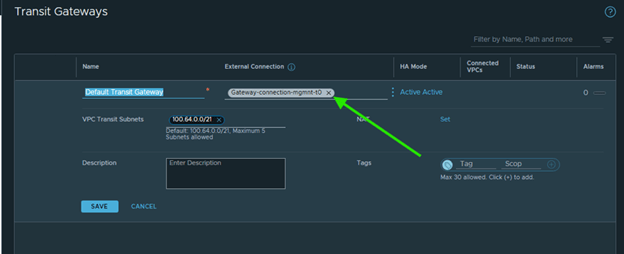
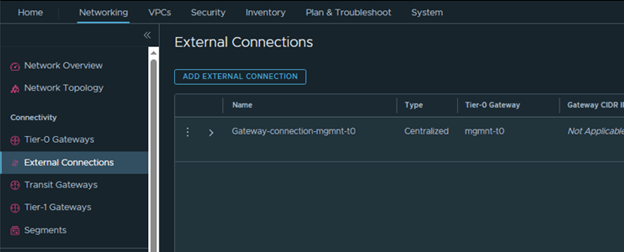
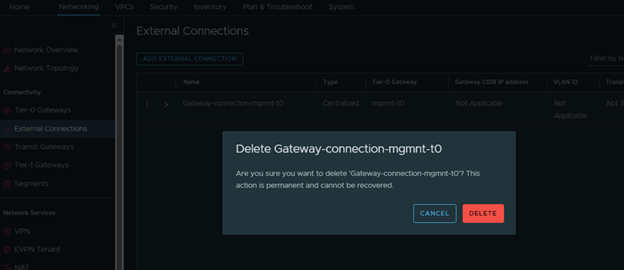
Save the change, then delete the external connection object itself so it does not remain orphaned in the environment.
Then delete the external connection.
Step 2: Delete the Auto-Created Tier-0 Gateway
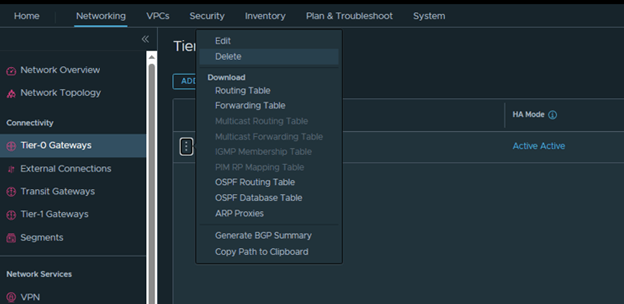
After the external connection has been removed, delete the default Tier-0 gateway that was created during the failed deployment. This clears the routing object and its associated configuration from NSX.
Step 3: Delete the Edge Cluster from vCenter
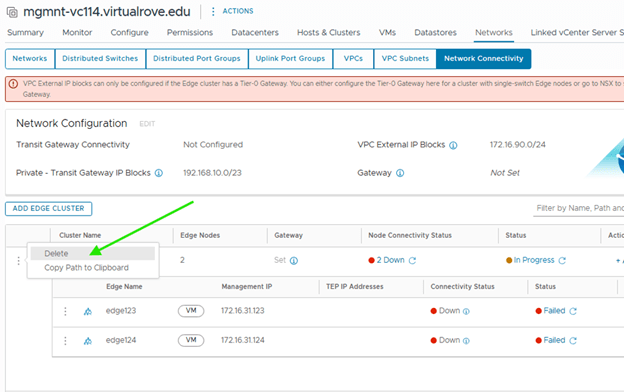
Next, remove the Edge cluster from the vCenter UI. This cleans up the cluster object from the infrastructure side, but the process is not fully complete yet.
Step 4: Manually Delete the Edge Nodes from NSX
Deleting the Edge cluster in vCenter does not remove the Edge nodes from NSX. To complete the cleanup, go to the NSX UI and manually delete the Edge nodes that were created during the failed deployment.
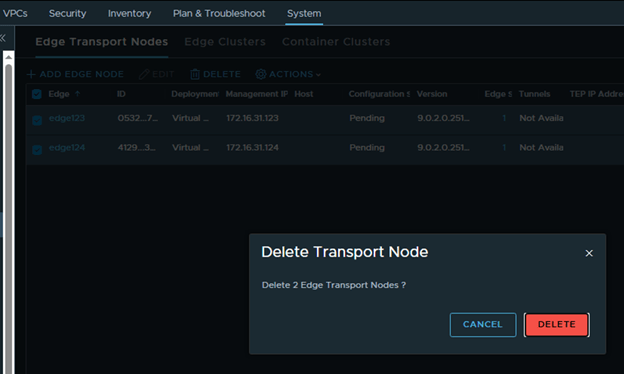
Step 5: Remove the Auto-Created Segments
Once the Edge nodes are gone, delete any NSX segments that were automatically created during the original configuration process. Leaving these behind can cause confusion or conflicts during the next deployment attempt.
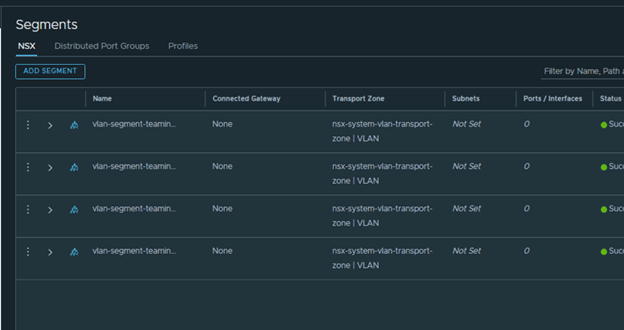
Step 6: Delete the Auto-Created Port Groups from vCenter
The last cleanup task is to remove any port groups that were automatically created in vCenter as part of the failed Edge deployment. This ensures the environment is fully reset before you run the workflow again.
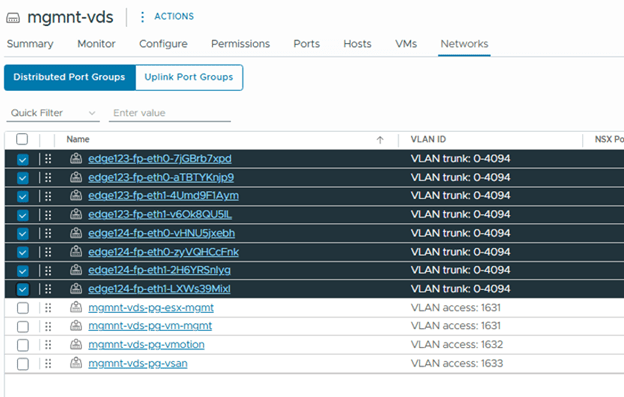
Conclusion
After these objects are removed, the environment should be clean enough to start the Network Connectivity configuration again from the beginning. If your failed Edge deployment left behind partial NSX and vCenter objects, this sequence provides a practical way to reset the environment and redeploy using the correct values.
Here are dome reference article which would be helpful when it comes to deleting failed edge clusters,
Unable to Edit the Management IP (IPv4) of an Edge node in VCF 9
VCF NSX-T Edge Cluster Deployment Removal Tool
That’s it for now. Hope the information is helpful. Thank You.
Are you looking out for compute resources (CPU / Memory / Storage) to practice VMware products…? If yes, then click here to know more about our Lab-as-a-Service (LaaS).

