How to Clean Up a Failed Edge Deployment in VCF 9 which has “External Connectivity” configured.

If an Edge deployment fails in VMware Cloud Foundation (VCF) 9 because of incorrect input values or an incomplete configuration, you may need to clean up the partially created networking objects before you can try again. In this post, I walk through the cleanup process using the VCF 9.0.2 user interface and show which objects need to be removed from both NSX and vCenter.

In my case, the Edge deployment was started with incorrect values by mistake. That left behind partial configuration that prevented a clean redeployment. The goal of this cleanup is to remove all of the network objects associated with the failed deployment so the Network Connectivity workflow can be run again from the beginning.

I started the edge deployment and provided some wrong values by mistake. And now we have to delete it so that it can be redeployed using correct values.

In earlier VCF 5.x environments, this type of cleanup often required the Edge Cluster Deployment Removal Tool. In VCF 9.x with “External Connectivity” configured, most of the cleanup can be completed through the UI.

What the Failed Deployment Looks Like

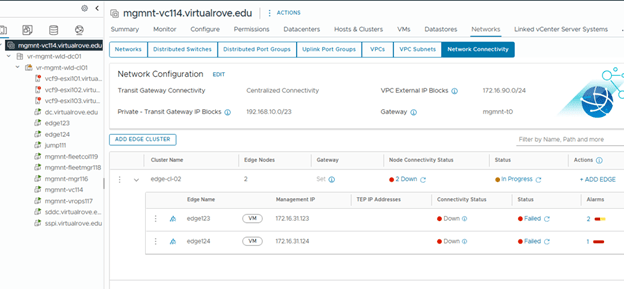
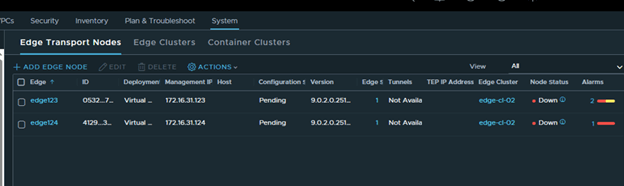
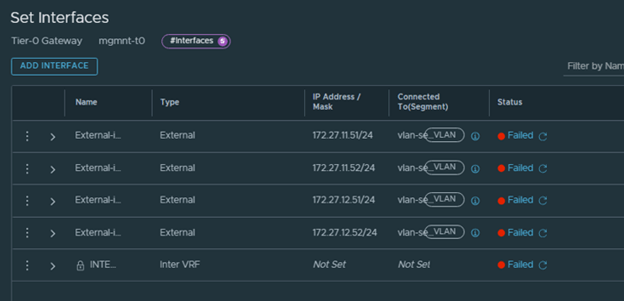
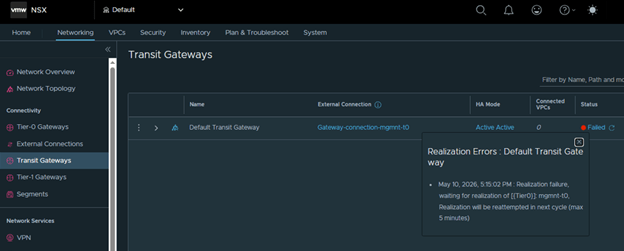
Below is an example of the failed Edge deployment as seen in the VCF workflow and in the NSX UI.

One of the most visible symptoms is that all interfaces on the Tier-0 gateway remain down, including all configured BGP neighbors. This confirms that the deployment did not complete cleanly and that the remaining objects need to be removed before retrying.

Step 1: Detach the External Connection from the Default Transit Gateway

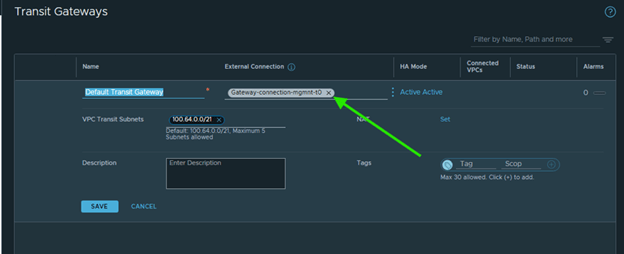
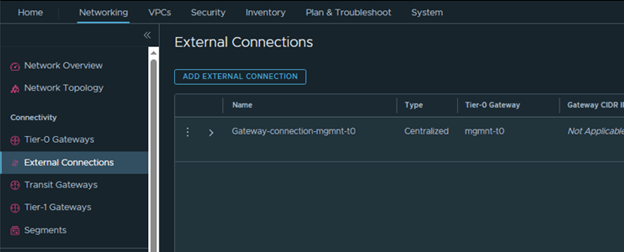
Start by removing the external connection attached to the Default Transit Gateway. This is an important first step because the downstream objects cannot always be removed cleanly while that connection is still attached.

Open the gateway configuration, edit the connection settings, and remove the attached external connection.

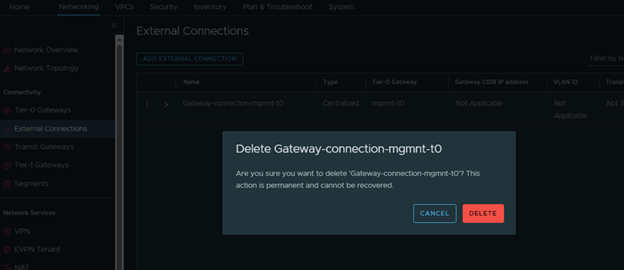
Save the change, then delete the external connection object itself so it does not remain orphaned in the environment.

Then delete the external connection.

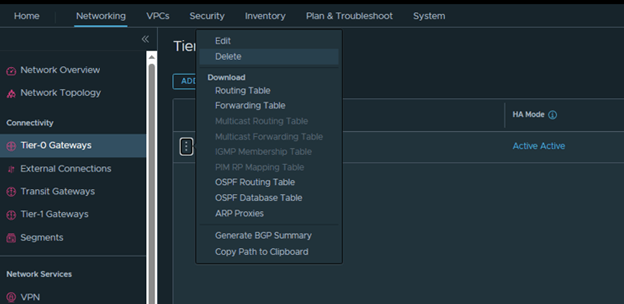
Step 2: Delete the Auto-Created Tier-0 Gateway

After the external connection has been removed, delete the default Tier-0 gateway that was created during the failed deployment. This clears the routing object and its associated configuration from NSX.

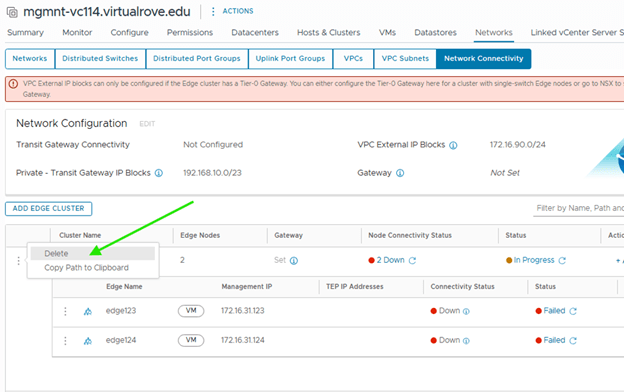
Step 3: Delete the Edge Cluster from vCenter

Next, remove the Edge cluster from the vCenter UI. This cleans up the cluster object from the infrastructure side, but the process is not fully complete yet.

Step 4: Manually Delete the Edge Nodes from NSX

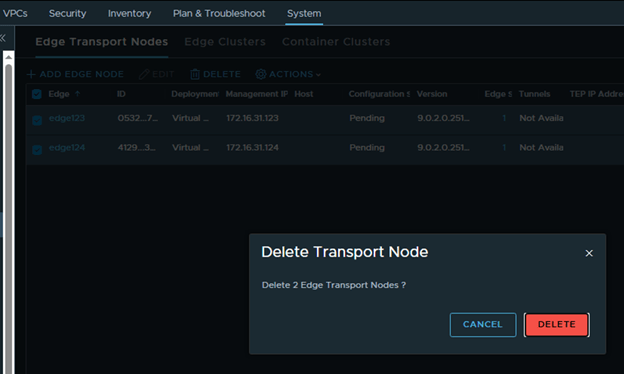
Deleting the Edge cluster in vCenter does not remove the Edge nodes from NSX. To complete the cleanup, go to the NSX UI and manually delete the Edge nodes that were created during the failed deployment.

Step 5: Remove the Auto-Created Segments

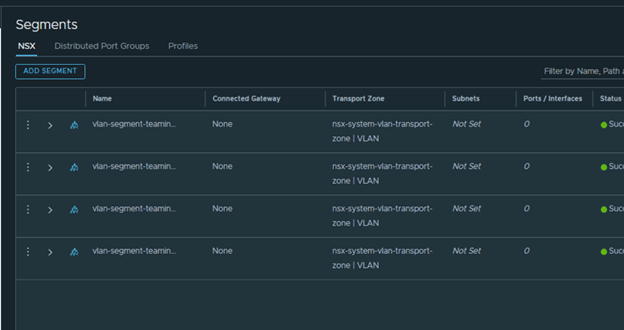
Once the Edge nodes are gone, delete any NSX segments that were automatically created during the original configuration process. Leaving these behind can cause confusion or conflicts during the next deployment attempt.

Step 6: Delete the Auto-Created Port Groups from vCenter

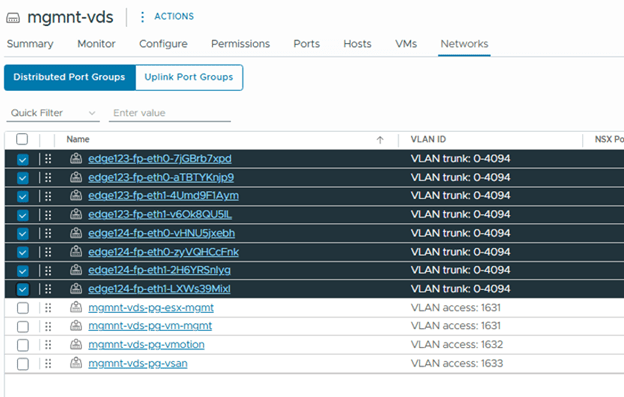
The last cleanup task is to remove any port groups that were automatically created in vCenter as part of the failed Edge deployment. This ensures the environment is fully reset before you run the workflow again.

Conclusion

After these objects are removed, the environment should be clean enough to start the Network Connectivity configuration again from the beginning. If your failed Edge deployment left behind partial NSX and vCenter objects, this sequence provides a practical way to reset the environment and redeploy using the correct values.

Here are dome reference article which would be helpful when it comes to deleting failed edge clusters,
Unable to Edit the Management IP (IPv4) of an Edge node in VCF 9
VCF NSX-T Edge Cluster Deployment Removal Tool

That’s it for now. Hope the information is helpful. Thank You.

Are you looking out for compute resources (CPU / Memory / Storage) to practice VMware products…? If yes, then click here to know more about our Lab-as-a-Service (LaaS).
VMware vCloud Foundation 9 – Licensing Part 1

VCF 9 adopts a streamlined, subscription-based licensing model that simplifies management and compliance:

  • Single license file replaces multiple component-specific keys (vCenter, ESXi, NSX, etc.)
  • Licenses are version-agnostic, eliminating version-based key mismatches
  • Managed centrally through VCF Operations and the VCF Business Services (VCFBS) portal
  • Designed for both connected mode (auto-reporting) and disconnected mode (manual uploads every 180 days)

Let’s dive deeper into it. I have freshly deployed VCF 9 environment.

After you deploy the env, it operates in evaluation mode for up to 90 days. During that period, you must license your environment.

Here are details for one of the esxi from the env,

As you can see, I have 2 physical sockets on this esxi and cores per socket are 4. That sums up to 8 CPU cores. However, when it comes to license calculation, it by default calculates 16 cores per socket even if I just have 4 cores per socket.

So, total number of licensed core on this esxi would be 32 cores.

I have 4 esxi hosts in this management workload domain cluster, so the total number of licensed cores would be (4*32) 128 cores.

Primary licenses apply only to ESXi hosts by count of physical CPU cores, with a 16-core minimum per CPU.

Moving to add-on license. This applies to vSAN Capacity in TiB’s. And the formula is, 1 TiB per licensed core. In my case, I will have 128 TiB allowed storage since I have 128 cores. For storage-heavy use cases, you need to purchase additional vSAN add-on capacity license.

Maintaining license compliance now includes periodic usage reporting:
Connected Mode (Internet Connection Required): VCF Operations sends usage data automatically each day; updates required every 180 days

Disconnected Mode (Dark Site): Manually download, upload, and activate new license files every 180 days

Failure to report can place hosts into expired status—preventing workloads until remedied. Basically, all hosts gets disconnected and you cannot start any vm. ☹

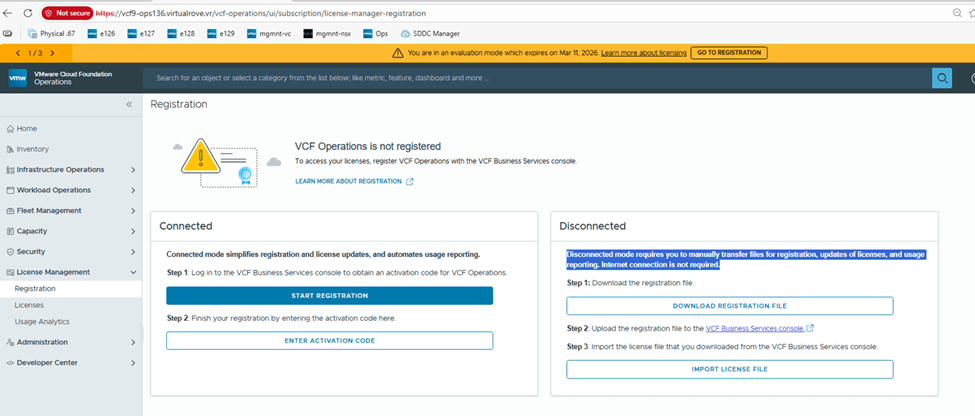
Let’s go to Ops> License Management> Registration

I will be demonstrating “Disconnected” mode for this blog.

On the vCenter, it shows evaluation mode,

Hosts show “Unlicensed”

NSX side,

That reminds me,

As per VMware Documentation, here

Starting with version 9.0, the licensing model is the same for VCF and vSphere Foundation. You assign licenses only to vCenter instances. The other product components, including ESXi hosts, that are connected to the licensed vCenter instances, are licensed automatically.

You no longer license individual components such as NSX, HCX, VCF Automation, and so on. Instead, for VCF and vSphere Foundation, you have a single license capacity provided for that product.

For example, when you purchase a subscription for VCF, with the license you receive and assign to a vCenter instance, all components connected to that vCenter instance are licensed automatically.

Back to “Registration”

Click on “Download Registration File”

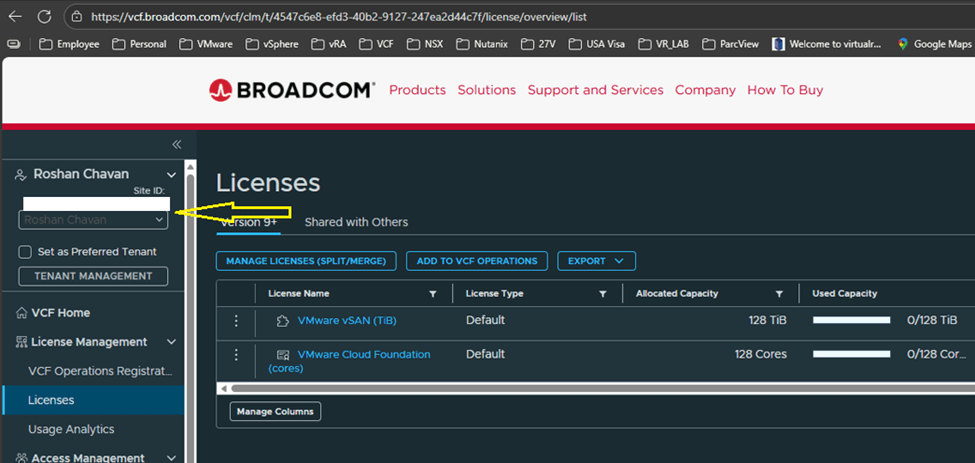
Login to https://vcf.broadcom.com with your credentials.

Switch the site ID and make sure it is correct one and click on License,

I have vmug licenses which are already showing up on the portal with my vmug entitlement.

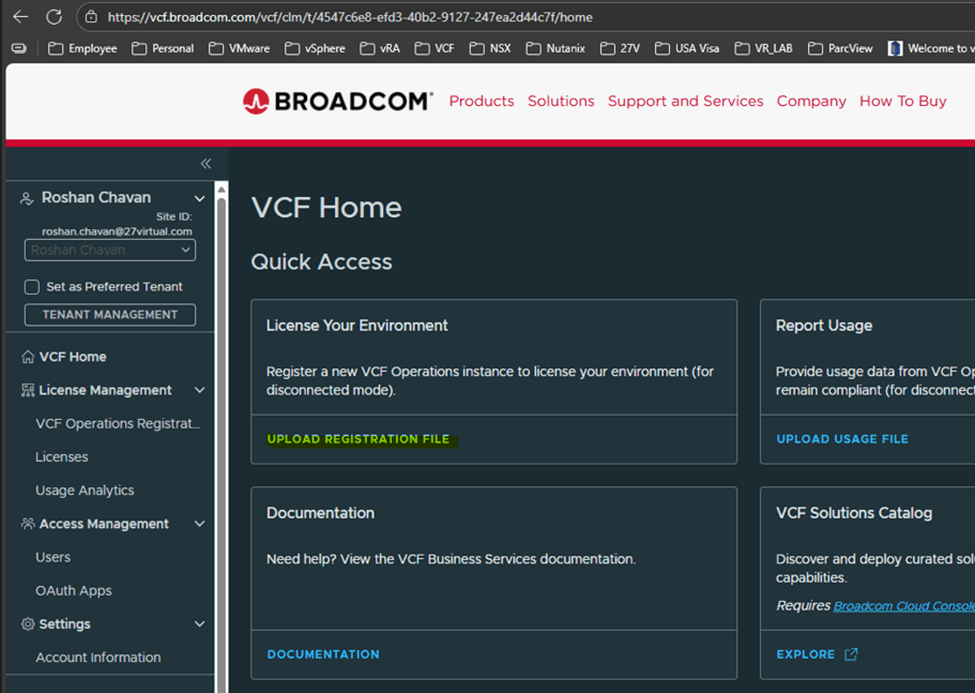
Back to VCF Home page on the portal, Click on “Upload registration file”

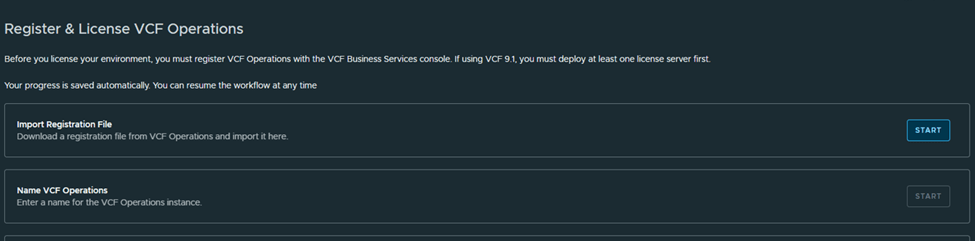
Upload the file that we downloaded earlier,

Next, Name the VCF Operations,

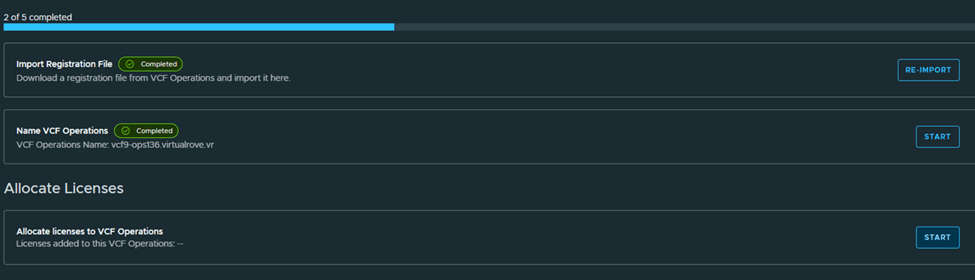
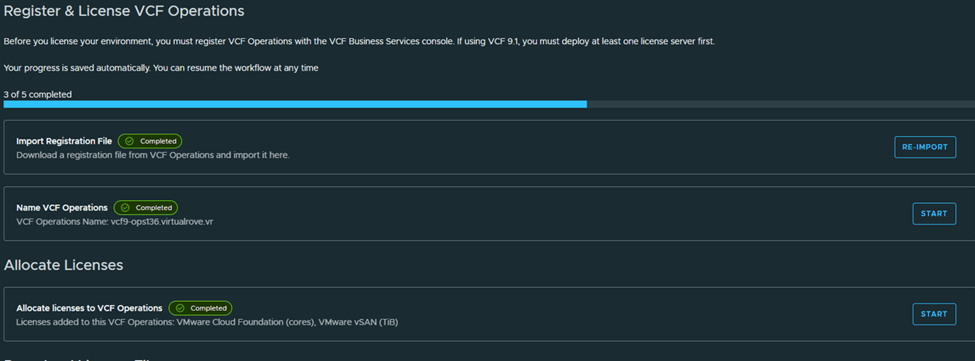
Next, Allocate licenses,

Next,
Download the generated licensed file and mark as completed,

We are done on this portal here,

Back to registration page shows this,

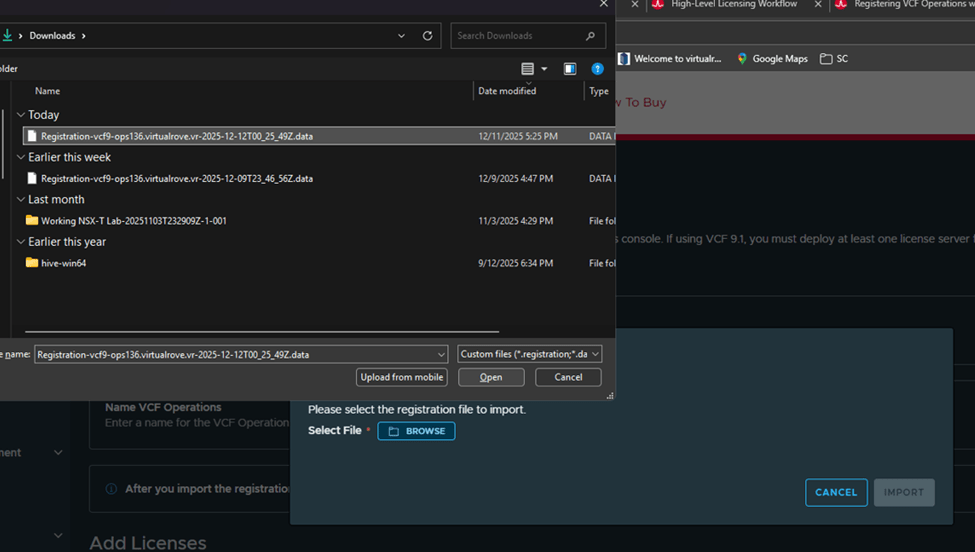
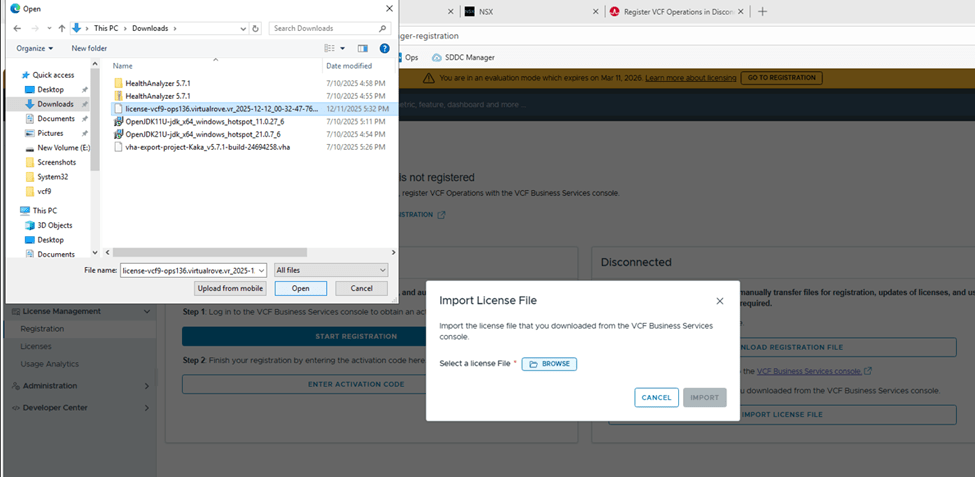
Let’s import the downloaded licensed file to our VCF operations in our environment,

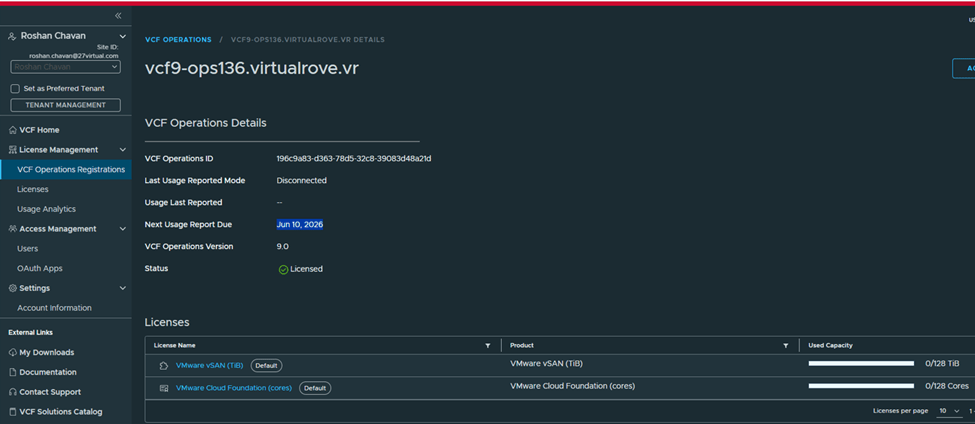
Once imported, VCF Operations shows registered,

Status: Licensed
Mode: Disconnected
Next usage date: You need to report license usage before this date, or else all hosts will be disconnected.
VCF Operations name: shows Operations instance

We have licensed our VCF Operations instance. That’s a wrap for today! Stay tuned for the next blog—where we will talk about applying those licenses to vCenter and VSAN.

Are you looking out for compute resources (CPU / Memory / Storage) to practice VMware products…? If yes, then click here to know more about our Lab-as-a-Service (LaaS).
VMware vCloud Foundation 9 – Online Depot Configuration

To manage the lifecycle of VCF fleet level Management components such as VCF Operations, VCF Operations for networks, VCF Operations for logs, VCF Automation & VCF Identity Broker, you need to use VCF Operations fleet management appliance.
And before you can perform any of these operations, VCF Operations needs to be configured either for Online or Offline depot. This is the place where all downloaded binaries will be stored, which allows you to install, upgrade or patch any of the above-mentioned components.

Let’s dive into the lab,
I have freshly installed VCF 9.0 env. Plan is to install further components in the lab,

VCF Operations> Fleet Management> Lifecycle

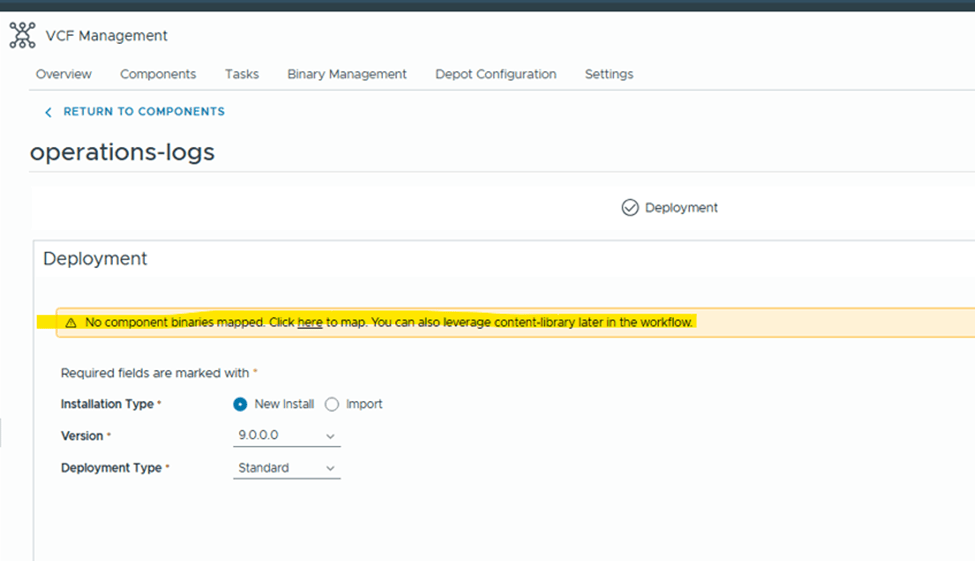
As you can see “MANAGE” option is only available for VCF Operations. And rest needs to be installed. If I click on ADD on any of those,

It says, NO component binaries mapped.
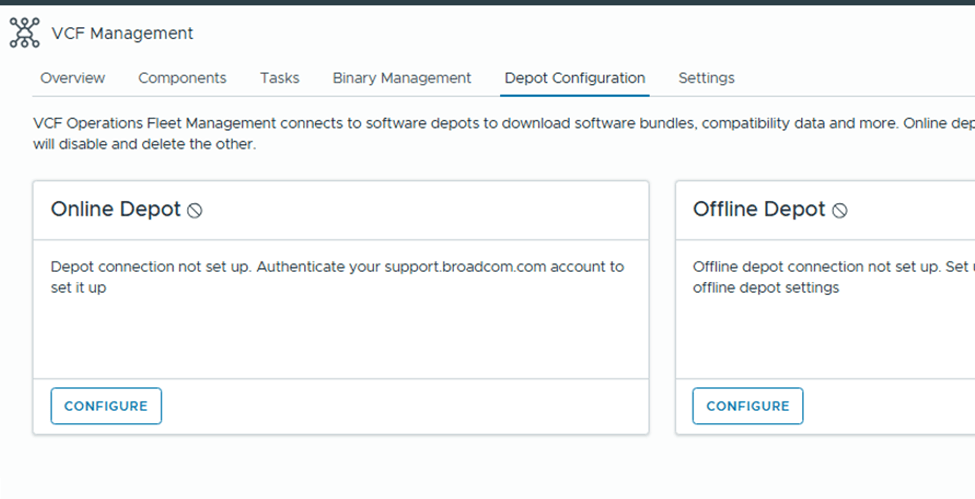
Under binaries management, Depot is not configured.

Under “Depot Config”, we have 2 options

Online Depot: Use this option if the appliance has internet connectivity and you have obtained download token from support.broadcom.com portal.

Offline Depot: This option requires you to setup either web server which has access to internet or local server where you would upload all binaries manually to.

For this example, I will be configuring “Online Depot”
Click on “Configure” under online depot,

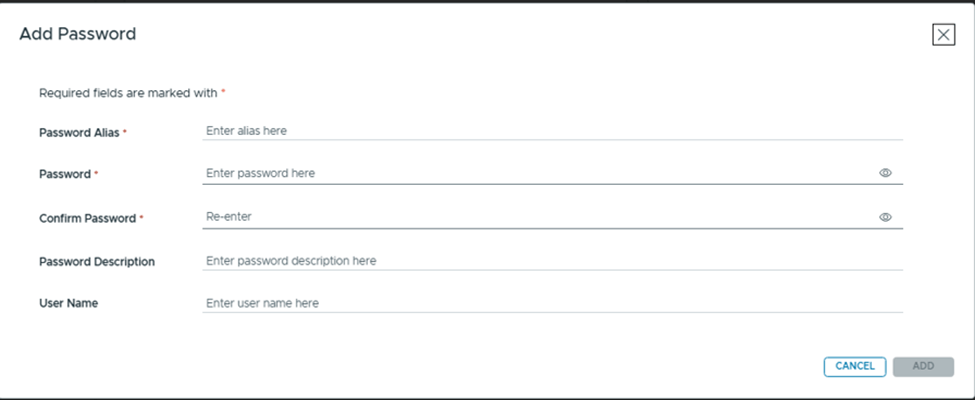
Click on the + sign on the right side,

Password Alias: Any friendly name.
Password: Paste the token from Broadcom portal. (will explain later in this article on how to generate one)
Confirm Password: Paste the same token again.
Rest two are option fields.

Select the “Download Token” that we just created,

Accept the certificate and OK.

Online depot is now active.

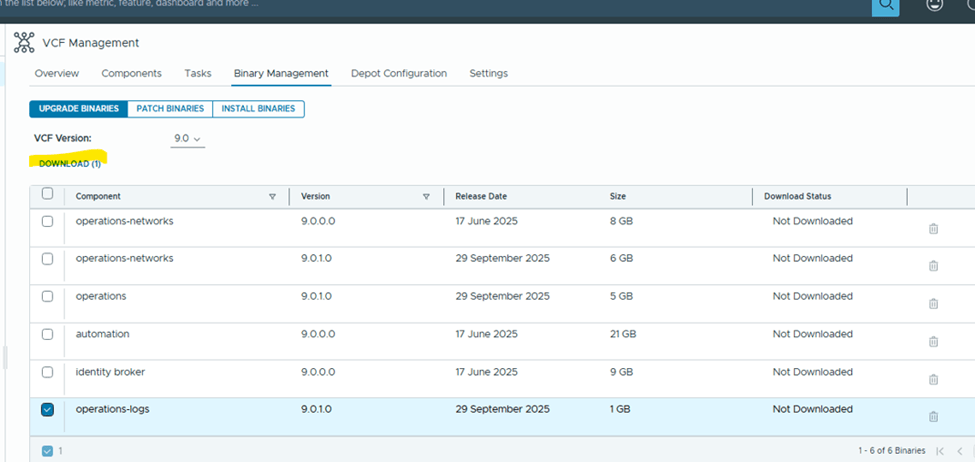
You would see all available products to download binaries for,

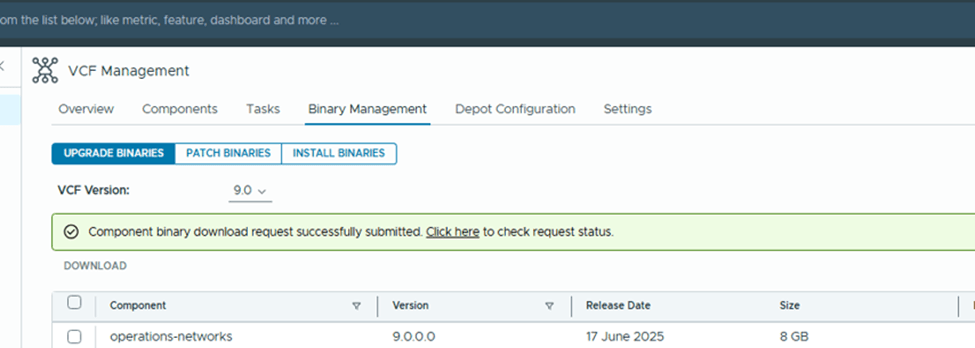
I selected “operations-logs” for testing and downloaded it,

You can monitor the status of the download under Tasks,

That’s it. You are good to download rest of the products.

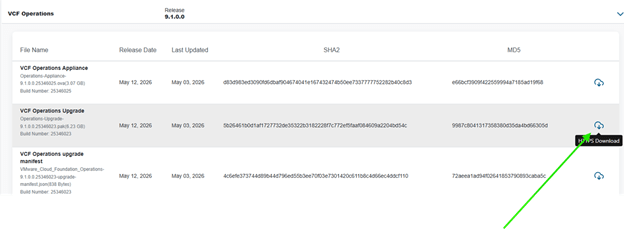
To download the “Download Token”, login to https://support.broadcom.com

Select VCF from top right corner,

Scroll down to “Quick Links”

Click on “Generate Download Token”. Select your Site ID and Generate Token.
Note: You need to have proper permissions to access the site.

Check the official documentation here for any additional information,
Lifecycle Management of VCF Management Components

Hope that was helpful information. Keep learning.

Are you looking out for a lab to practice VMware products…? If yes, then click here to know more about our Lab-as-a-Service (LaaS).
VMware VCF – Delete failed tasks from SDDC Manager

VMware Cloud Foundation (VCF), deleting failed tasks is often necessary to avoid clutter in the SDDC Manager UI and free up resources. Failed tasks can also block further operations, especially credential rotation tasks. 

Deleting failed tasks can help maintain a clean and organized SDDC Manager UI, making it easier to track ongoing and successful operations. Failed tasks can consume resources, potentially leading to performance issues or conflicts with other ongoing processes. Some failed tasks, like credential rotation failures, can block further credential operations until they are resolved or removed. 

Deleting failed tasks is one of the prerequisites for rotating passwords via SDDC manager.

Let’s get into SDDC manager check failed tasks and delete them. This is typically done by using the SDDC Manager API or, if necessary, through manual SSH commands. 

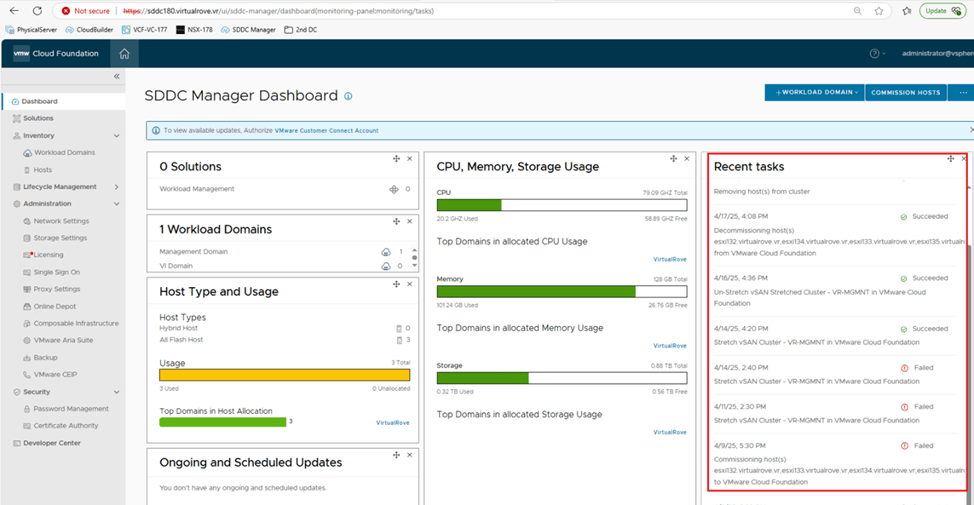
I see couple of failed tasks here on the dashboard of SDDC Manager. You can also find list of all tasks at the bottom here,

Click on the hyperlink of the task name,

Copy the task ID from the browser link,

SSH to SDDC manager using VCF account and switch to root user,

Command to delete the task is,

curl -X DELETE http://localhost/tasks/registrations/95b9cdb2-f77c-4714-90af-3441c8c466b7

The highlighted part in the command is the task id. Replace it with the task id that we obtained from the browser URL,

curl -X DELETE http://localhost/tasks/registrations/cc459fab-33eb-4620-b5d8-876ddb3e8e24

Repeat the process for remaining failed tasks,

All failed tasks have been deleted from the SDDC tasks,

You should be good to perform password rotation or any other tasks that getting prevented due to failed tasks in the SDDC manager.

Are you looking out for a lab to practice VMware products…? If yes, then click here to know more about our Lab-as-a-Service (LaaS).
Leave your email address in the box below to receive notification on my new blogs.