We talked about registering VCF Operations on the Broadcom Portal and applying licenses to VCF Operations. Let’s continue and apply new licenses to vCenter and VSAN.
Click on Licenses> Assign Primary License
Select the VCF license and assign,
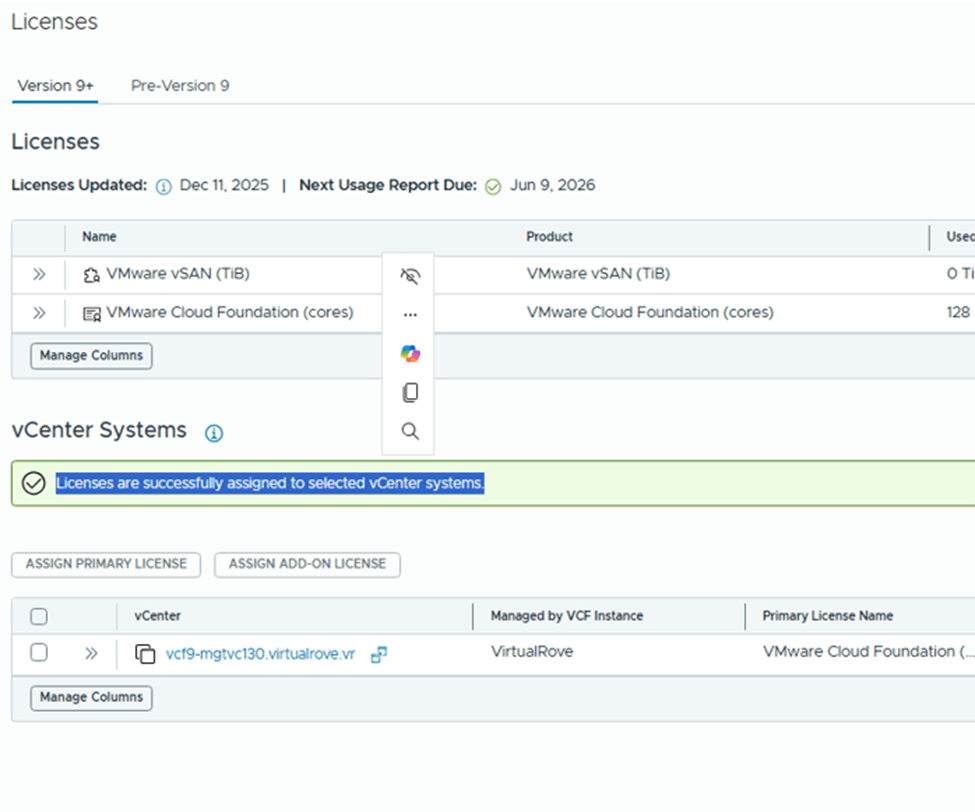
vCenter is fully licensed,
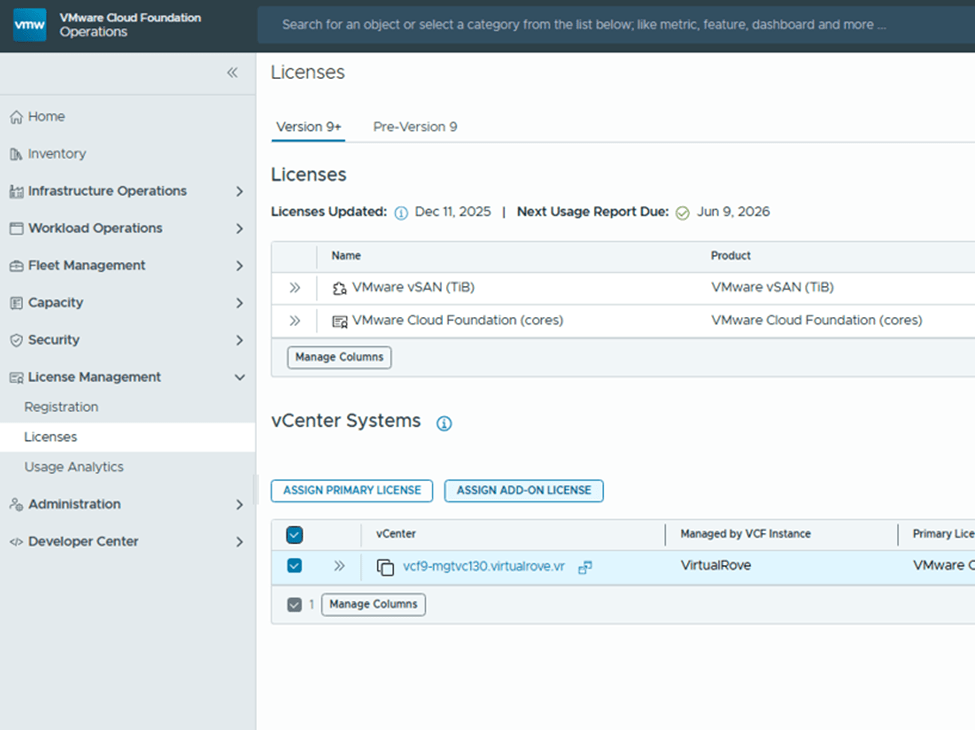
Back to licenses, Select vCenter and click on “Add-on license”
Select VSAN license and assign,
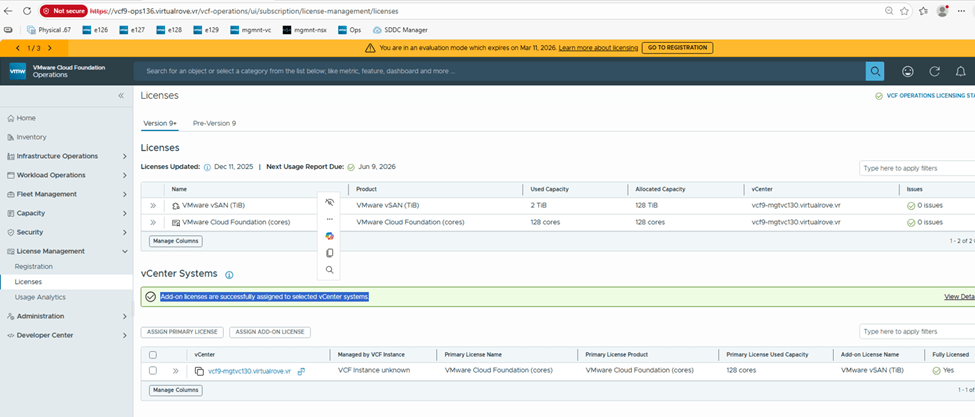
Add-on license applied successfully and vCenter is fully licensed,
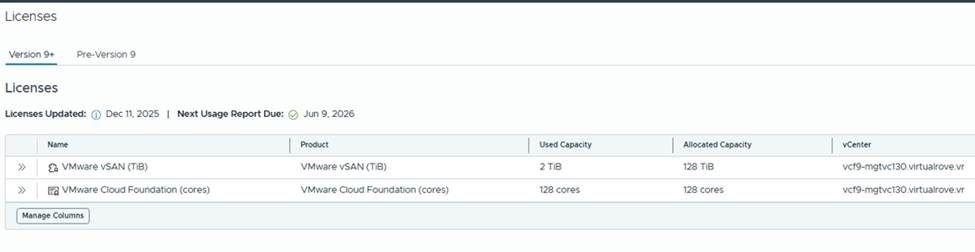
Check the “Used Capacity” in license section,
vCenter shows fully licensed,
Here is the link for official documentation on VCF 9 licensing,
That’s it for this post. We have licensed entire VCF 9 environment. Please refer to official documentation & make sure to update license usage every 180 days. 😊
Licenses are version-agnostic, eliminating version-based key mismatches
Managed centrally through VCF Operations and the VCF Business Services (VCFBS) portal
Designed for both connected mode (auto-reporting) and disconnected mode (manual uploads every 180 days)
Let’s dive deeper into it. I have freshly deployed VCF 9 environment.
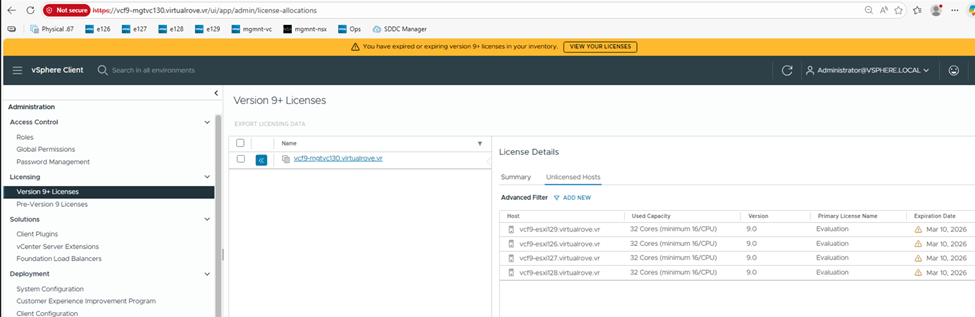
After you deploy the env, it operates in evaluation mode for up to 90 days. During that period, you must license your environment.
Here are details for one of the esxi from the env,
As you can see, I have 2 physical sockets on this esxi and cores per socket are 4. That sums up to 8 CPU cores. However, when it comes to license calculation, it by default calculates 16 cores per socket even if I just have 4 cores per socket.
So, total number of licensed core on this esxi would be 32 cores.
I have 4 esxi hosts in this management workload domain cluster, so the total number of licensed cores would be (4*32) 128 cores.
Primary licenses apply only to ESXi hosts by count of physical CPU cores, with a 16-core minimum per CPU.
Moving to add-on license. This applies to vSAN Capacity in TiB’s. And the formula is, 1 TiB per licensed core. In my case, I will have 128 TiB allowed storage since I have 128 cores. For storage-heavy use cases, you need to purchase additional vSAN add-on capacity license.
Maintaining license compliance now includes periodic usage reporting: Connected Mode (Internet Connection Required): VCF Operations sends usage data automatically each day; updates required every 180 days
Disconnected Mode (Dark Site): Manually download, upload, and activate new license files every 180 days
Failure to report can place hosts into expired status—preventing workloads until remedied. Basically, all hosts gets disconnected and you cannot start any vm. ☹
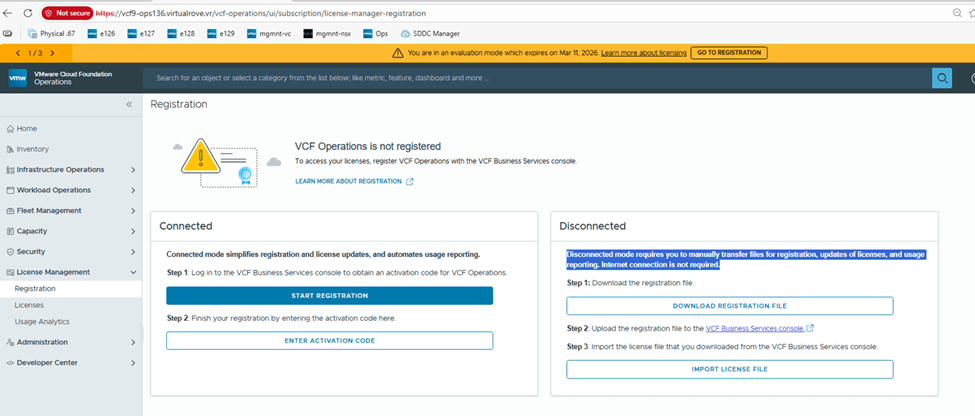
Let’s go to Ops> License Management> Registration
I will be demonstrating “Disconnected” mode for this blog.
Starting with version 9.0, the licensing model is the same for VCF and vSphere Foundation. You assign licenses only to vCenter instances. The other product components, including ESXi hosts, that are connected to the licensed vCenter instances, are licensed automatically.
You no longer license individual components such as NSX, HCX, VCF Automation, and so on. Instead, for VCF and vSphere Foundation, you have a single license capacity provided for that product.
For example, when you purchase a subscription for VCF, with the license you receive and assign to a vCenter instance, all components connected to that vCenter instance are licensed automatically.
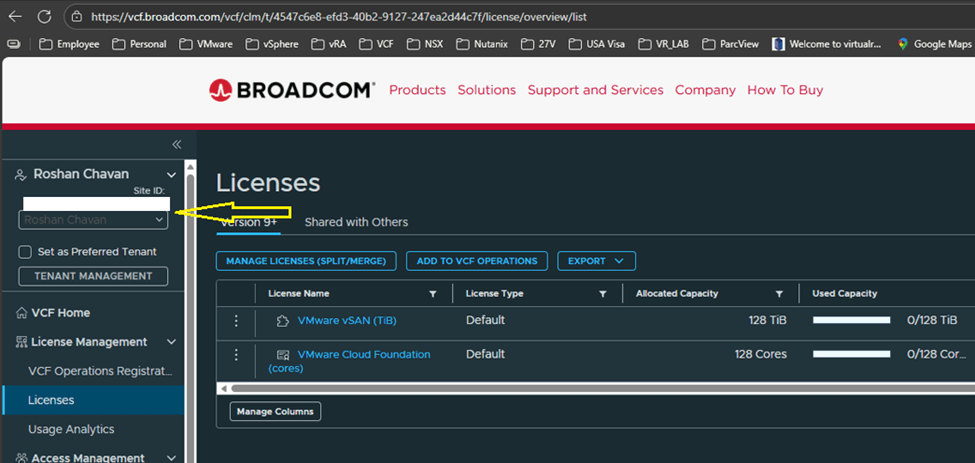
Switch the site ID and make sure it is correct one and click on License,
I have vmug licenses which are already showing up on the portal with my vmug entitlement.
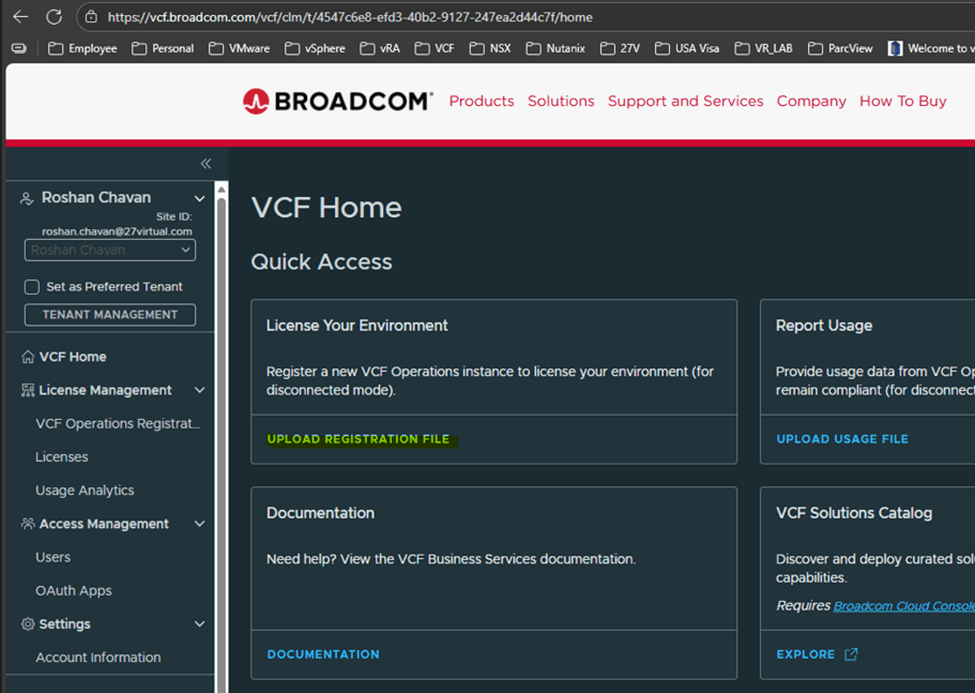
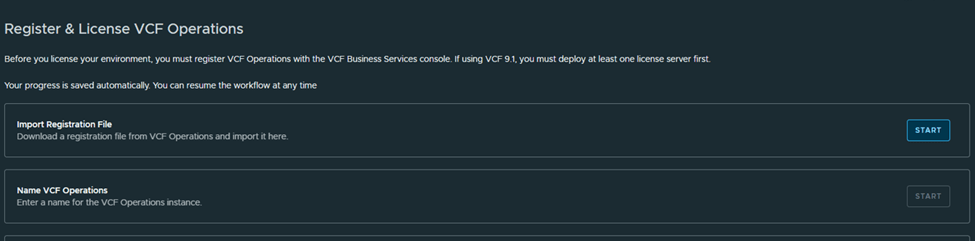
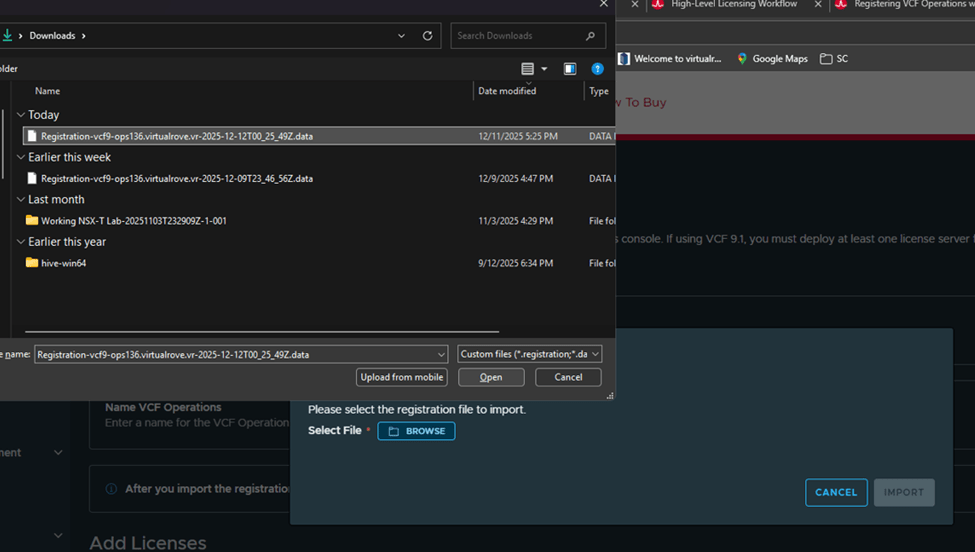
Back to VCF Home page on the portal, Click on “Upload registration file”
Upload the file that we downloaded earlier,
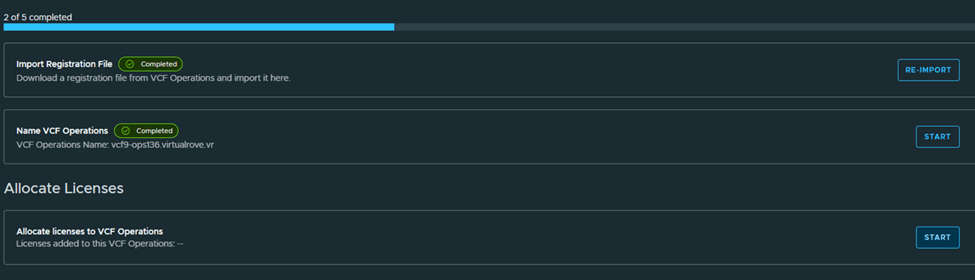
Next, Name the VCF Operations,
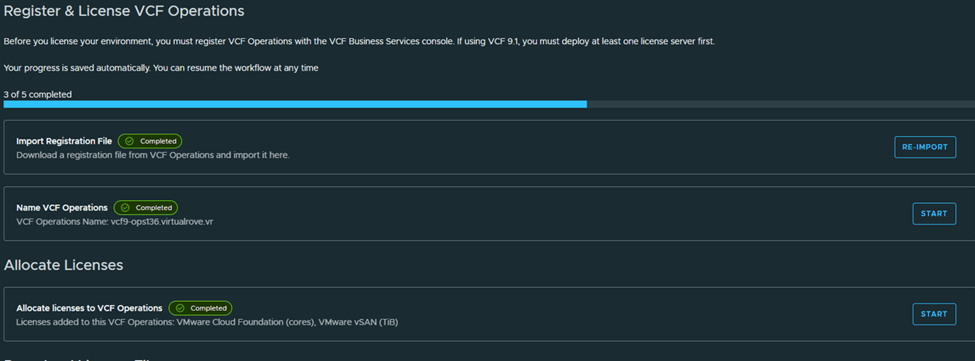
Next, Allocate licenses,
Next, Download the generated licensed file and mark as completed,
We are done on this portal here,
Back to registration page shows this,
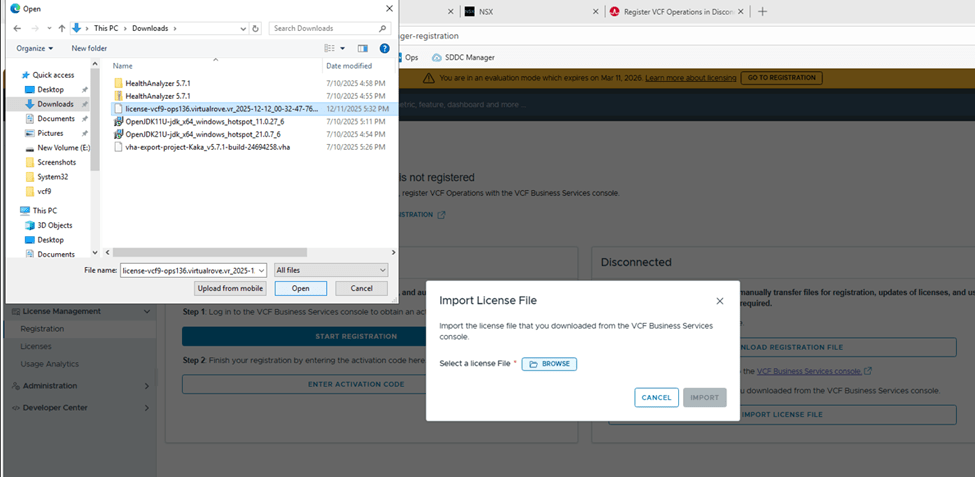
Let’s import the downloaded licensed file to our VCF operations in our environment,
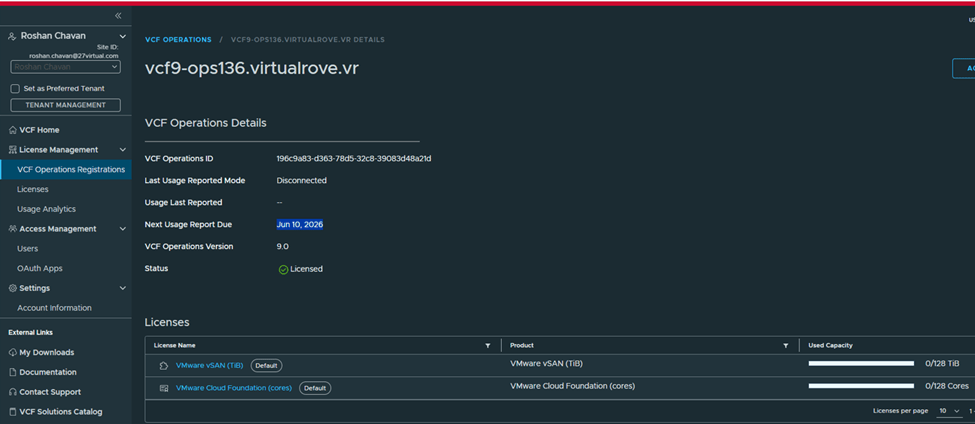
Once imported, VCF Operations shows registered,
Status: Licensed Mode: Disconnected Next usage date: You need to report license usage before this date, or else all hosts will be disconnected. VCF Operations name: shows Operations instance
We have licensed our VCF Operations instance. That’s a wrap for today! Stay tuned for the next blog—where we will talk about applying those licenses to vCenter and VSAN.
To manage the lifecycle of VCF fleet level Management components such as VCF Operations, VCF Operations for networks, VCF Operations for logs, VCF Automation & VCF Identity Broker, you need to use VCF Operations fleet management appliance. And before you can perform any of these operations, VCF Operations needs to be configured either for Online or Offline depot. This is the place where all downloaded binaries will be stored, which allows you to install, upgrade or patch any of the above-mentioned components.
Let’s dive into the lab, I have freshly installed VCF 9.0 env. Plan is to install further components in the lab,
VCF Operations> Fleet Management> Lifecycle
As you can see “MANAGE” option is only available for VCF Operations. And rest needs to be installed. If I click on ADD on any of those,
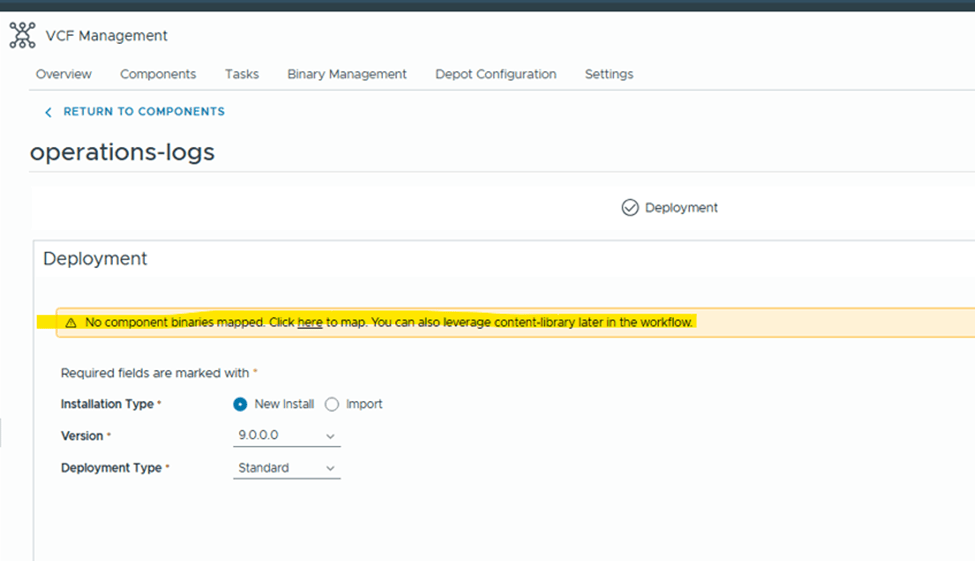
It says, NO component binaries mapped. Under binaries management, Depot is not configured.
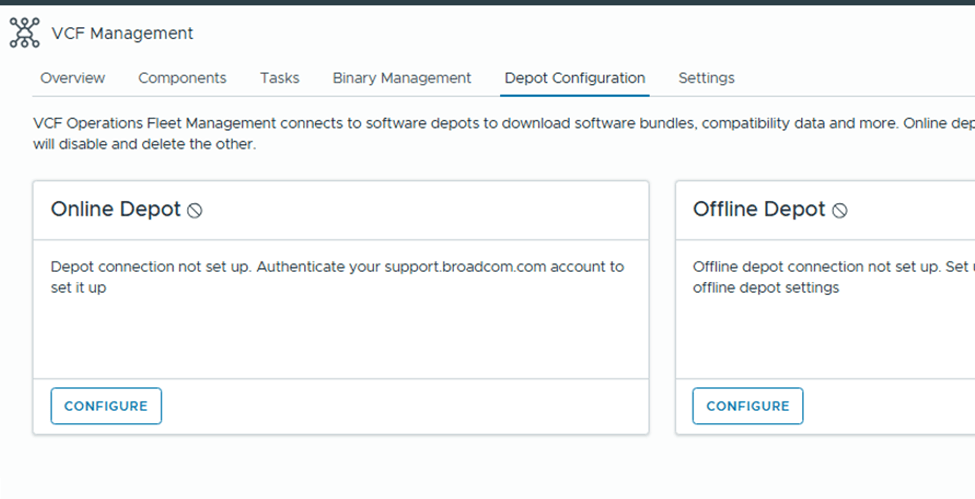
Under “Depot Config”, we have 2 options
Online Depot: Use this option if the appliance has internet connectivity and you have obtained download token from support.broadcom.com portal.
Offline Depot: This option requires you to setup either web server which has access to internet or local server where you would upload all binaries manually to.
For this example, I will be configuring “Online Depot” Click on “Configure” under online depot,
Click on the + sign on the right side,
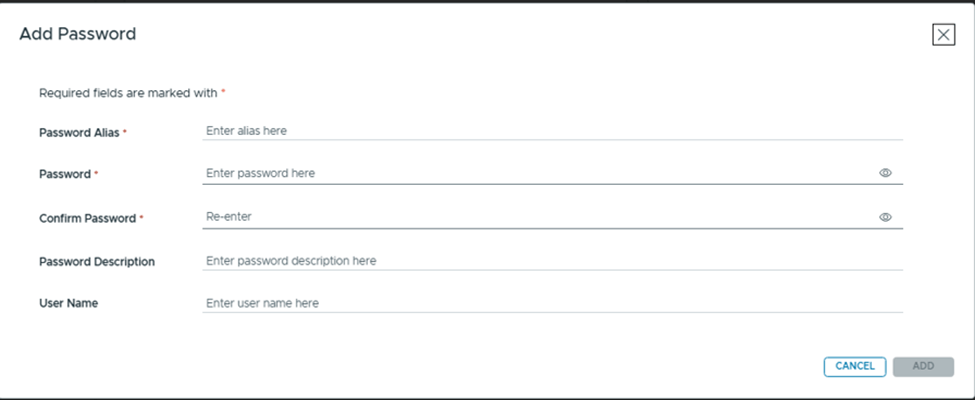
Password Alias: Any friendly name. Password: Paste the token from Broadcom portal. (will explain later in this article on how to generate one) Confirm Password: Paste the same token again. Rest two are option fields.
Select the “Download Token” that we just created,
Accept the certificate and OK.
Online depot is now active.
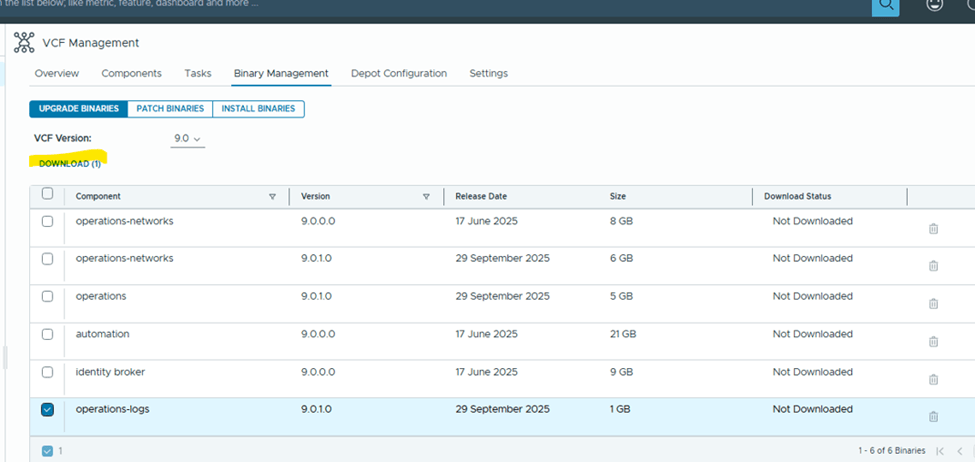
You would see all available products to download binaries for,
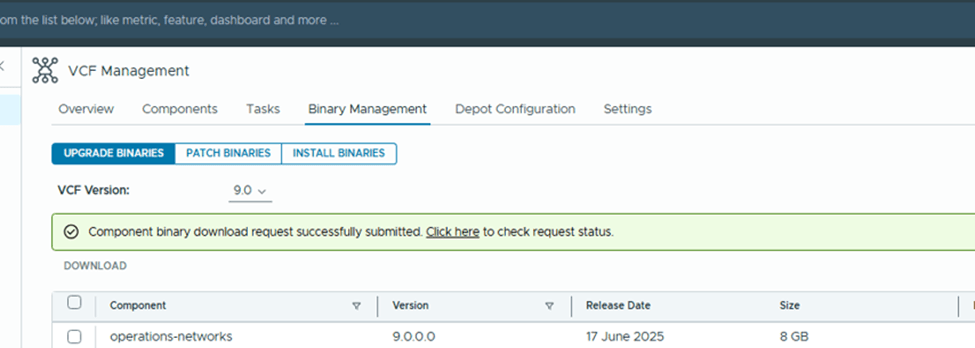
I selected “operations-logs” for testing and downloaded it,
You can monitor the status of the download under Tasks,
That’s it. You are good to download rest of the products.
VMware Cloud Foundation (VCF), deleting failed tasks is often necessary to avoid clutter in the SDDC Manager UI and free up resources. Failed tasks can also block further operations, especially credential rotation tasks.
Deleting failed tasks can help maintain a clean and organized SDDC Manager UI, making it easier to track ongoing and successful operations. Failed tasks can consume resources, potentially leading to performance issues or conflicts with other ongoing processes. Some failed tasks, like credential rotation failures, can block further credential operations until they are resolved or removed.
Deleting failed tasks is one of the prerequisites for rotating passwords via SDDC manager.
Let’s get into SDDC manager check failed tasks and delete them. This is typically done by using the SDDC Manager API or, if necessary, through manual SSH commands.
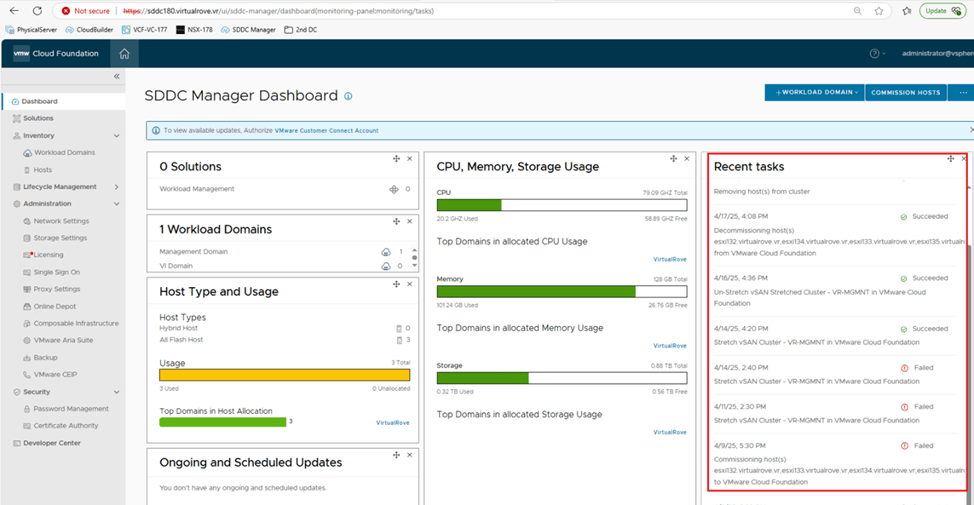
I see couple of failed tasks here on the dashboard of SDDC Manager. You can also find list of all tasks at the bottom here,
Click on the hyperlink of the task name,
Copy the task ID from the browser link,
SSH to SDDC manager using VCF account and switch to root user,
In our last blog post, we added a host to the workload domain. Let’s deploy an edge cluster.
By default, VCF bring-up process configures / prepares the NSX env for VLAN backed segment and it does not include edges / edge cluster. You must deploy and edge cluster for software define routing and network services.
Lets get some pre-requisites in place before we start, We need couple of vlans configured on TOR to achieve an overlay networking, Host Overlay Vlan – Host TEP Edge Overlay Vlan – Edge TEP 2 Edge Uplink Vlans – To pair it with TOR for redundancy purposes.
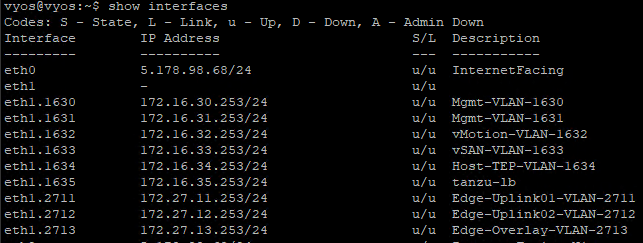
Following is vlan configuration on TOR,
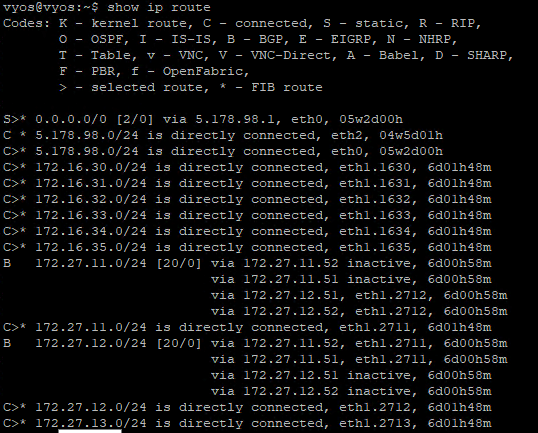
Lets verify it on TOR,
Next,
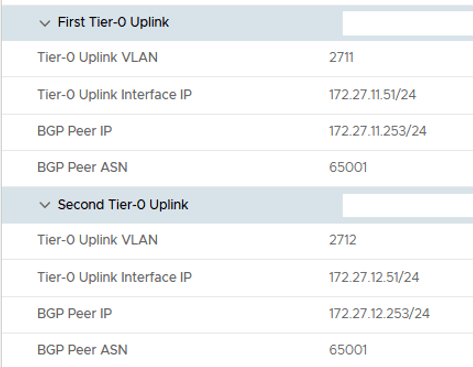
Prepare the deployment parameters in an excel sheet,
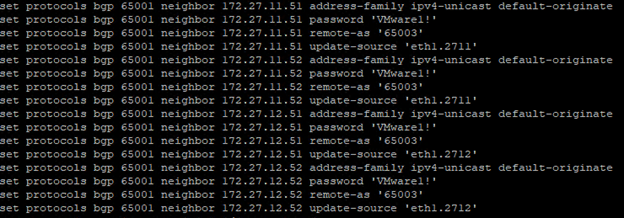
Next, Configure BGP on TOR,
Make sure to create a DNS record for edges and start the deployment,
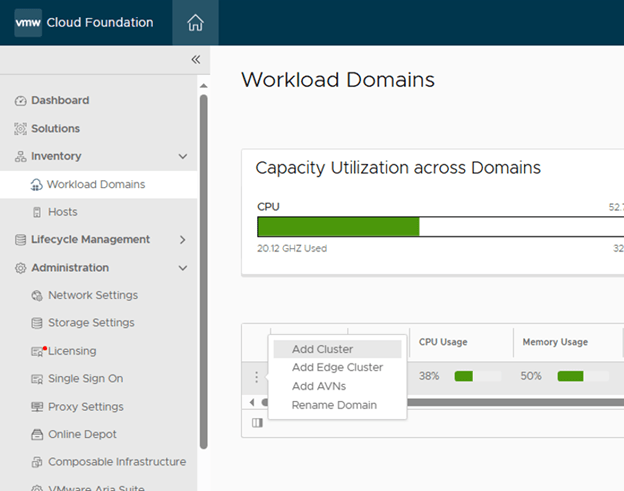
SDDC Manager > Workload Domains> Click on 3 dots besides the name and “Add Edge Cluster”
Check all Pre-requisites again and Begin,
Fill all the required details from parameters sheet that we created,
Additional cluster settings,
Kubernetes – Workload Management to create an NSX Edge cluster that complies with the requirements for deploying vSphere with Tanzu.
Application Virtual Networks to create an NSX Edge cluster that complies with the requirements deploying vRealize Suite components.
Custom if you want an NSX Edge cluster with a specific form factor or Tier-0 service high availability setting.
I have selected AVN here. You can select as per your use case.
Then the edge node settings, Type each edge node information and click “ADD EDGE NODE”at the end.
Verify the information on next page,
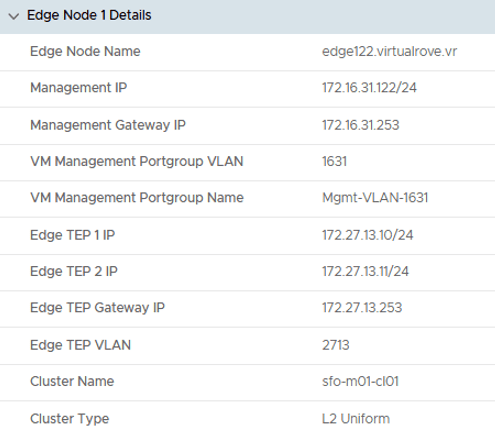
Node 1 details,
Node 1, Uplink details,
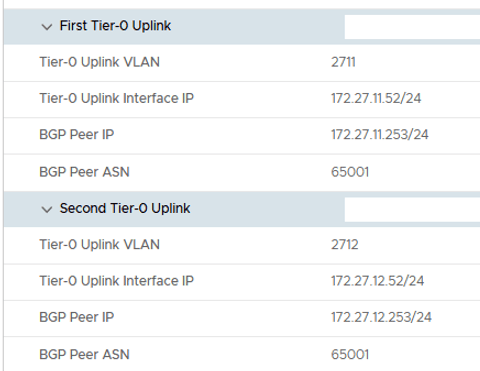
Node 2 details,
Node 2, Uplink details,
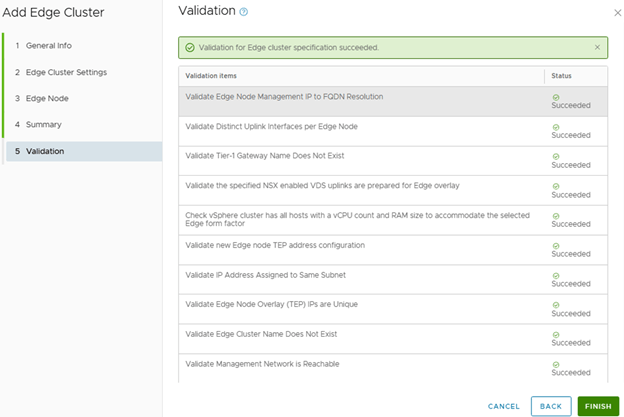
Review and fix any issues reported by validation and Finish,
Monitor the “Adding edge cluster vr-edge-cluster-01” in SDDC task details,
Task is successful and we see the edge cluster in SDDC UI,
On a high level, this workflow configures following…
Created 2 uplink port groups on vCenter VDS,
Two edges have been deployed,
Edge Cluster is created,
Transport Zone for edge vlan have been created,
Edge uplink profile have been created,
Both nodes have all these settings configured,
Active-Active Tier-0 gateway has been deployed,
VLAN Backed uplink segments has been deployed to use it in interfaces configuration,
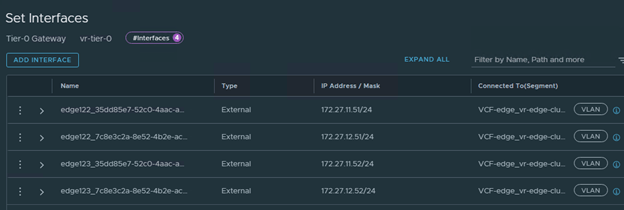
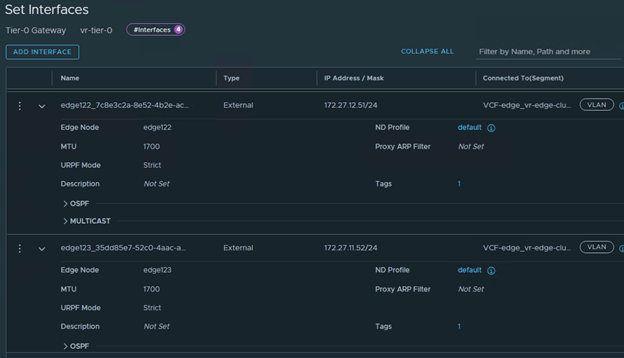
All interfaces looks good,
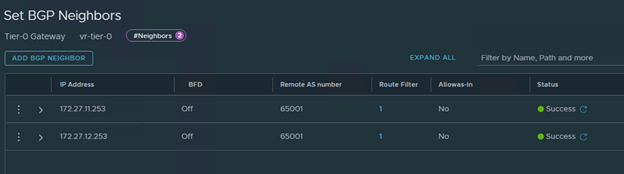
BGP is tuned on and 2 Neighbors configured,
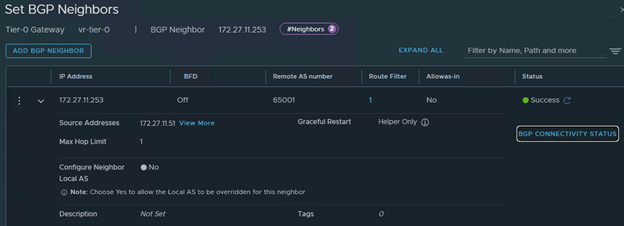
Check the BGP Connectivity status, Shows Established for both edges,
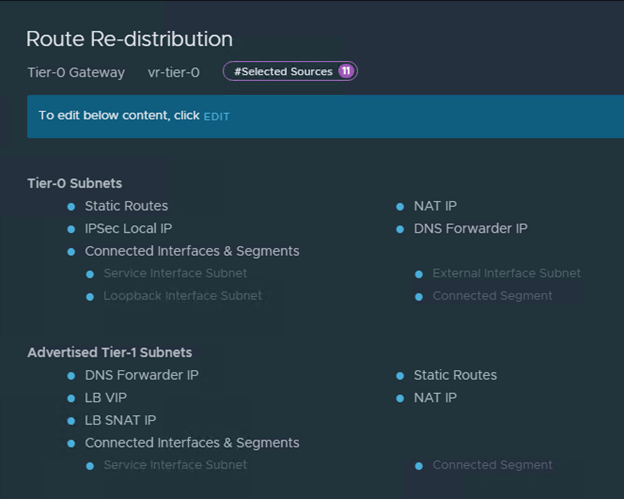
Route-Redistribution is in place,
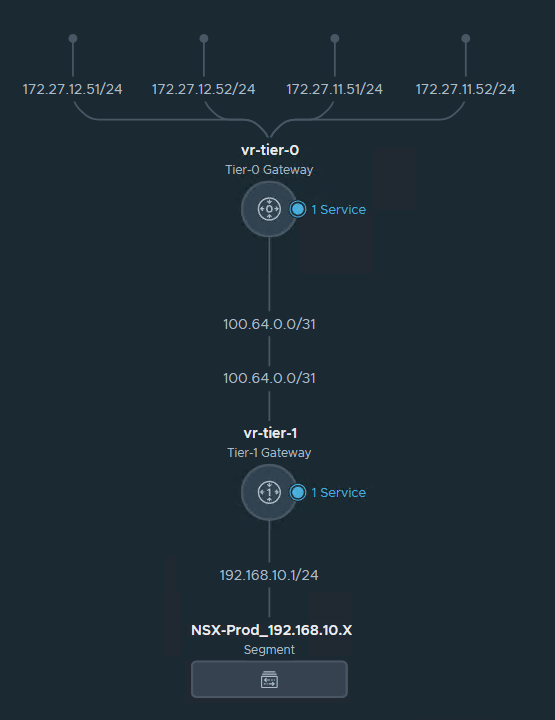
And it has also deployed a Tier-1 gateway and connected to T-0,
Wow, everything looks good. Lets check the BGP routes on the TOR,
All 4 BGP Neighbors shows up on the TOR,
BGP Routes looks good,
Nice.
Let’s create a test segment with 192.168.X.X CIDR and check if it appears in BGP route on TOR,
New segment has been created,
And we see the new route on TOR,
Here is how my network topology looks in NSX,
Hurray…!!!
All looks good. We are good to attach new VM’s to this overlay backed segment and it would get the connectivity to rest of the world.
Let’s get started with some documentation around adding / commissioning new host in an existing workload domain.
Add a Host to a vSphere Cluster Using the SDDC Manager UI
Verify that a host is available in the SDDC Manager inventory. For information on commissioning hosts, see Commission Hosts.
Commission Hosts
Hosts that use vSAN storage can only be used with vSAN-based workload domains.
Hosts that use NFS storage can only be used with NFS-based workload domains.
Hosts that use VMFS on FC storage can only be used with VMFS on FC-based workload domains.
Hosts that use vVols storage can only be used with vVols-based workload domains.
Ensure that a network pool supports the storage type you select for a host (vSAN, NFS, VMFS on FC, vVols).
Commissioning a host adds it to the VMware Cloud Foundation inventory. The host you want to commission must meet the checklist criterion below.
Ensure that each host you are commissioning meets the following criteria:
Hosts for vSAN-based workload domains are vSAN-compliant and certified on the VMware Hardware Compatibility Guide.
Hosts for NFS-based workload domains are certified on the VMware Hardware Compatibility Guide.
Hosts for VMFS on FC-based workload domains are certified on the VMware Compatibility Guide. In addition, the hosts must have supported FC cards (Host Bus Adapters) and drivers installed and configured. For compatible FC cards, see the VMware Compatibility Guide.
Hosts for vVols-based workload domains are certified on the VMware Hardware Compatibility Guide.
For vVols on FC-based workload domains, ensure that all ESXi hosts have access to the FC array before launching the workflow.
For vVols on NFS-based workload domains, ensure that all ESXi hosts must be able to reach the NFS server from the NFS network assigned in the IP pool.
For vVols on iSCSI-based workload domains, ensure that the iSCSI software initiator must be enabled on each ESXi host and the VASA provider URL must be listed as the dynamic target.
Two NIC ports with a minimum 10 Gbps speed. One port must be free, and the other port must be configured on a standard switch. This switch must be restricted to the management port group.
Host has the drivers and firmware versions specified in the VMware Hardware Compatibility Guide.
A supported version of ESXi is installed on the host. See the VMware Cloud Foundation Release Notes for information about supported versions.
DNS is configured for forward and reverse lookup and FQDN.
Host name must be same as the FQDN.
Self-signed certificate regenerated based on FQDN of host.
Management IP address is configured on the first NIC port.
Host has a standard switch and configured with 10 Gbps speed default uplinks starting with vmnic0 and increasing sequentially.
Hardware health status is healthy without any errors.
All disk partitions on HDD and SSD are deleted.
Network pool must be created and available before host commissioning.
Hosts for the vSAN-based workload domain must be associated with the vSAN enabled network pool.
Hosts for the NFS-based workload domain are associated with the NFS enabled network pool.
Host is configured with an appropriate gateway. The gateway must be part of the management subnet.
Before we get started, Here is new host config that will get added to existing management vi workload domain.
Hostname: esxi124.virtualrove.vr Memory: 16 GB pNICS: 2 Disks: 20gb 100gb 100gb , Total 220 RAW storage which will get added to existing VSAN storage. VM network vlan changed to VLAN 1630 NTP settings updated to use NTP server as “172.16.31.110” SSH and NTP service configured to “Start and Stop with the host” And regenerated self-sign certs for esxi. I have listed steps to regenerate in my previous blogs.
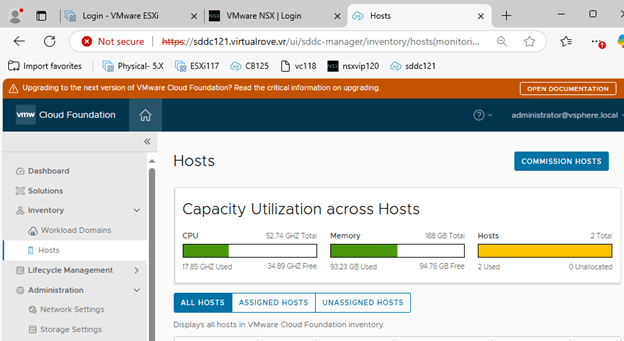
Login to SDDC Manager > Hosts > Commission Hosts,
Make sure all pre-requisites are met, Select All,
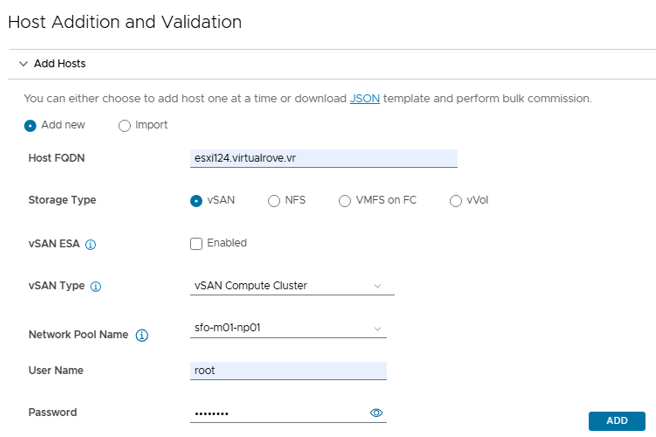
Next, Enter the required information and click on ADD
I have unchecked vSAN ESA, since am not using VSAN ready nodes as well as NO vLCM images. vSAN ESA is only supported in workload domains that use vLCM images.
vSAN Type is vSAN Compute Cluster.
Also, Select the existing “Network Pool” from the drop-down menu for vMotion & VSAN network,
Same can be verified on on SDDC manager under “Network Settings”
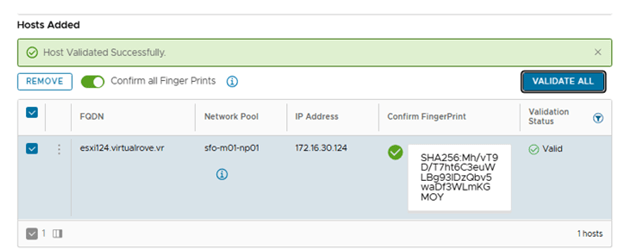
Once the host has been added, Turn on the radio button “Confirm All Finger Prints” and “VALIDATE ALL”
Review & Finish,
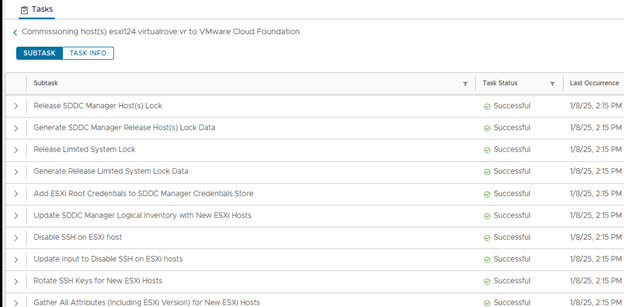
Monitor “ Commissioning host(s) esxi124.virtualrove.vr to VMware Cloud Foundation” task in SDDC task list,
Once finished, host will appear in the “UNASSIGNED HOSTS”
Lets get the new host added to the existing management vi domain after commissioning it, SDDC UI > Select Management Workload Domain > Clusters Tab > Click 3 dots to “ADD Hos”
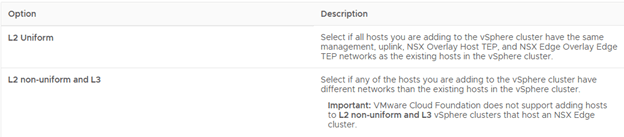
Select the commissioned host and select “L2 Uniform”
Important: VMware Cloud Foundation does not support adding hosts to L2 non-uniform and L3 vSphere clusters that host an NSX Edge cluster.
Finish.
Monitor the “Adding new host(s) to cluster” in SDDC task list,
On a high level, following steps are performed in “Adding new host to cluster”,
After initial validation, it adds the host to the cluster, Adds host to VDS Configures all vmknics Removes STD switch Configures HA Adds it to NSX by adding required transport zone as per the TNP and prepares it for NSX. And finally makes it available for workload migration / new workload.
Let’s review the environment after adding the host.
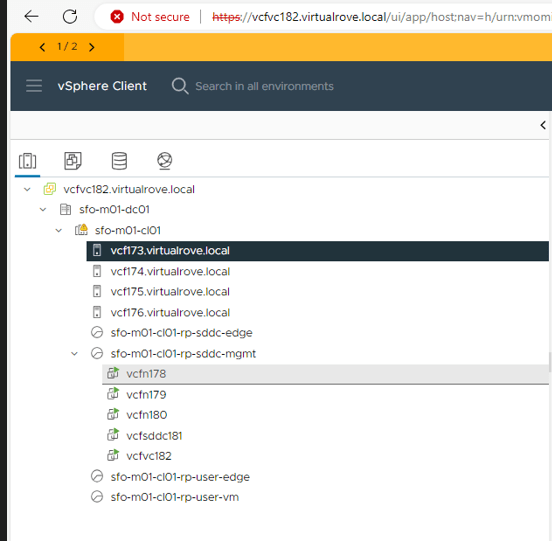
Host & Clusters view with all vmknics,
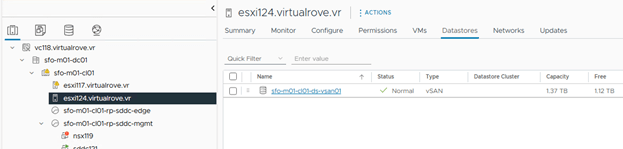
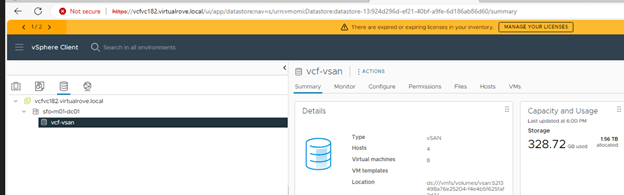
VSAN Storage added to existing cluster,
Hosts on SDDC Manager,
Workload domain host view,
New host has been prepared for NSX and ready for vlan backed segment,
That’s it for this post. Hope that it was helpful. We will add an edge cluster in our next blog.
With vCloud Foundation 5.2 version, you can import / convert your existing vSphere infrastructure as well as NSX env into the VCF and start managing it from SDDC manager.
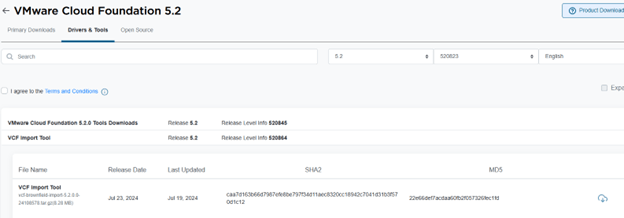
VCF import tool will help to achieve the same. The download link can be found here,
Let’s discuss some prerequisites before we move on,
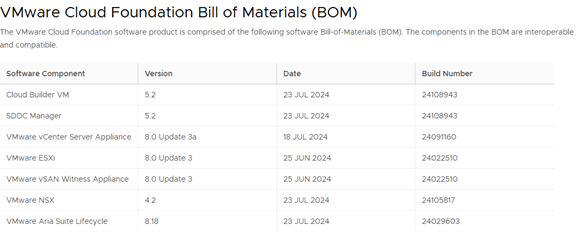
Existing vSphere versions should be aligned with VCF 5.2 BOM. (ESXi & vCenter) No standard switch supported. DRS should be in fully automated mode and HA enabled on the cluster. Common / Shared storage between the hosts. (VSAN skyline health check compatible or with NFS3 version or FC storage) VDS should have physical uplinks configured. vCenter & SDDC Manager should be installed in the same cluster that we are converting. SDDC manager can be downloaded from the same location as VCF import tool. Cluster with vCenter should have minimum of 4 hosts.
Here is the VCF 5.2 BOM for your reference,
Let’s get into lab and review the existing env,
I have a 4 hosts VSAN cluster with vCenter and SDDC installed in it. Remember, VSAN is not a requirement for this setup.
Review the ESXi & vCenter version,
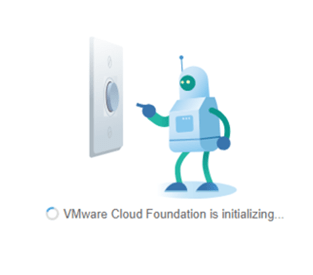
SDDC manager installation is pretty simple and straightforward. You just need to download the ova and import it into the cluster. It will ask for some common parameters like hostname, ip schema & passwords for defined users. Once the SDDC boots up, you will see this on the screen of SDDC url,
“VMware Cloud Foundation is initializing… ”
Additionally, I have one single vds with 2 uplinks and some common port groups configured,
Let’s get into action and start working on getting this env into VCF.
WinSCP to SDDC appliance using VCF user and upload the VCF Import tool to vcf directory on SDDC,
Next, SSH to SDDC appliance,
Check the if the file has been uploaded and then extract the tar file using ‘ tar xvf’ command,
You will see multiple files getting extracted in the same directory,
Next, get into the ‘vcf-brownfield-toolset’ directory to run further commands,
The python script (vcf_brownfield.py) is located under “vcf-brownfield-toolset” directory.
We need to runt this script using some additional parameters,
I am skipping the nsx part of it by adding “–skip-nsx-deployment” towards the end of the command.
Next, script needs vCenter SSO credentials
Confirm thumbprint,
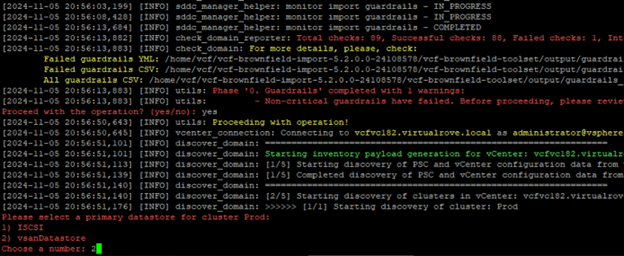
Monitor the script,
After finishing all required checks, it loads the summary,
As we can see, 2 checks have been failed out of 89. It has also generated CSV file on SDDC manager. Lets have look at the logs and fix things as needed,
On SDDC manager, navigate to Output folder and download the CSV file,
The downloaded CSV file is easy to read, It shows the issue description and remediate it,
here is the sample…
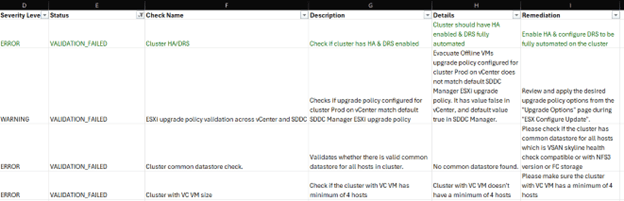
Apply the filter for ‘Status’ column to see ‘VALIDATION_FAILED’.
As we see, it is complaining about HA / DRS being disabled on the cluster. I did that on purpose. And the next one is ‘WARNING’ and not an ‘ERROR’. However, found following article which talks about that warning,
“ESXi upgrade policy validation across vCenter and SDDC Manager”
When you are using the VCF Import Tool, certain guardrail messages may require you to perform a manual update to the SDDC Manager database. If you encounter any of these guardrail issues, modify the example commands to resolve the issues.
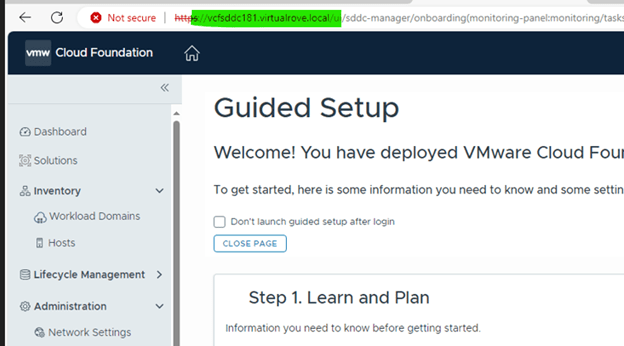
It’s time to check VCF environment and do some post checks. Here is the SDDC manager after the deployment,
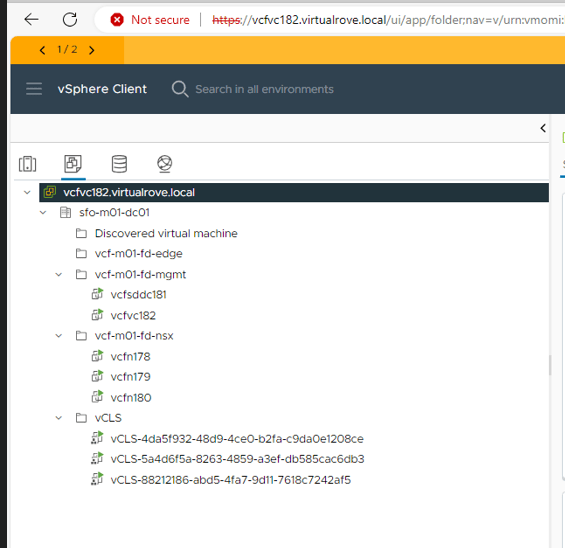
Host & Clusters view,
VM’s & Templates,
Datastore,
And Networking,
Let’s look at the NSX env,
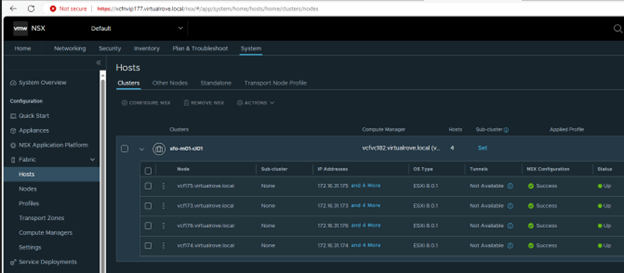
All management hosts have been prepared for nsx,
Host configuration on one of the host in this cluster, “vcf-vds01” configured for NSX. TZ, Uplink profile & IP pool created and configured already.
vCenter Virtual switch view on one of the host,
NSX already have backup configured, And the last backup was successful.
If you look at the backup config, it has configured sddc as a backup server,
Lets have a look at the SDDC manager dashboard,
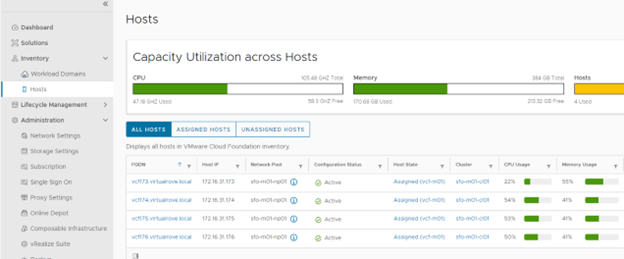
Host view on SDDC shows as expected,
Workload Domain view shows our management domain,
Click on the management domain name to check details,
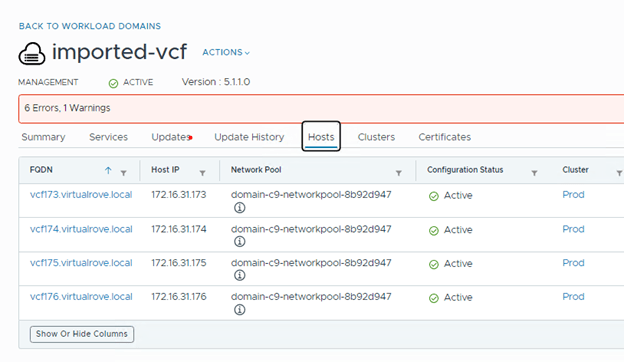
Host tab on under the management domain shows host details again,
Edge clusters are empty. You get an option to deploy edge clusters for mgmnt domain. I will be writing separate blog on it,
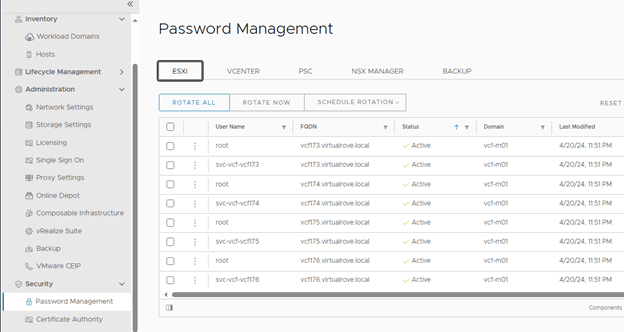
Password management options allows you to create / edit passwords for all SDDC components at one place. You can also schedule password rotation for all components.
As discussed in the first blog of this series, here is the option to subscribe to licenses,
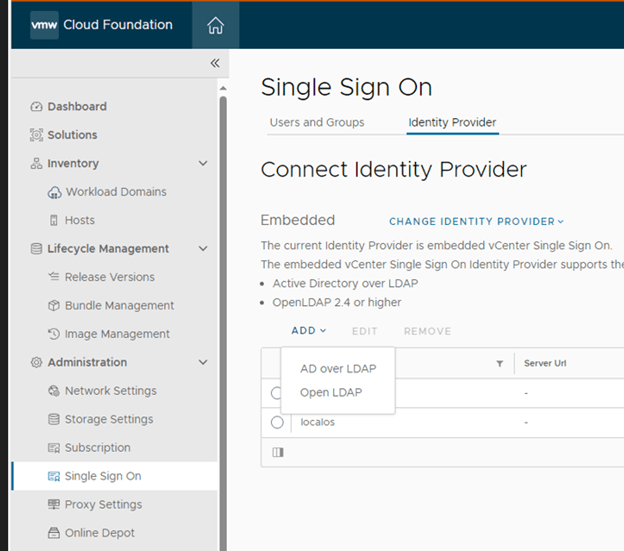
Like other products of VMware, you get an option to integrate AD,
Option to deploy vRealize Suite from SDDC,
Well, that’s all for this post. Keep following for upcoming blogs on VCF 5.X.
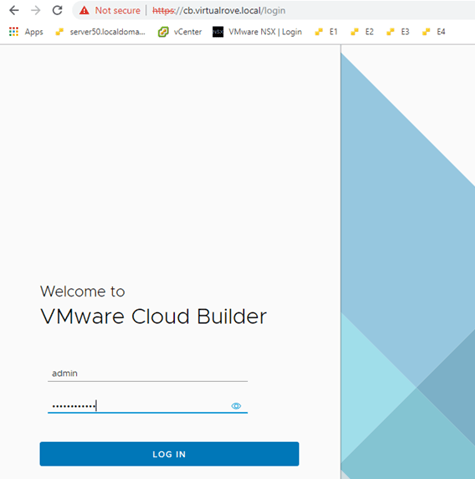
Login to Cloud Builder VM and start the deployment process.
Select “vCloud Foundation” here,
The other option “Dell EMC VxRail” to be used when your physical hardware vendor is Dell.
VxRail is hyper-converged appliance. It’s a single device which includes compute, storage, networking and virtualization resources. It comes with pre-configured vCenter and esxi servers. Then there is a manual process to convert this embedded vCenter into user manage vCenter, and that’s when we use this option.
Read all prereqs on this page and make sure to fulfill them before you proceed.
Scroll down to check remaining prereqs,
Click next here.
Earlier versions of VCF gave an option to download the “Deployment Parameter” excel sheet on this page.
You must download this sheet from the same place where you downloaded the vcf ova from.
Its time to start the actual deployment. We will resolve the issues as we move on. Let’s upload the “Deployment Parameter” sheet to Cloud Builder and begin the deployment.
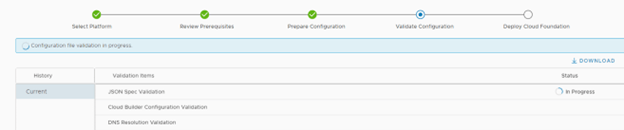
Upload the file and Next. CB validates everything that is required for the complete deployment in this step.
To understand & troubleshoot the issues / failures that we might face while deploying VCF, keep an eye on vcf-bringup.log file. The location of the file is ‘/opt/vmware/bringup/logs/’ in cloud builder. This file will give you live update of the deployment and any errors which caused the deployment to fail. Use ‘tail -f vcf-bringup.log’ to get the latest update on deployment. PFB.
Let’s continue with the deployment…
“Error connecting to ESXi host. SSL Certificate common name doesn’t match ESXi FQDN”
Look at the “vcf-bringup.log” file.
This is because the certificate for an esxi gets generated after it was installed with default name and not when we rename the hostname. You can check the hostname in certificates. Login to an ESXi > Manage> Security & Users> Certificates
You can see here, Even if the hostname on the top shows “vcf157.virtualrove.local, the CN name in certificate is still the “localhost.localdomain”. We must change this to continue.
SSH to the esxi server and run following command to change the hostname, fqdn & to generate new certs.
esxcli system hostname set -H=vcf157 esxcli system hostname set -f= vcf157.virtualrove.local cd /etc/vmware/ssl /sbin/generate-certificates /etc/init.d/hostd restart && /etc/init.d/vpxa restart Reboot
You need to do this for all hosts by replacing the hostname in the command for each esxi respectively.
Verify the hostname in the cert once server boots up.
Next, Hit retry on cloud builder, and we should be good.
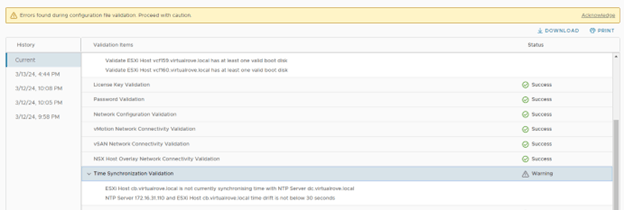
Next, warning for vSAN Disk Availability Validate ESXi host has at least one valid boot disk.
Not sure about this one. Double checked and confirm that all disks are available on the esxi host. I will simply ignore this.
Next, warnings for NTP. Host cb.virtaulrove.local is not currently synchronising time with NTP Server dc.virtaulrove.local NTP Server 172.16.31.110 and host cb.virtaulrove.local time drift is not below 30 seconds
For ESXi, Restart of ntpd.service resolved issue. For CB, I had to sync the time manually.
Steps to manually sync NTP… ntpq -p systemctl stop ntpd.service ntpdate 172.16.31.110 Wait for a min and again run this ntpdate 172.16.31.110 systemctl start ntpd.service systemctl restart ntpd.service ntpq -p
verify the offset again. It must be closer to 0. Next, I locked out root password of Cloud Builder VM due to multiple logon failure. 😊
This is usual since the passwords are complex and sometimes you have to type it manually on the console, and top of that, you don’t even see (in linux) what you are typing.
Anyways, it’s a standard process to reset the root account password for photon OS. Same applies to vCenter. Check the small writeup on it on the below link.
Next, Back to CB, click on “Acknowledge” if you want to ignore the warning.
Next, You will get this window once you resolve all errors. Click on “Deploy SDDC”.
Important Note: Once you click on “Deploy SDDC”, the bring-up process first builds VSAN on 1st ESXi server from the list and then it deploys vCenter on 1st ESXi host. If bring-up fails for any reason and if you figured out that the one of the parameter in excel sheet is incorrect, then it is tedious job to change the parameter which is already uploaded to CB. You have to use jsongenerator commands to replace the existing excel sheet in the CB. I have not come across such a scenario yet, however there is a good writeup on it from good friend of mine.
So, make sure to fill all correct details in “Deployment Parameter” sheet. 😊
Let the game begin…
Again, keep an eye on vcf-bringup.log file. The location of the file is ‘/opt/vmware/bringup/logs/’ in cloud builder. Use ‘tail -f vcf-bringup.log’ to get the latest update on deployment.
Installation starts. Good luck. Be prepared to see unexpected errors. Don’t loose hopes as there might several errors before the deployment completes. Mine took 1 week to deploy when I did it first time.
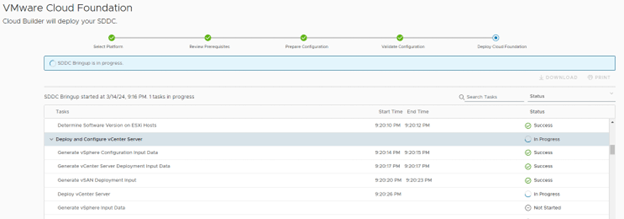
Bring-up process started. All looks good here. Status as “Success”. Let’s keep watching.
It started the vCenter deployment on 1st VSAN enabled host.
You can also login to 1st esxi and check the progress of vCenter deployment.
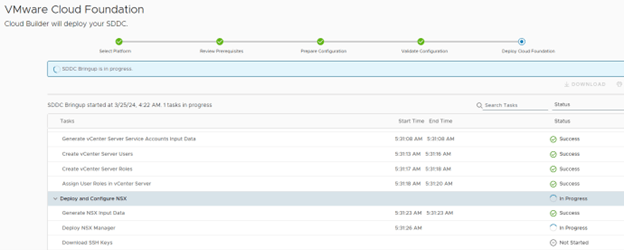
vCenter installation finished. Moved to NSX deployment.
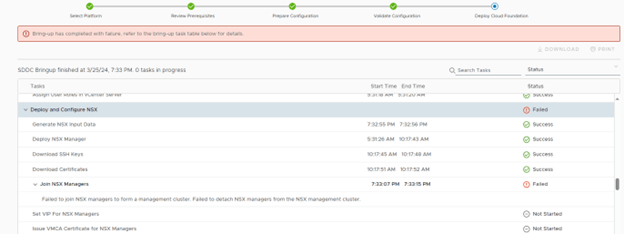
Failed at NSX deployment stage,
Failed to join NSX managers to form a management cluster. Failed to detach NSX managers from the NSX management cluster.
I logged into the all 3 NSX managers and found that one of the NSX manager were showing Management UI: DOWN on the console. Restarted the affected NSX manager and it was all good.
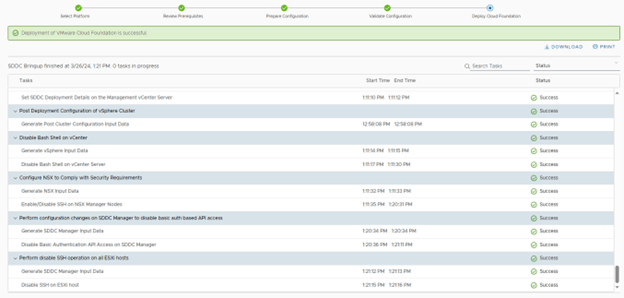
Retry on the CB did not show that error again. And finally, it finished all tasks.
Click Finish. And it launches another box.
That was fun. We have successfully deployed vCloud Foundation version 5.0
There are multiple tests that can be performed to check if the deployed environment is redundant at every level. Time to verify and do some post deployment checks. I will cover that in next post.
Additionally, use this command ‘systemctl restart vcf-bringup’ to pause the deployment when required.
For example, in my case NSX-T manger was taking time to get deployed, and due to an interval on cloud builder, it used to cancel the deployment assuming some failure. So, I paused the deployment after nsx-t ova job got triggered from CB and hit ‘Retry’ after nsx got deployed successfully in vCenter. It picked it up from that point and moved on.
Hope you enjoyed reading the post. It’s time for you to get started and deploy VCF. Feel free to comment below if you face any issues.
We have prepared the environment for VCF deployment. Its time to discuss the “Deployment Parameters” excel sheet in detail. Following are lists of blogs in this series.
“Introduction” sheet from the deployment parameter.
Go through this carefully and make sure that you have everything in place that is needed for the deployment. NO edits on this sheet.
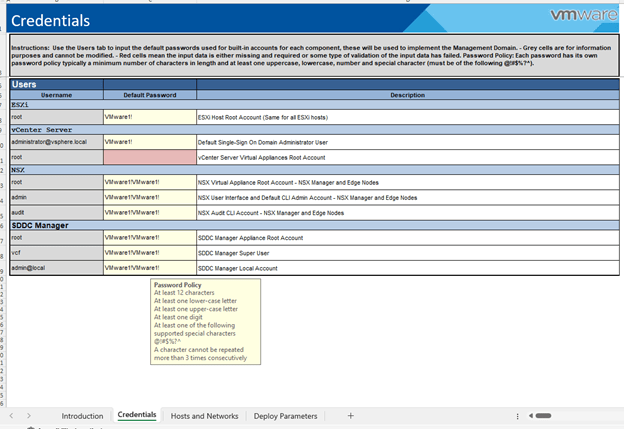
Next, “Credentials” sheet.
Check the password policy and make sure to generate passwords accordingly. It fails at validation if its not meet.
Any unacceptable values cell turns to RED in this entire sheet.
Moving on to next sheet “Hosts and Networks”.
Couple of things to discuss here,
Management Domain Networks – All networks should be pre-created on the TOR.
Here is the screenshot from my TOR.
Management Domain ESXi Hosts – All IP’s to be reserved and DNS records in place.
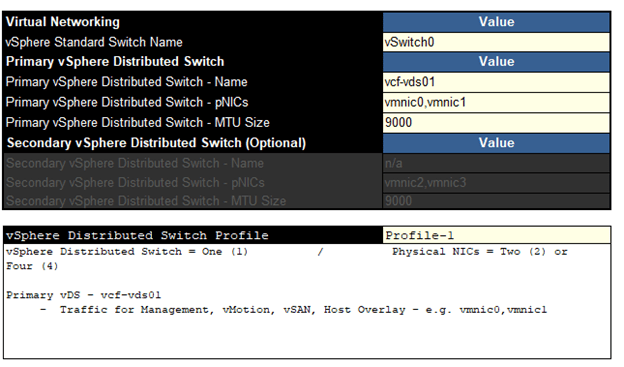
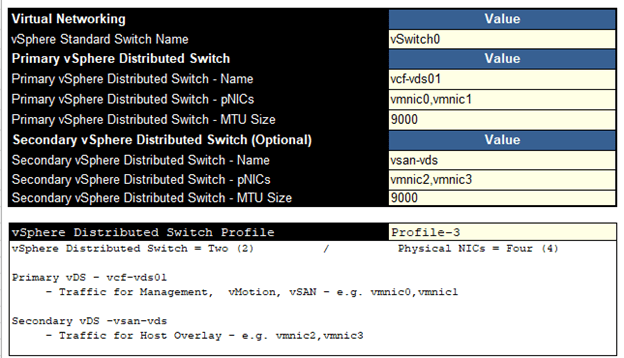
Moving onto “vSphere Distributed Switch Profile” in this sheet. It has 3 profiles. Let’s talk about available options.
Profile-1
This profile will deploy a single vDS with 2 or 4 uplinks. All network traffic will flow through the assigned nics in this vDS.
Profile-2
If you want to split the VSAN traffic on dedicated pnics, choose this option.
This one deploys 2 VDS. You can see that the first vDS will carry management, vMotion, Host Overlay traffic and the other one is for VSAN. Each vDS can have up to 2 pnics.
Profile-3
This one also deploys 2 vDS, just that the VSAN traffic is merged into 1stvds and 2nd vds only carries host overlay traffic.
Select the profile as per your business requirement and move to next step. For this lab, I have selected the 1st profile.
Moving to the “NSX Host Overlay Network” – You have an option to enable DHCP on 1634 vlan or define values manually.
Next – “Deploy Parameters” sheet,
Define all parameters here carefully. Again, If something is not good, the cell would turn RED.
As discussed in 1st blog in this series, VCF has now introduced subscription-based licensing. If you select “NO”, then you have to manually enter license keys here. If yes, a note appears in RED,
Just found out that the vmware kb’s are redirecting to Broadcom already. 😊
“During bring-up, in subscription licensing mode, the management domain is deployed in evaluation mode. It is expected that you complete the subscription process for VMware Cloud Foundation+ within 60 days. After the period has expired, you cannot do any actions related the workload domains, such as add or expand workload domain, add or remove cluster, add or remove host”
One caveat here, if you deploy the stack in subscription-based model, the SDDC manager does not allow perform any additional operations until you finish the subscription process. In short, it is of no use until you finish the subscription.
Let me show you,
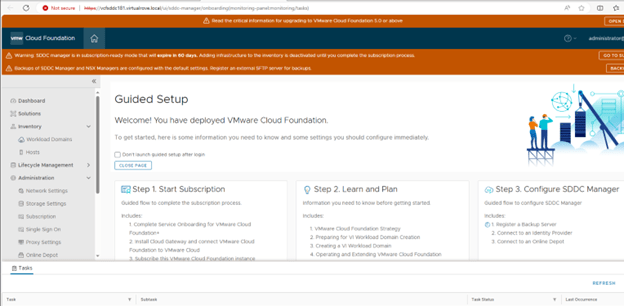
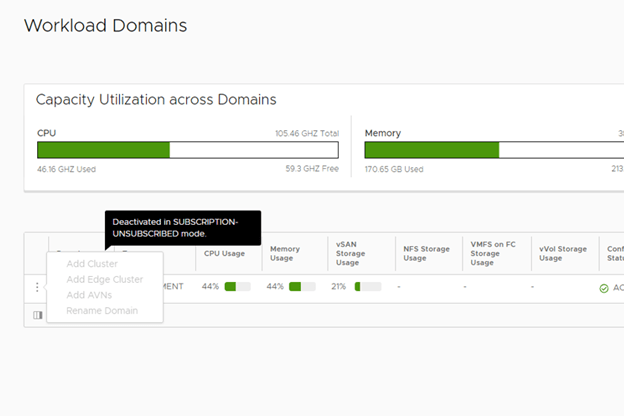
This screenshot was captured when I deployed it subscription model. This is what you see when you deploy it in subscription model and do not activate it,
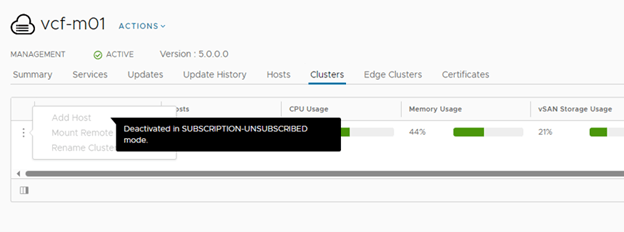
All additional config options will be grayed out. You see a msg there “Deactivated in Subscription-Unsubscribed mode.”
Any changes to “Workload Domain” will be blocked.
No adding hosts to mgmnt domain,
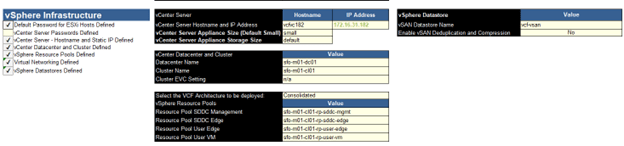
Back to Deploy Parameter, So, make your choices wisely and plan it accordingly. Moving to “vSphere Infra” section in the deployment parameters sheet.
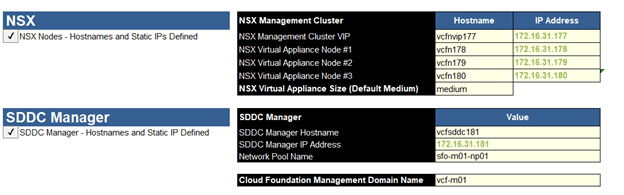
And finally, the NSX & SDDC section,
We are all set to upload this “Deployment Parameter” sheet to Cloud Builder and begin the deployment. That is all for this blog. We will perform the actual deployment in next blog.

















































































 Welcome to VirtualRove.COM