Upgrading VMware Cloud Foundation to version 9.1: Part 1 – Intro & VCF Operations upgrade

VMware Cloud Foundation 9.1 is an important follow-on release that builds on the architectural changes introduced in VCF 9.0 and continues the shift toward a more unified private cloud operating model. The release introduces enhancements across lifecycle management, operational services, compute, storage, Kubernetes, security, and resilience, including updated VCF management services, enhanced lifecycle workflows, centralized licensing, and new operational capabilities.

For administrators currently running VMware Cloud Foundation 9.0.2, upgrading to VCF 9.1 is more than a routine patch cycle. It is a structured platform upgrade that must be performed in the correct order, with careful attention to prerequisites, interoperability, binary management, management service deployment, licensing, and post-upgrade validation. In this blog, I’ll walk through my lab upgrade experience from VCF 9.0.2 to VCF 9.1 and highlight the key steps, gotchas, and lessons learned along the way.

High-Level Upgrade Sequence from VCF 9.0.2 to VCF 9.1

  1. Review the VCF 9.1 release notes, supported upgrade path, and target bill of materials before making any changes.
  2. Validate prerequisites such as backups, DNS/NTP health, certificate status, available capacity, component compatibility, and any third-party or adjacent integrations.
  3. Upgrade VCF Operations first, because lifecycle workflows in the VCF 9.x model begin there and additional management services are introduced as part of the newer architecture.
  4. Configure or verify access to the software depot and download the required VCF 9.1 binaries.
  5. If your environment includes dependent services such as Avi Load Balancer, recovery, or replication products, validate and upgrade those components according to the supported interoperability guidance.
  6. Upgrade SDDC Manager to version 9.1.
  7. Deploy or activate the required VCF 9.1 management services introduced during the upgrade workflow.
  8. Run upgrade planning and prechecks for the management domain.
  9. Upgrade management domain components in the supported order, typically starting with NSX, followed by vCenter, and then ESX hosts.
  10. Complete post-upgrade validation to confirm component health, service status, lifecycle inventory accuracy, and overall platform readiness before moving on to any Day-N workload domain upgrades.

Note: This walkthrough focuses specifically on upgrading from VCF 9.0.2 to VCF 9.1. If you are upgrading from VCF 5.x to VCF 9.x, review the official upgrade path and planning guidance before proceeding.

Before starting, review the VCF 9.1 Bill of Materials and confirm that every component in your environment is compatible with the target release.

Lab Environment and Pre-Upgrade Preparation

Here is the starting point for my lab environment: VMware Cloud Foundation 9.0.2.
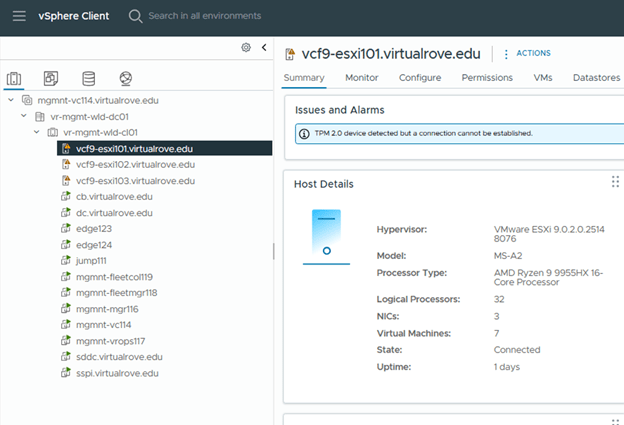
The first step is to protect the environment before making any changes. Back up all required appliances, validate that SFTP-based backups are working where applicable, and take snapshots of supported appliances according to your operational standards. Also confirm DNS, NTP, certificate health, available capacity, and access to required credentials before beginning the upgrade.

VCF Operations Fleet Management: In my existing VCF 9.0.2 environment, the Fleet Manager appliance was deployed. With VCF 9.1, this standalone appliance is no longer required and is powered off as part of the upgrade process.

VCF Identity Broker: Starting with VCF 9.1, VCF Identity Broker becomes a required component. SSO capabilities are migrated into the containerized VCF Management Services architecture. If your existing VCF Identity Broker appliance is deployed on a port group other than the VM Management network, move it to the VM Management network before the upgrade. At a high level, the process is to back up the appliance, power it off, remove it, redeploy it with the same FQDN and certificates, and then restore the backup.

Step 1: Upgrade VCF Operations

Download the VCF Operations 9.1 .pak file from the Broadcom Support Portal.
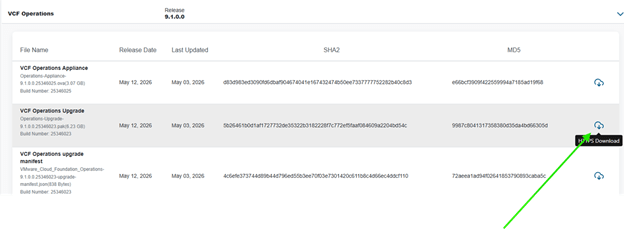
Next, log in to the VCF Operations admin console and take the cluster offline before applying the update.
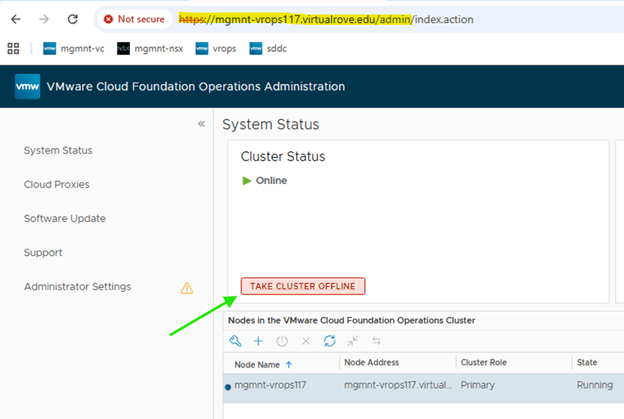
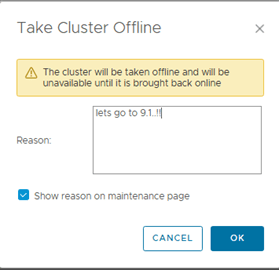
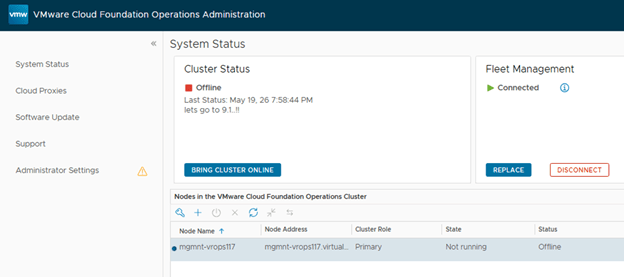
Wait for the status to be changed to offline,
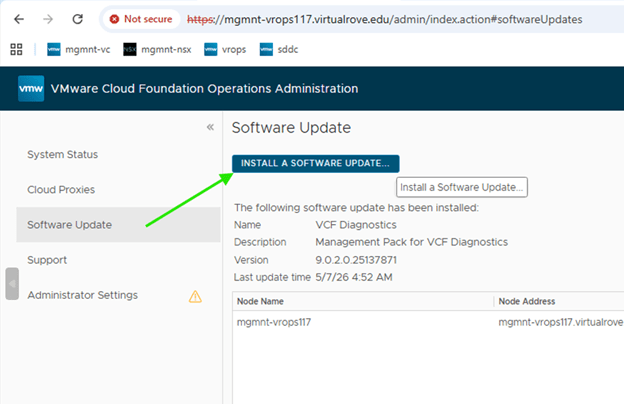
Install the software bundle,
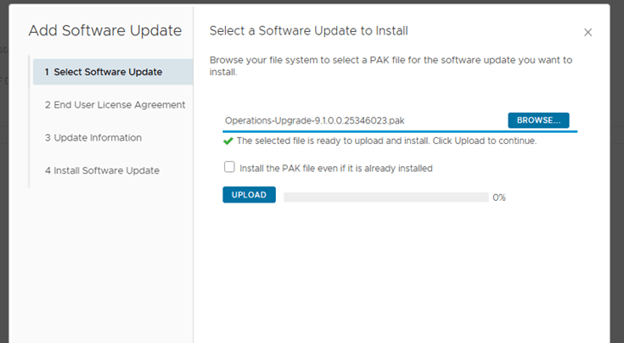
Select the downloaded .pak file and upload it to begin staging the software update.
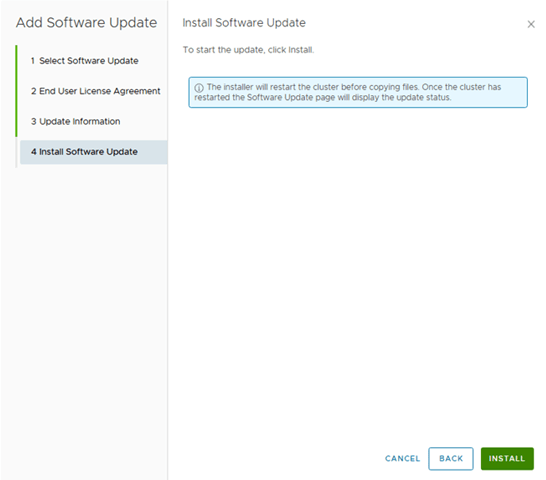
Complete the remaining steps and upgrade.
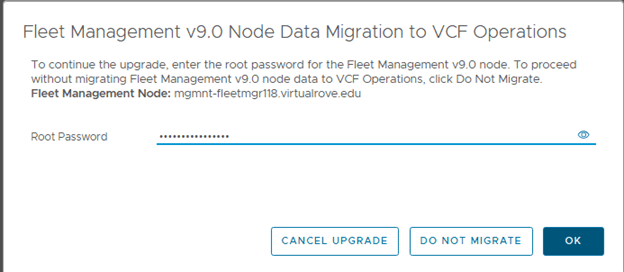
You will be prompted for root password once the upgrade process starts,
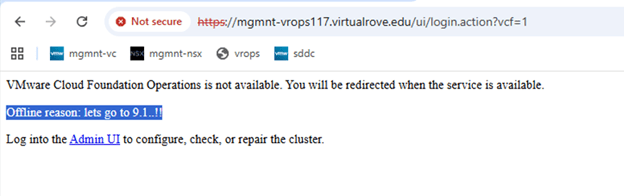
During the upgrade, the VCF Operations UI is unavailable. Users are presented with a maintenance banner until the upgrade completes.
You can also monitor the upgrade from the same page,
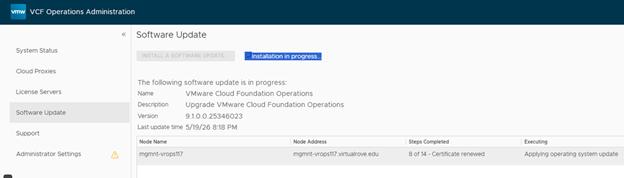
About 14 steps and VCF Operations is upgraded to version 9.1,
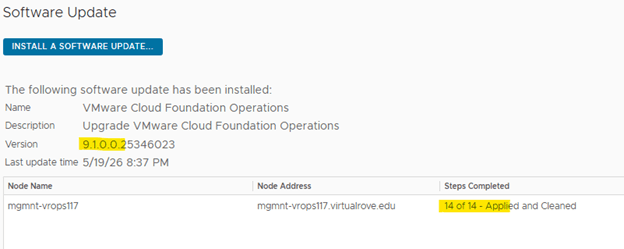
Important: The Fleet Collector / Cloud Proxy appliance is still required and is upgraded during this process.

At this point, the VCF Operations upgrade is complete and the environment is ready for the next phase.

Step 2: Review Adjacent Component Requirements

I do not have vSphere Replication or VMware Live Site Recovery installed in my lab environment. If these products are present in your environment, validate the supported upgrade path and follow the official product documentation (Upgrading to VMware Cloud Foundation 9.1) before continuing with the main VCF upgrade sequence.

If Avi Load Balancer is deployed, validate compatibility and upgrade Avi according to the VCF 9.1 guidance before proceeding.

That’s all for this blogpost. Next blog will consist of SDDC Manager upgrade process.

Are you looking out for compute resources (CPU / Memory / Storage) to practice VMware products…? If yes, then click here to know more about our Lab-as-a-Service (LaaS).
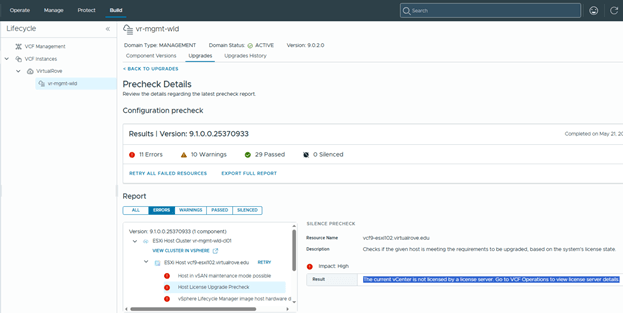
VCF Upgrade Precheck Error: vCenter Is Not Licensed by a License Server

During ESX Upgrade prechecks, I encountered the following error.

“Error: The current vCenter is not licensed by a license server.”

To resolve this, add the required licenses to the new VCF 9.1 license server. In my case, I had to re-add the licenses even though the environment had been licensed previously, because VCF 9.1 introduces a new license server architecture.

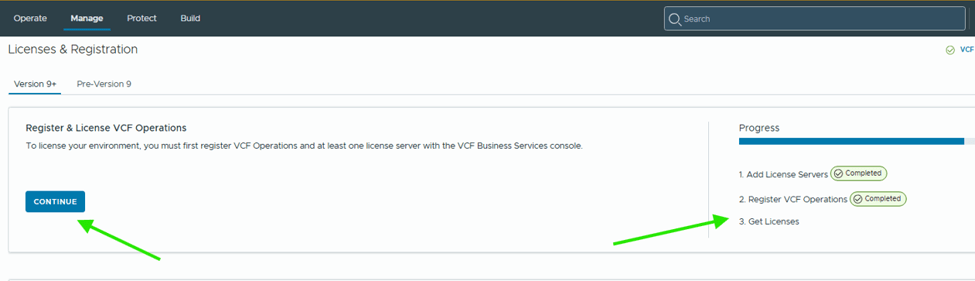
VCF Operations> License & Registrations,

Notice the progress on right side.

Hit continue,

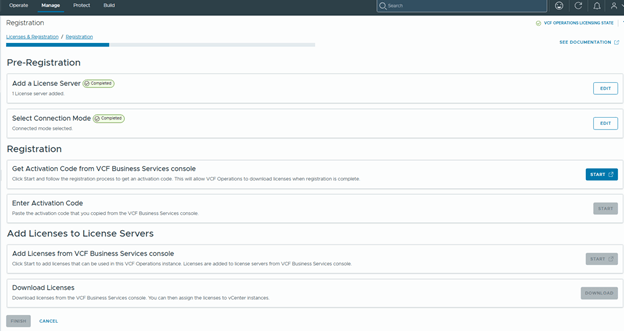
Pre-Registration shows complete. Click on Start registration to get the activation code from the portal.

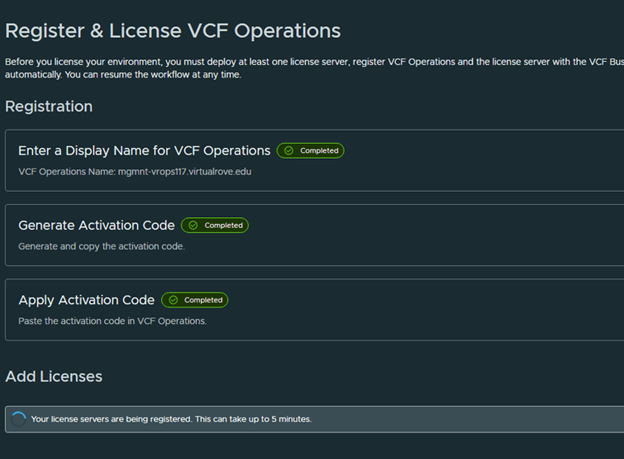
Generate Activation Code and Apply Code,

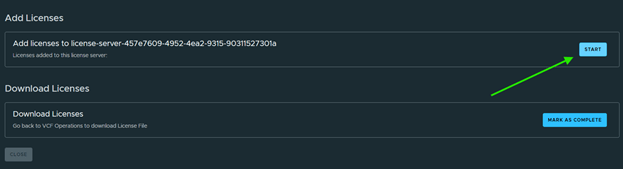
Then add licenses,

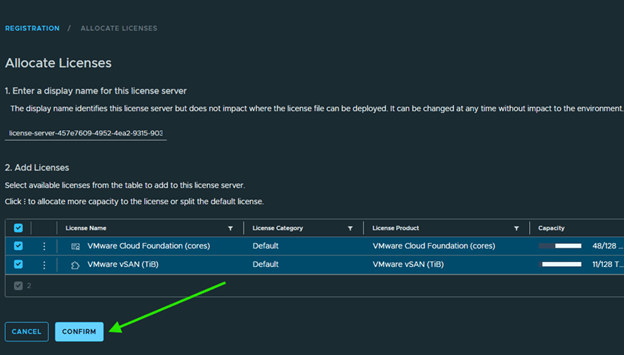
Select all applicable licenses and Confirm,

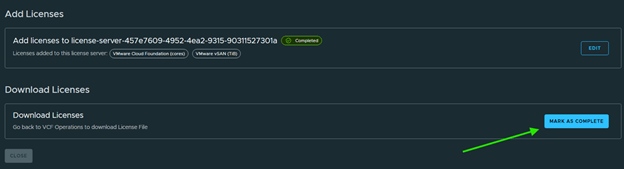
Mark Complete,

Back to VCF Operations to download licenses,

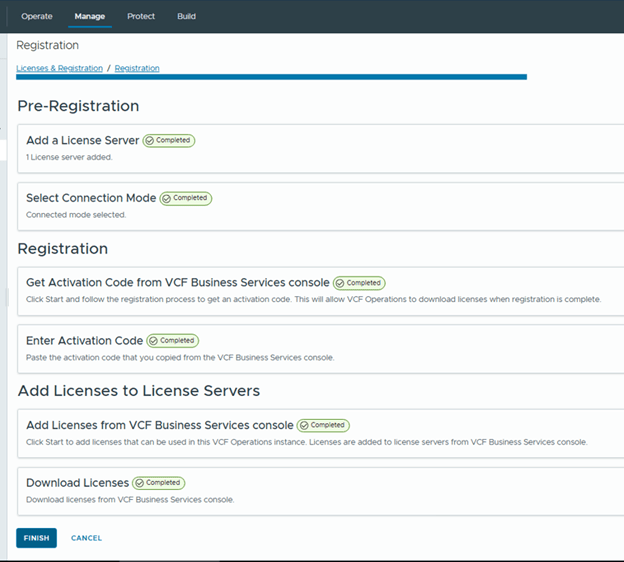
All steps complete here. Click Finish,

After completing license registration and synchronization, re-run the precheck. The license-related error should be cleared.

In summary, this issue occurs when the upgraded VCF 9.1 environment is not fully synchronized with the new license server architecture. Even if the environment was licensed previously, the licenses may need to be registered, activated, added, and synchronized again through VCF Operations. After completing the registration workflow and downloading the licenses, re-run the ESX upgrade precheck to confirm that the vCenter licensing error has been resolved.

That’s if for this post. Keep sharing.

Are you looking out for compute resources (CPU / Memory / Storage) to practice VMware products…? If yes, then click here to know more about our Lab-as-a-Service (LaaS).
VMware vCloud Foundation 9 – Licensing Part 2

In previous blog post here,

VMware vCloud Foundation 9 – Licensing Part 1

We talked about registering VCF Operations on the Broadcom Portal and applying licenses to VCF Operations. Let’s continue and apply new licenses to vCenter and VSAN.

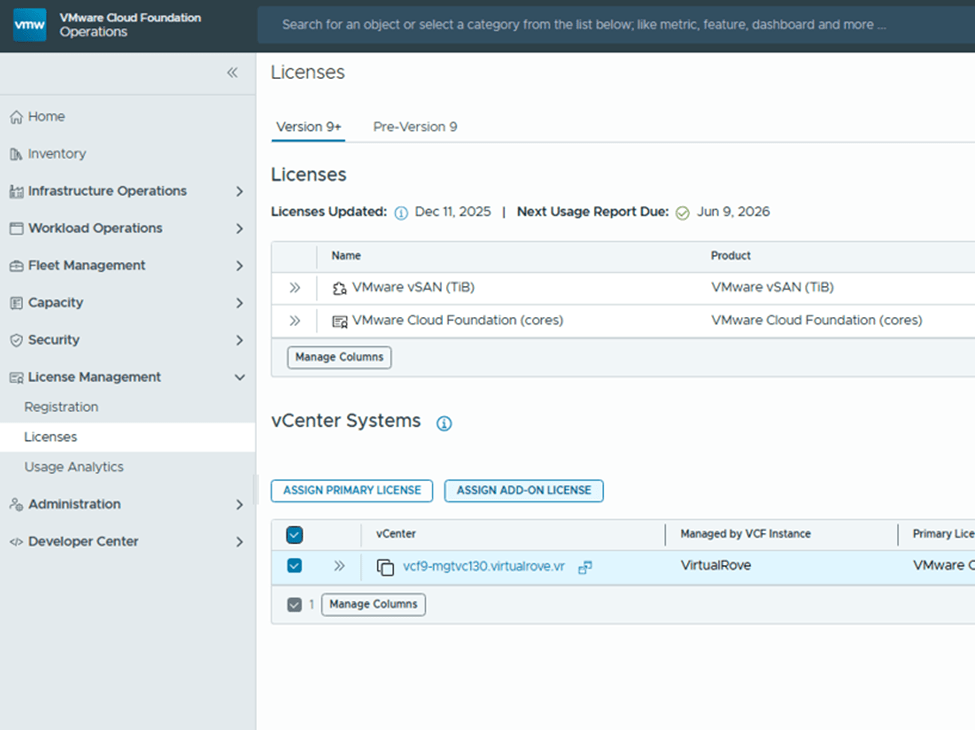
Click on Licenses> Assign Primary License

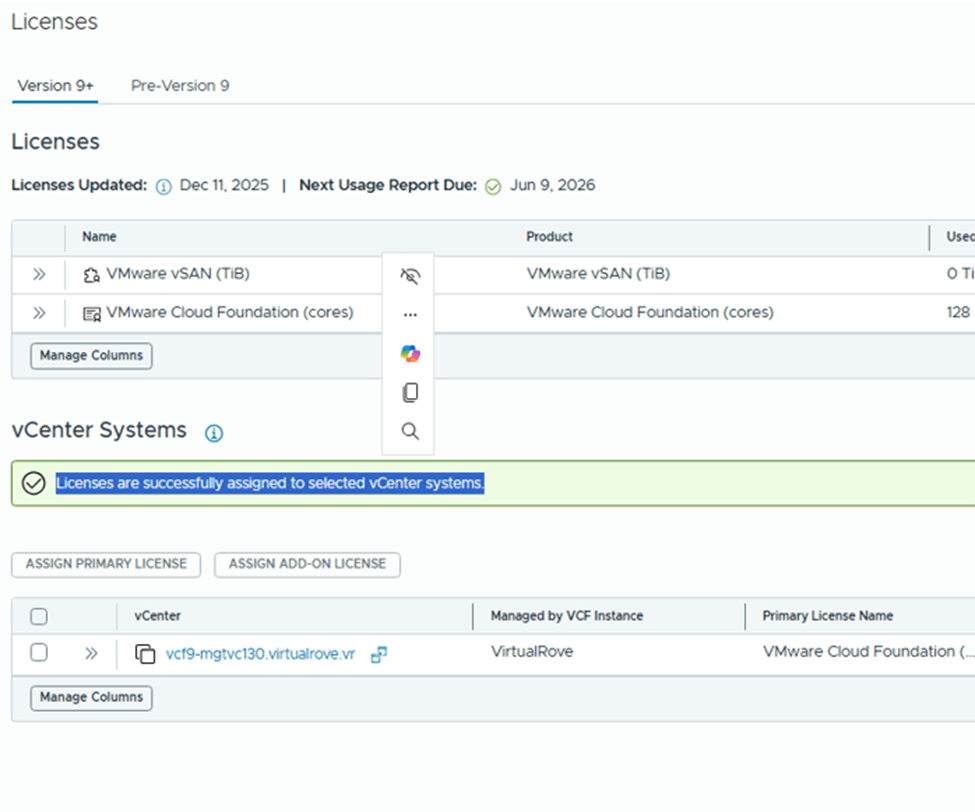
Select the VCF license and assign,

vCenter is fully licensed,

Back to licenses, Select vCenter and click on “Add-on license”

Select VSAN license and assign,

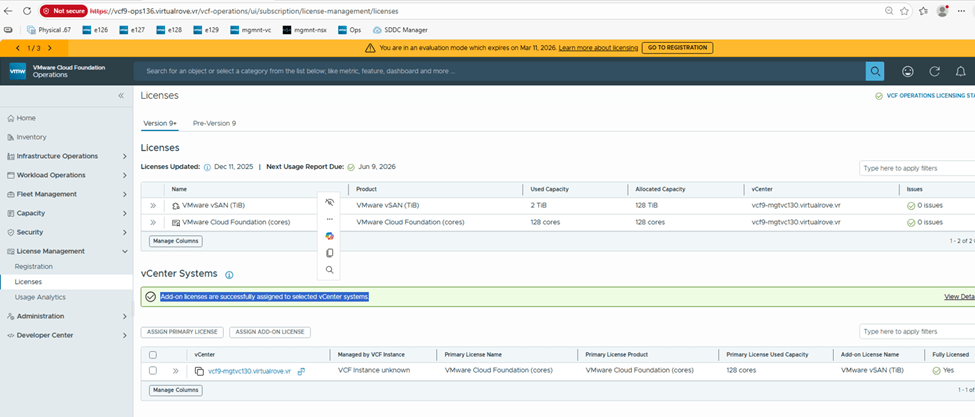
Add-on license applied successfully and vCenter is fully licensed,

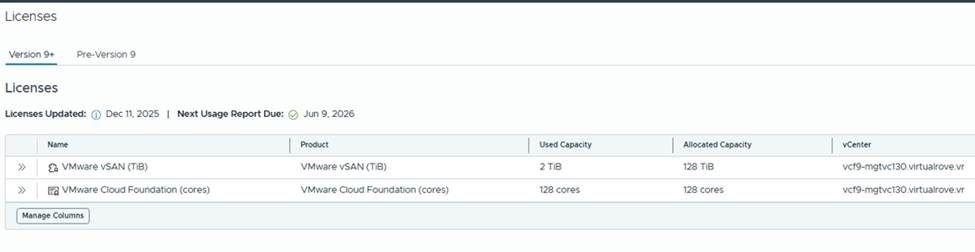
Check the “Used Capacity” in license section,

vCenter shows fully licensed,

Here is the link for official documentation on VCF 9 licensing,

Licensing

That’s it for this post. We have licensed entire VCF 9 environment. Please refer to official documentation & make sure to update license usage every 180 days. 😊

Are you looking out for compute resources (CPU / Memory / Storage) to practice VMware products…? If yes, then click here to know more about our Lab-as-a-Service (LaaS).
VPS Server

Need virtual private server for an application development…?
POC environment…?
Need Memory and high-performance SSD Storage…?
Website hosting…?
Costly to manage hardware, power and maintenance for your physical infrastructure to host your applications…?
Lab env for small POC’s…?
VPS server for hosting VPN or Gaming server…?

You are at the right place. We have been delivering high performance virtual private servers across multiple locations. Not to worry about performance / network bandwidth or support.
Try one of our virtual servers and experience it yourself.

Send us an email to contact@virtualrove.com to know more about VPS locations and more plans.
OR
Click Here to send an enquiry.

Lab-as-a-Service (LaaS)

To become an expert in VMware Virtualization, reading blogs is definitely the right way to enhance your knowledge. However, you will not get real feel of it unless & until you try it out yourself. You get real-time production feel when you do hands on and when you resolve those unexpected issues by yourself. VMware Workstation is best way to install, configure and try new products, experiment labs as far as you have good amount hardware configuration (i.e. memory, storage & cpu).

Huge amount of compute resources (i.e. memory, storage & cpu) needed for VMware labs is one of the barrier for most of the them and this sometime becomes an obstacle for an individual. To resolve this, we have put together complete lab solutions for users who wants to learn VMware virtualization and explore it by implementing it. We have huge amount of compute resources to be rented out, which can be used for any kind of labs. You will be provided requested amount of Memory, Storage & CPUs to do the labs, which will be accessible from Anywhere, Anytime. Additionally, will assist you to setup the lab.

At very minimal cost, we will provide lab setup, assistance & 24*7 support. Our labs will be able to accommodate following VMware products, which can be deployed and tested multiple times with real time experience. Here is the list of labs followed by the certification which you will be able to achieve.

Labs (All latest versions of the products)VMware Certifications
VMware vSphere – Install, Config, Manage (Including VSAN)VMware Certified Professional – DataCenter Virtualization
(VCP-DCV)
VMware NSX-T Data Center: Install, Configure, ManageVMware Certified Professional – Network Virtualization
(VCP-NV)
VMware vRealize Automation: Install, Configure, ManageVMware Certified Professional – Cloud Management and Automation
(VCP-CMA)
VMware Certified Professional – Desktop and MobilityVMware Horizon: Install, Configure, Manage
(VCP-DTM)
VMware vSphere – Deploy LabVMware Certified Advanced Professional – Data Center Virtualization Deploy (VCAP-DCV / VCIX-DCV)
VMware NSX – Deploy LabVMware Certified Advanced Professional – Network Virtualization Deploy (VCAP-NV / VCIX-NV)

Our labs are not limited to above products. It is equipped with huge configuration which will even help you to do POC’s for following VMware products before you implement it in your production environment. All required assistance & guidance will be provided to setup these labs.

VMware Validated Design (VVD)
VMware vCloud Foundation (VCF)
VMware vRealize Orchestrator (VRO)
VMware vRealize Operations Manager (vROPS)
VMware vRealize Log Insight (vRLI)
VMware vRealize Business (vRB)
VMware Site Recovery Manager (SRM)

We have our own SOP’s (Standard Operating Procedures) to build the env. Connect with us to get lab experience as if you have build customer production env.

Connect with us through the contact form using below link OR send an email to contact@virtualrove.com

Click Here to send an enquiry.