VMware Cloud Foundation 9.1 is an important follow-on release that builds on the architectural changes introduced in VCF 9.0 and continues the shift toward a more unified private cloud operating model. The release introduces enhancements across lifecycle management, operational services, compute, storage, Kubernetes, security, and resilience, including updated VCF management services, enhanced lifecycle workflows, centralized licensing, and new operational capabilities.
For administrators currently running VMware Cloud Foundation 9.0.2, upgrading to VCF 9.1 is more than a routine patch cycle. It is a structured platform upgrade that must be performed in the correct order, with careful attention to prerequisites, interoperability, binary management, management service deployment, licensing, and post-upgrade validation. In this blog, I’ll walk through my lab upgrade experience from VCF 9.0.2 to VCF 9.1 and highlight the key steps, gotchas, and lessons learned along the way.
High-Level Upgrade Sequence from VCF 9.0.2 to VCF 9.1
- Review the VCF 9.1 release notes, supported upgrade path, and target bill of materials before making any changes.
- Validate prerequisites such as backups, DNS/NTP health, certificate status, available capacity, component compatibility, and any third-party or adjacent integrations.
- Upgrade VCF Operations first, because lifecycle workflows in the VCF 9.x model begin there and additional management services are introduced as part of the newer architecture.
- Configure or verify access to the software depot and download the required VCF 9.1 binaries.
- If your environment includes dependent services such as Avi Load Balancer, recovery, or replication products, validate and upgrade those components according to the supported interoperability guidance.
- Upgrade SDDC Manager to version 9.1.
- Deploy or activate the required VCF 9.1 management services introduced during the upgrade workflow.
- Run upgrade planning and prechecks for the management domain.
- Upgrade management domain components in the supported order, typically starting with NSX, followed by vCenter, and then ESX hosts.
- Complete post-upgrade validation to confirm component health, service status, lifecycle inventory accuracy, and overall platform readiness before moving on to any Day-N workload domain upgrades.
Note: This walkthrough focuses specifically on upgrading from VCF 9.0.2 to VCF 9.1. If you are upgrading from VCF 5.x to VCF 9.x, review the official upgrade path and planning guidance before proceeding.
Before starting, review the VCF 9.1 Bill of Materials and confirm that every component in your environment is compatible with the target release.
Lab Environment and Pre-Upgrade Preparation
Here is the starting point for my lab environment: VMware Cloud Foundation 9.0.2.
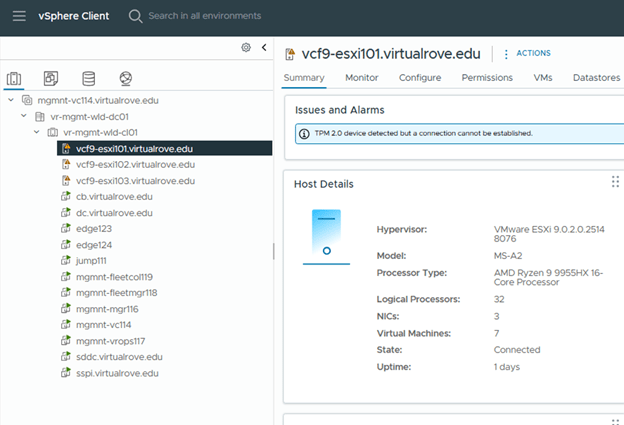
The first step is to protect the environment before making any changes. Back up all required appliances, validate that SFTP-based backups are working where applicable, and take snapshots of supported appliances according to your operational standards. Also confirm DNS, NTP, certificate health, available capacity, and access to required credentials before beginning the upgrade.
VCF Operations Fleet Management: In my existing VCF 9.0.2 environment, the Fleet Manager appliance was deployed. With VCF 9.1, this standalone appliance is no longer required and is powered off as part of the upgrade process.
VCF Identity Broker: Starting with VCF 9.1, VCF Identity Broker becomes a required component. SSO capabilities are migrated into the containerized VCF Management Services architecture. If your existing VCF Identity Broker appliance is deployed on a port group other than the VM Management network, move it to the VM Management network before the upgrade. At a high level, the process is to back up the appliance, power it off, remove it, redeploy it with the same FQDN and certificates, and then restore the backup.
Step 1: Upgrade VCF Operations
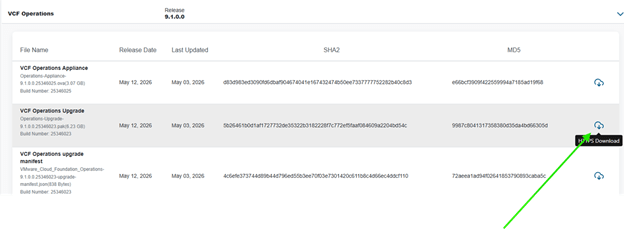
Download the VCF Operations 9.1 .pak file from the Broadcom Support Portal.
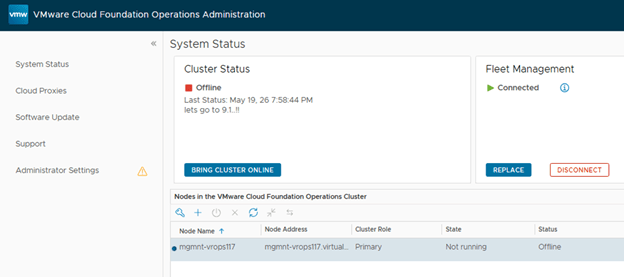
Next, log in to the VCF Operations admin console and take the cluster offline before applying the update.
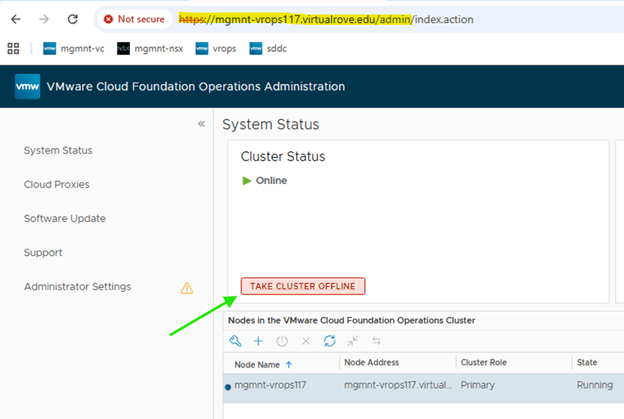
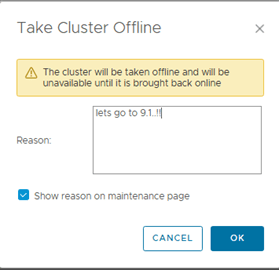
Wait for the status to be changed to offline,
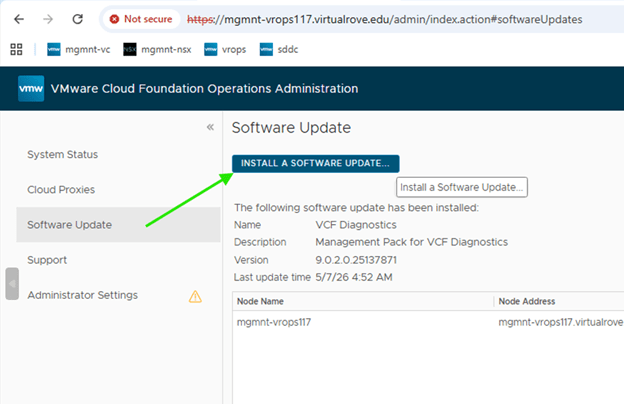
Install the software bundle,
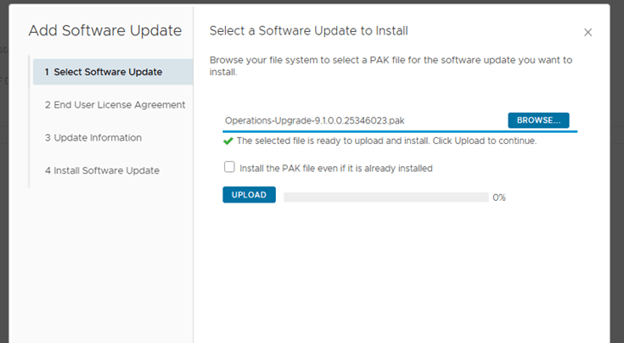
Select the downloaded .pak file and upload it to begin staging the software update.
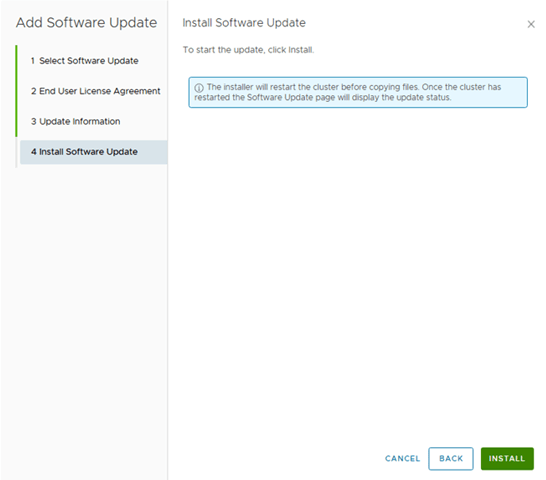
Complete the remaining steps and upgrade.
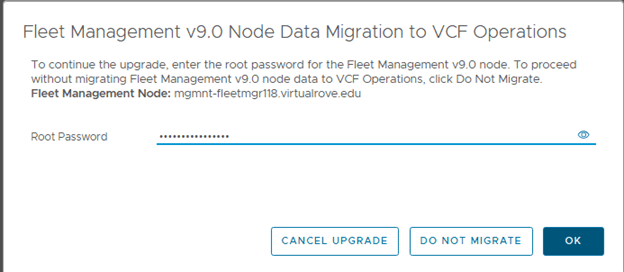
You will be prompted for root password once the upgrade process starts,
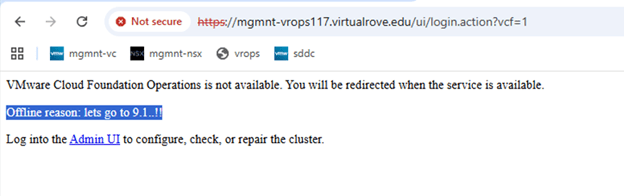
During the upgrade, the VCF Operations UI is unavailable. Users are presented with a maintenance banner until the upgrade completes.
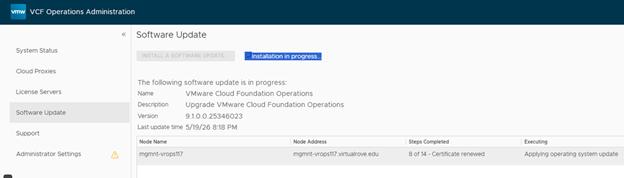
You can also monitor the upgrade from the same page,
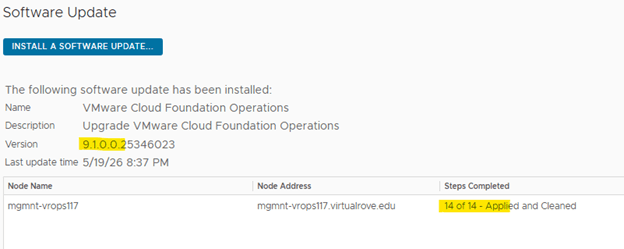
About 14 steps and VCF Operations is upgraded to version 9.1,
Important: The Fleet Collector / Cloud Proxy appliance is still required and is upgraded during this process.

At this point, the VCF Operations upgrade is complete and the environment is ready for the next phase.
Step 2: Review Adjacent Component Requirements
I do not have vSphere Replication or VMware Live Site Recovery installed in my lab environment. If these products are present in your environment, validate the supported upgrade path and follow the official product documentation (Upgrading to VMware Cloud Foundation 9.1) before continuing with the main VCF upgrade sequence.
If Avi Load Balancer is deployed, validate compatibility and upgrade Avi according to the VCF 9.1 guidance before proceeding.
That’s all for this blogpost. Next blog will consist of SDDC Manager upgrade process.
Are you looking out for compute resources (CPU / Memory / Storage) to practice VMware products…? If yes, then click here to know more about our Lab-as-a-Service (LaaS).
 Welcome to VirtualRove.COM