NSX-T: Replace faulty NSX Edge Transport Node VM

I recently came across a situation where the NSX-T Edge vm in an existing cluster was having issues while loading its parameter. Routing was working fine and there was no outage as such. However, when a customer was trying to select an edge vm and edit it in NSX UI, it was showing an error. Support from VMware said that the edge in question is faulty and needs to be replaced. Again, routing was working perfectly fine.

Let’s get started to replace the faulty edge in the production environment.

Note: If the NSX Edge node to be replaced is not running, the new NSX Edge node can have the same management IP address and TEP IP address. If the NSX Edge node to be replaced is running, the new NSX Edge node must have a different management IP address and TEP IP address.

In my lab env, we will replace a running edge. Here is my existing NSX-T env…

Single NSX-T appliance,

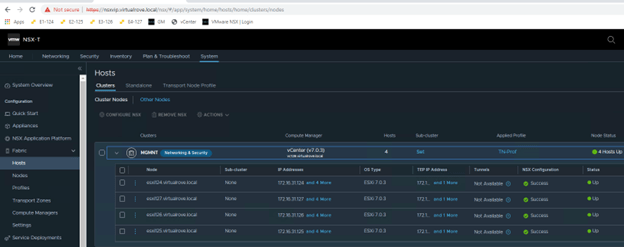
All hosts TN have been configured,
Single edge vm (edge 131) attached to edge cluster,

One test workload overlay network. Segment Web-001 (192.168.10.0/24)

A Tier-0 gateway,

Note that the interfaces are attached to existing edge vm.
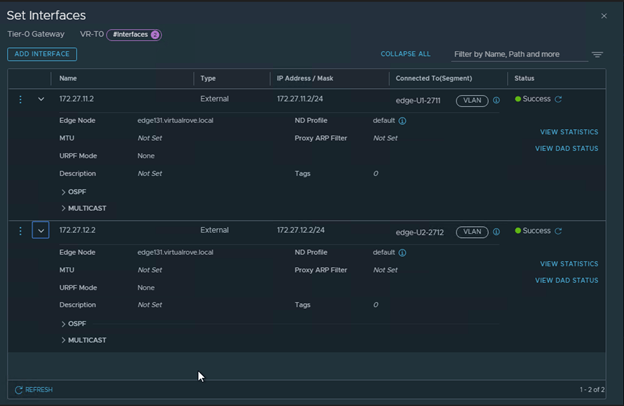
BGP config,

Lastly, my VyOS router showing all NSX BGP routes,

Start continuous ping to NSX test overlay network,
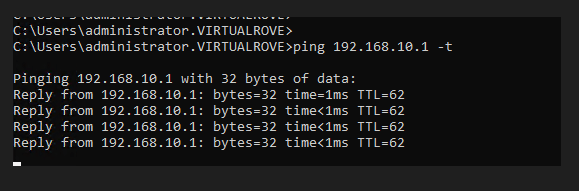
Alright, that is my existing env for this demo.

We need one more thing before we start the new edge deployment. The new edge vm parameters should match with the existing edge parameters to be able to replace it. And the existing edge showing an error when we try to open its parameters in NSX UI. The workaround here is to make an API call to existing edge vm and get the configuration.

Please follow the below link to know more about API call.

NSX-T: Edge Transport Node API call

I have copied the output to following txt file,

EdgeApi.txt

Let’s get started to configure the new edge to replace it with existing edge. Here is the link to the blogpost to deploy a standalone edge transport node.

NSX-T: Standalone Edge VM Transport Node deployment

New edge vm (edge132) is deployed and visible in NSX-T UI,

Note that the newly deployed edge (edge132) does not have TEP IP and Edge cluster associated with it. As I mentioned earlier, The new edge vm parameters should match with the existing edge parameters to be able to replace it.

Use the information collected in API call for faulty edge vm and configure the new edge vm the way you see it in the API call. Here is my new edge vm configuration looks like,
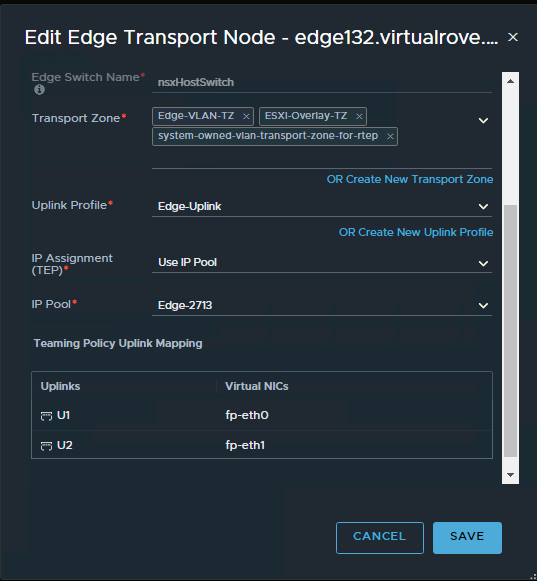
Make sure that the networks matches with the existing non working edge networks.

You should see TEP ip’s once you configure the new edge.

Click on each edge node and verify the information. All parameters should match.

Edge131

Edge132
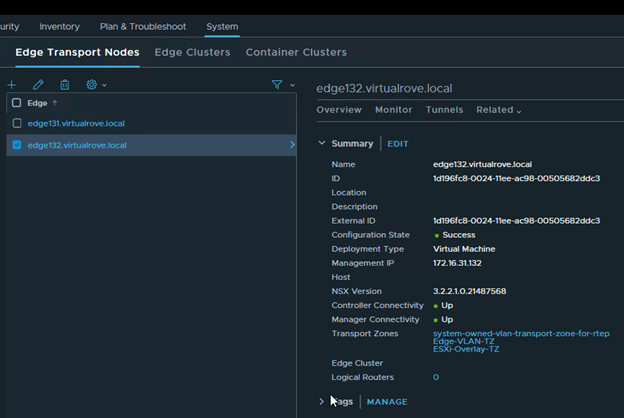
We are all set to replace the faulty edge now.

Select the faulty edge (edge131) and click on actions,

Select “Enter NSX Maintenance Mode”

You should see Configuration State as “NSX Maintenance Mode” in the UI.
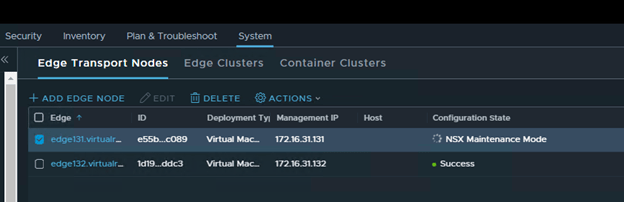
And you will lose connectivity to your NSX workload.

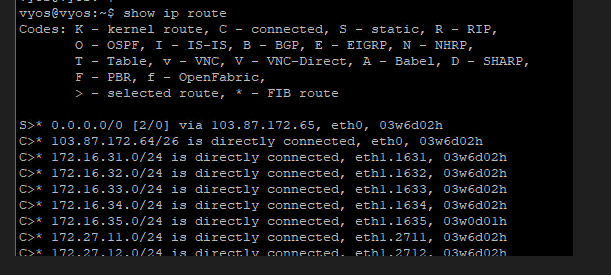
No BGP route on the TOR
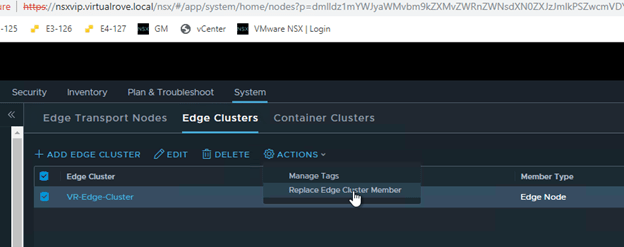
Next, click on “Edge Clusters”, Select the edge cluster and “Action”.

Choose “Replace Edge Cluster Member”
Select appropriate edge vm’s in the wizard and Save,
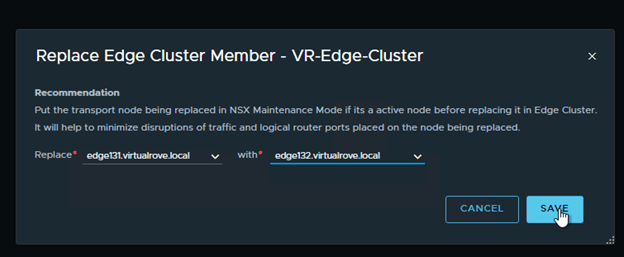
As soon as the faulty edge have been replaced, you should get the connectivity to workload.

BGP route is back on the TOR.

Interface configuration on the Tier-0 shows new edge node.

Node status for faulty edge shows down,

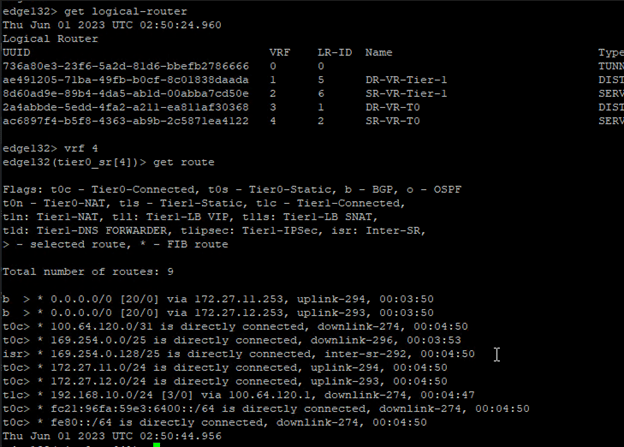
Let’s get into the newly added edge vm and run “get logical-router” cmd,

All service routers and distributed routers have been moved to new edge.

Get into the SR and check routes to make sure that it shows all connected routes too,
We are good to delete the old edge vm.

Lets go back to edge transport node and select the faulty edge and “DELETE”

“Delete in progress”

And its gone.

It should disappear from vCenter too,

Well, that was fun.

That’s all I had to share from my recent experience. There might be several other reasons to replace / delete existing edge vm’s. This process should apply to all those use cases. Thank you for visiting. See you in the next post soon.

Are you looking out for a lab to practice VMware products…? If yes, then click here to know more about our Lab-as-a-Service (LaaS).

Leave your email address in the box below to receive notification on my new blogs.

NSX-T: Edge Transport Node API call

Welcome back techies. This is going to be the short one. This article describes the steps to make an API call to NSX edge transport node vm to get the edge configuration. At the time of writing this blog, I had to collect this information to replace the faulty edge node vm in the env.

Here is the API call,
GET https://<nsx-manager-IP>/api/v1/transport-nodes/tn-id .

Replace nsx manager ip and tn-id with your edge vm id in nsx env.

https://172.16.31.129/api/v1/transport-nodes/e55b9c84-7449-477a-be42-d20d6037c089

To get the “tn-id” for existing faulty edge, login to NSX > System> Nodes and select existing faulty edge

You should see ID on the right side,

If NSX UI is not available for any reason, ssh to nsx-t manager using admin credentials and run following command to capture the UUID / Node ID

get nodes

This is how the API call and output looks like,

Send the API call to get the output shown in the body. This output contains entire configuration of the edge vm in script format.

That’s all for this post. Thank You.

Are you looking out for a lab to practice VMware products…? If yes, then click here to know more about our Lab-as-a-Service (LaaS).

Leave your email address in the box below to receive notification on my new blogs.

NSX-T: Standalone Edge VM Transport Node deployment

There can be multiple reasons to deploy nsx-t edge vm via ova instead of deploying thought nsx-t manager. At the time of writing this blog, I had to deploy edge vm via ova to replace faulty edge vm in nsx-t env. You may be deploying one to create a Layer 2 Bridge between nsx-v and nsx-t env to migrate workload.

Alright. Let’s start deploying an edge vm without using nsx-t manager UI.

To begin with, you need to manually download edge vm ova from VMware downloads page here…

Make sure to match the version with your existing NSX-T env.

Once downloaded, login to vSphere web client and start deploying an ova template. It’s straightforward like any other generic ova deployment. Make sure to select the exact same networks that are attached to your existing faulty edge vm.

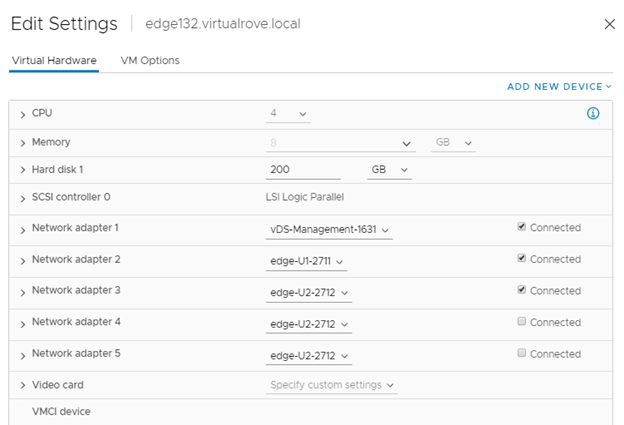
In my case, 1st vmnic is attached to management network and next 2 are attached to uplink1 & uplink2 network respectively. Rest all nic cards remains unchecked.

Next, you will need to enter the NSX-T manager information in “Customize Template” section of the deployment.

Enter the Manager IP & Credentials.
NO need to enter “Node ID”.

You also have an option to leave this blank and join it to NSX-T control plane once the appliance is up and running. For now, I am entering all these details. Will also discuss on manually attaching edge vm to nsx-t manager control plane.

To get the NSX-T manager thumbprint. SSH to NSX-T manager and run following command,

get certificate api thumbprint

You can also get the thumbprint from the following location in the UI.

Login to NSX-T manager and click on view details,

Enter remaining network properties in the deployment wizard and finish.

Once the VM is up and running, you will see it in NSX-T UI here,

You will not see newly added edge vm here If you did not enter NSX-T thumbprint information in the deployment wizard. To manually join newly created edge vm to nsx-t manger control plane, run following command on the newly created edge vm.

Edge> join management-plane <Manager-IP> thumbprint <Manager-thumbprint> username admin

Same process has been described in following VMware article.

https://docs.vmware.com/en/VMware-NSX-T-Data-Center/3.2/migration/GUID-8CC9049F-F2D3-4558-8636-1211A251DB4E.html

Next, the newly created edge vm will not have N-VDS, TEP or Tranport Zones configuration. Further configuration will be specific to individual use case.

That’s all for this post.

Are you looking out for a lab to practice VMware products…? If yes, then click here to know more about our Lab-as-a-Service (LaaS).

Leave your email address in the box below to receive notification on my new blogs.

NSX-T 3.0 – Reverse Migration of VMkernel to Port Group

In this post, we will talk about the reverse migration of VMKernel adaptor from NSX-T to back to vCenter port group. If you did not get chance to look at my previous article on migration of vmk from vCenter to NSX-T, here is the link.

There can be multiple reasons for removing VMKernel ports from NSX-T. Here are some…
The third party application which had vmk in vCenter PG does not behave as expected,
The application itself (which uses vmk) is no longer needed,
You want to uninstall NSX-T from one of the host for any reason, you first have to move vmk’s from it or appropriate “Network Mappings for Uninstall” has to be in place before you move on.

Note: Uninstalling NSX-T Data Center from an ESXi host is disruptive if the physical interfaces or VMkernel interfaces are connected to N-VDS.

Here is one more important scenario mentioned at VMware docs, (copied from VMware site)

Transport node configuration on a node cannot be overriden if underlying segments or VMs are connected to that transport node. For example, consider a two ESXi host cluster, where host-1 is configured as transport-node-1, but host-2 is unprepared. Segments and VMs are connected to transport-node-1. After preparing host-1 as a transport node (associated to transport-zone-1), if you apply a transport node profile to that cluster (associated to transport-zone-2), then NSX-T does not override the transport node configuration with the transport node profile configuration. To successfully override configuration on host-1, power off the VMs and disconnect the segment before applying the transport node profile to associate host-1 to transport-zone-2 and disassociate it from transport-zone-1.

With that lets get started,

In previous post, I explained migration process of vmk from vCenter to NSX-T. Lets get started with reverting it back.
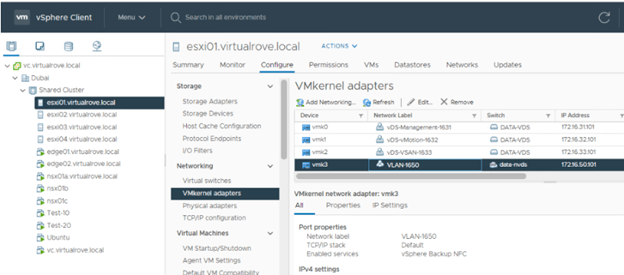
Verify the vmk location. It is on nsx-t logical switch “VLAN-1650” and the switch name is ‘data-nvds’

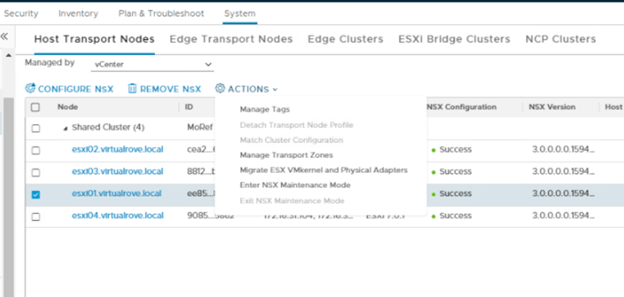
Back to NSX-T > System> Nodes> Select appropriate node> Action> ‘Migrate ESX Vmkernel and Physical Adaptors’

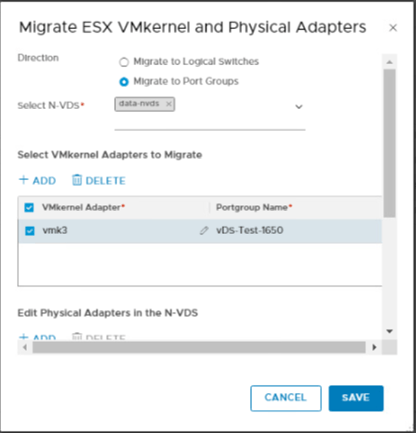
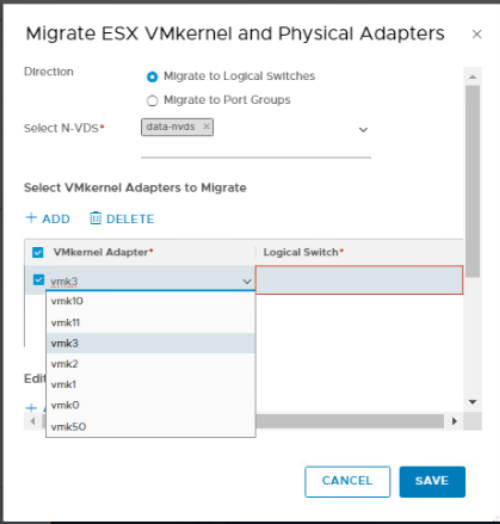
Select ‘Migrate to port group’ in this wizard.

Direction: Migrate to Port Groups
N-VDS: Select the target switch from where you want to remove vmk port.
Select the VMkernel Adapter (vmk3) and manually type the port group name ‘vDS-Test-1650’

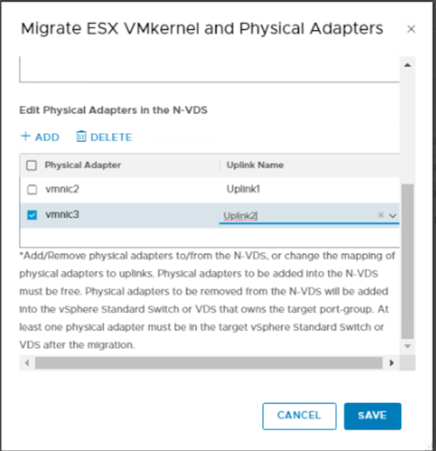
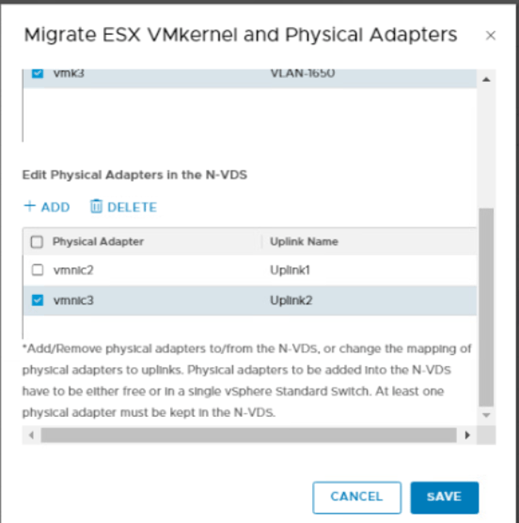
Map the appropriate physical nics and uplinks in this wizard.
Note: Mapping physical nics here does not mean that it will remove mentioned nics from N-VDS.

Save.

Verify that the vmk3 is back to the VDS.

Test the connectivity to vmk from esxi. And we are done with the reverse migration of VMkernel port to the port group.  That’s it for this post. Will come back soon with new content for my next blog.

Cheers..!!!

Are you looking out for a lab to practice VMware products..? If yes, then click here to know more about our Lab-as-a-Service (LaaS).

Leave your email address in below box below to receive notification on my new blogs.

NSX-T 3.0 – VMkernel Migration to an N-VDS Switch

Most of the customers are moving to NSX-T environment. One common use case / questions would have been, what happens to existing VMkernel Adaptors OR how does the migration of VMkernel works in NSX-T. One of my recent customer had similar use case, wherein he had backup application running in the VMware vSphere environment which had 2 vmk’s and the plan was to migrate all networks in to NSX-T (Overlay or VLAN). There are ‘n’ number of things to consider before we plan for such migrations. First, we got the email confirmation from the application vendor on application compatibility with NSX-T. It was also important to get confirmation from the vendor if the backup application will still behave as expected and will be able to backup VM’s connected to Overlay Segments.


Note: Some 3rd party applications do not support or understand Opaque networks. (For vCenter, all networks that have been created in NSX are Opaque networks)


In my case, customer had to upgrade the backup application to vendor suggested version to make it compatible with NSX-T and to be able to backup VM’s connected to NSX-T (Overlay & VLAN) networks.


Some additional points…
Please keep in mind that we are talking about 3rd party application vmkernel adaptors and NOT vMotion, management or vsan vmk’s. The migration process will always not be the way it is mentioned in this article. It completely depends on customers env and at what point you are planning for this migration and for which vmk’s. Shared Compute, Edge & Management cluster with only 2 pics and not on vSphere 7.0 version will need proper planning and migration methodology. Greenfield env will give you flexibility to migrate vmkernel using network mapping while configuring hosts transport nodes, whereas brownfield env will eat your head. So plan and prepare wisely before you propose your plan to the customer.

Following is my lab setup for this post.
NSX-T 3.0 installed and configured.
Four hosts cluster prepared and configured for NSX-T. It is a shared cluster for all components.
Physical Adaptors – vmnic0, vmnic1 connected to vDS on vCenter. And vmnic2, vmnic3 connected to nvds in nsx-t.
BGP routing is in place.
Edge VM’s uplinks have been configured and connected to logical segments.
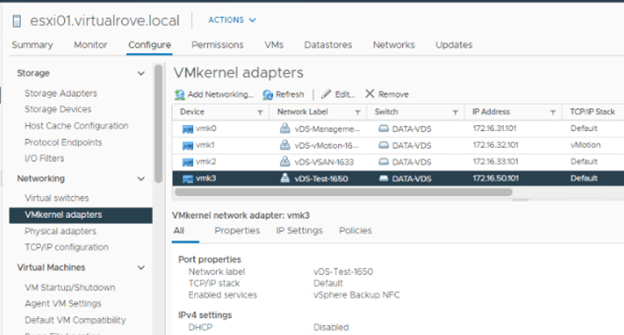
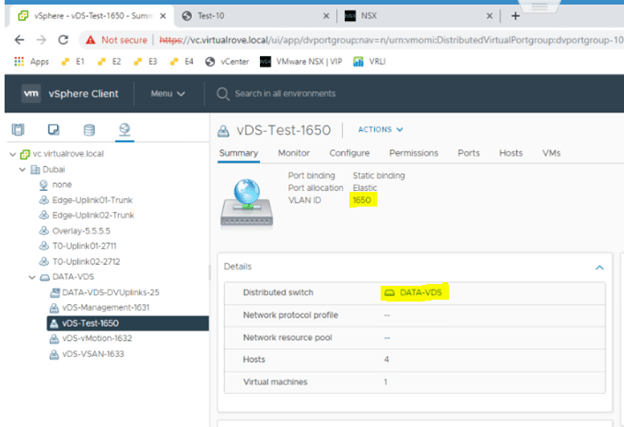
Port group name ‘vDS-Test-1650’ with vlan id 1650 is in place. This port group has VMkernel Adaptor 3 (vmk3) and it has been configured on all hosts in the cluster.
‘Test-10’ VM connected to ‘vDS-Test-1650’ for testing connectivity.

Here is the plan.
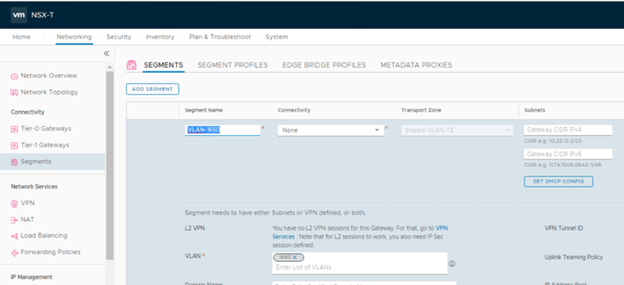
Create vlan based logical segment in nsx-t for 1650 network.(VLAN-1650 LS)
Move ‘Test-10’ VM from ‘vDS-Test-1650’ port group to ‘VLAN-1650 LS’ logical segment.
Migrate vmkernel adaptor 3 (vmk3) from port group to logical segment.
Test connectivity from test vm to vmk ip after migration.
Revert the configuration.

With that lets get started…

‘vDS-Test-1650’ port group on distributed switch.

‘Test-10’ VM connected to ‘vDS-Test-1650’

Verify the connectivity to ‘172.16.31.110’ (DC in my env) from Test-10 VM.

ESXi01 has vmk3 created with network label as vDS-Test-1650 port group.

Similar configuration on other hosts.


Time to create vlan based logical segment in nsx-t.
Log into NSX-T VIP> Networking> Segments> Add Segment
Name: VLAN-1650
TZ: Shared VLAN TZ
VLAN: 1650

VLAN based logical segment is ready to move the VM’s into it.
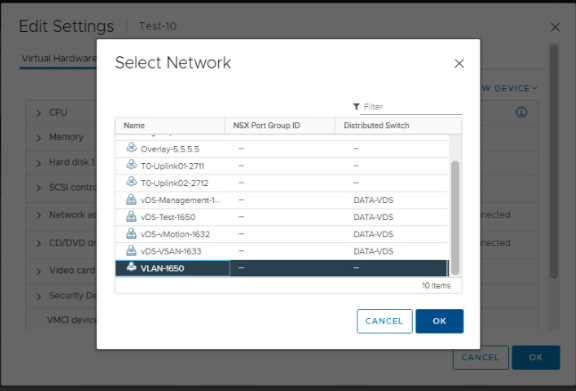
Test-10 VM> Edit Settings> Change the network to newly create logical segment.

Test-10 VM now sits on VLAN based logical segment in NSX-T. Test the connectivity to DC again.

Let’s move vmkernel from vCenter PG to NSX-T LS.
System> Fabric> Nodes> Host TN> Select 1st esxi and click on Action> ‘Migrate ESX VMkernel and Physical Adapters’

Select appropriate N-VDS to migrate to
Select the VMkernel Adaptor that you plan to migrate in to NSX-T.

And then the destination Logical switch that we created earlier.

Next > Select physical adaptors in N-VDS
Note: These vmnics have already been assigned to N-VDS and not the new ones.

Select physical nics and appropriate uplinks and SAVE.

You get a warning at this stage. Continue.

Once it is successful, verify it on the vCenter.
Notice that the vmk3 is sitting on the “data-nvds” instead of “DATA-VDS”

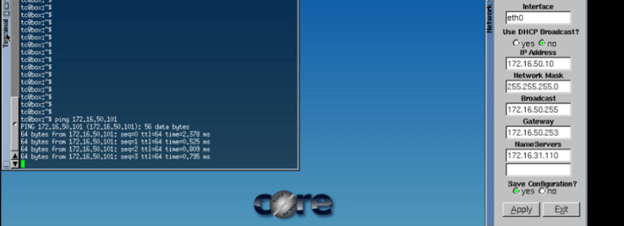
Testing connectivity to vmkernel (172.16.50.101) adaptor from the VM.

All Good. We have successfully migrated VMkernel (vmk3) to nsx-t. There may be situations where you want to revert back the configuration if expected results fails after vmk migration. I will cover the reverse migration in my next blog.

I hope that the blog has valuable information. See you all in next post.

Are you looking out for a lab to practice VMware products..? If yes, then click here to know more about our Lab-as-a-Service (LaaS).

Leave your email address in below box below to receive notification on my new blogs.
NSX-T 3.0 – Load Balancer Concept & Configuration

It’s been a while since I wrote my last blog on NSX-T. Recently, I had several discussions with one of the customer to setup a NSX-T Logical Load Balancer. Hence, wanted to write a small blog with generic example. This will give you basic understanding of the NSX-T load balancer and how it is setup.

Let’s check on some theory part.

The NSX-T Data Center logical load balancer offers high-availability service for applications and distributes the network traffic load among multiple servers. The load balancer distributes incoming service requests evenly among multiple servers. You can map a virtual IP address to a set of pool servers for load balancing. The load balancer accepts TCP, UDP, HTTP, or HTTPS requests on the virtual IP address and decides which pool server to use.

Some key points to keep in mind before we proceed.

  • Logical load balancer is supported only on the tier-1 gateway.
  • One load balancer can be attached only to a tier-1 gateway.
  • Load balancer includes virtual servers, server pools, and health checks monitors. It can host single or multiple virtual servers.
  • NSX-T LB supports Layer 4 (TCP,UDP) as well as Layer 7 (HTTP,HTTPS).
  • Using a small NSX Edge node to run a small load balancer is not recommended in a production environment.
  • The VIP (Virtual IP) for the server pool can be placed in any subnet.

Load balancers can be deployed in either inline or one-arm mode.

Inline Topology

In the inline mode, the load balancer is in the traffic path between the client and the server. Clients and servers must not be connected to the same tier-1 logical router. LB-SNAT is not required in this case.

One-Arm Topology

In one-arm mode, the load balancer is not in the traffic path between the client and the server. In this mode, the client and the server can be anywhere. LB-SNAT is always required in this case.

Health check monitors is another area of discussion, which is used to test whether each server is correctly running the application, you can add health check monitors that checks the health status of a server.

Let’s get started with setting up the simple example of NSX-T Logical Load Balancer.

Here is the background of the lab. I have an NSX-T environment already running in the LAB. For demo purpose, I have already done following configuration.

New NSX-T logical segment called ‘LB_1680’ (Subnet: 172.16.80.253/24)
Installed and configured 2 test Web servers. (OS: Centos7 with web server role and added sample html file)
Connected 2 new web severs to LB_1680 segment.

Verify that you can access the web severs and web page is displayed.

1st Web Server. (172.16.80.10)

2nd Web Server. (172.16.80.11)

That was all background work. Lets start configuring the Logical NSX-T Load Balancer.

We have to configure the Server Pool first and then move on to next configuration.

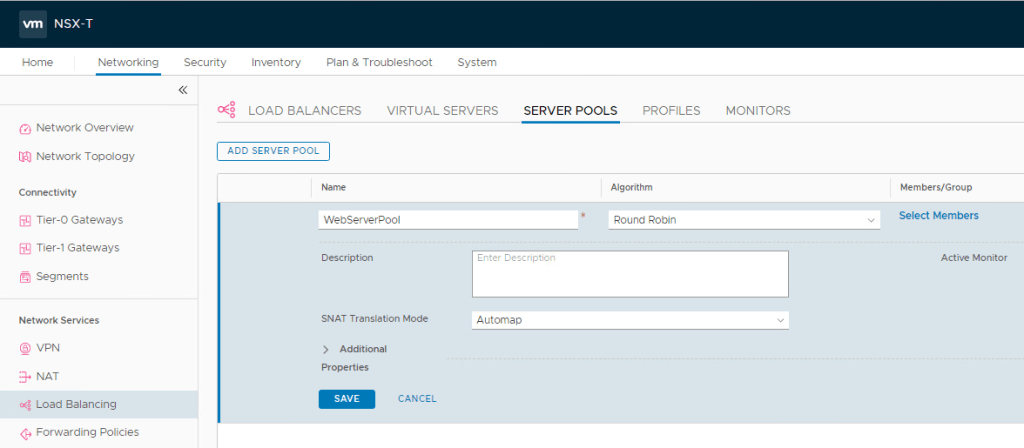
Login to NSX-T and navigate to Networking> Load Balancing> Server Pools> Add Server Pool

Name: WevServerPool
Algorithm: Round Robin (To distribute the load in pool members)
SNAT Translation Mode: Automap (leave it to default)

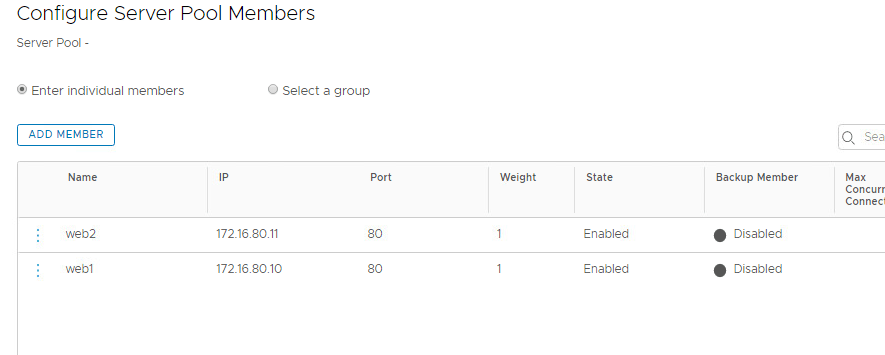
Next, Click on Select Members> Add members & enter the information for the 1st web server.

Follow the same procedure again for the 2nd web server.

Click on Apply and Save.

Make sure that the status is Success.

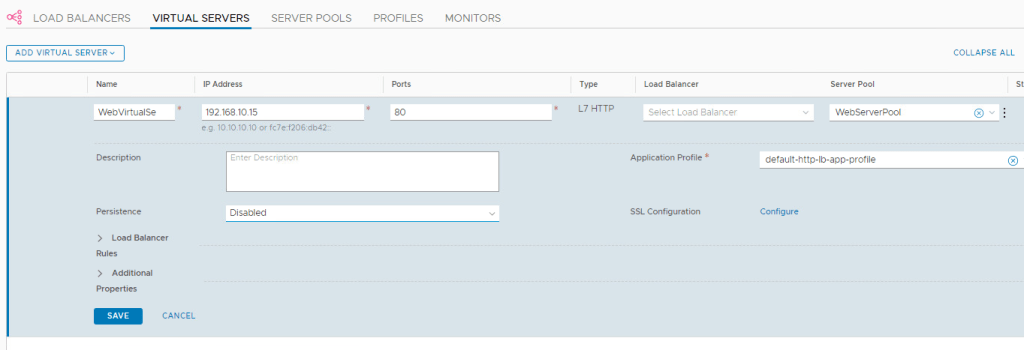
Next, Click on Virtual Server and ADD L7 HTTP

Name: WebVirtualServer

IP: 192.168.10.15 (This IP can be in any subnet & We will use this IP add to access the Web Server)
Port: 80
Server Pool: WebServerPool (Select the pool that you created in earlier step)

Save & Make sure that the status is Success.

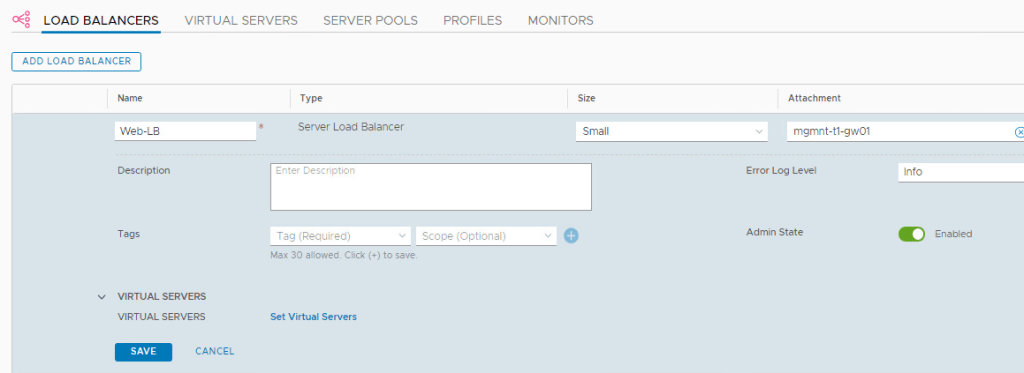
Let’s move to Load Balancer tab and click on Add Load Balancer.

Name: Web-LB
Size: Small (note the sizing information at the point)
Attachment: Select your existing Tier-1 gateway.

Click on Save and then click on NO to complete the configuration.

Now, we have to attach this Load Balancer to Virtual Server that we created in earlier step.

Go back to ‘Virtual Servers’ and click on Edit.

Under the LB, select the LB that we just created and Save.

Make sure that the status is Success for LB, Virtual Server & Server Pools.

That’s It. We are done with the configuration of NSX-T Load Balancer. Its time to test it.

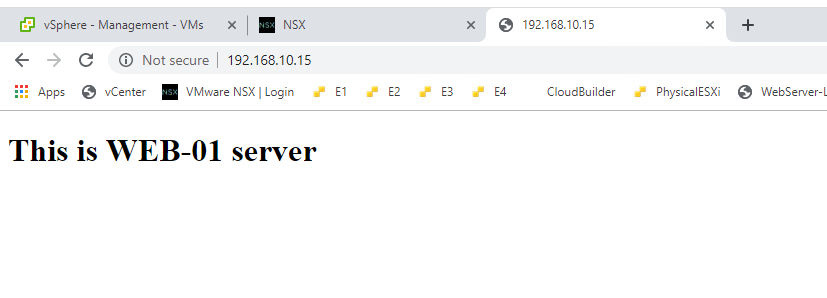
Try to access the VIP (192.168.10.15), This ip should load the web page either from Web-1 server or Web-2.

The VIP is hitting to my 2nd Web Server. Try to refresh the page.

Couple of refresh will route the traffic to 2nd Web Server. You might have to try in different browser or try Ctrl+F5 to refresh the page.

Hurray…!! We have just configured NSX-T LB.

This is how my network topology looks. Web-LB is configured at tier-1 gateway.

Remember, there is much more than this when it comes to customer production environment. We must take several other things into consideration (health monitors, SNAT, LB rules etc…), and it is not that easy as it sounds. This blog was written to give you basic understanding of NSX-T LB.

I hope that the blog has valuable information. See you all in next post.

Are you looking out for a lab to practice VMware products..? If yes, then click here to know more about our Lab-as-a-Service (LaaS).

Leave your email address in below box below to receive notification on my new blogs.

NSX-T 3.0 – Active Directory Integration

While working on NSX-T, you will want to add multiple users from Active Directory to manage your NSX-T environment. You can integrate up to 3 identity sources into your NSX-T env. Optionally, you can add VMware Identity Manager to authenticate users. In this post, we will cover AD integration with NSX-T.
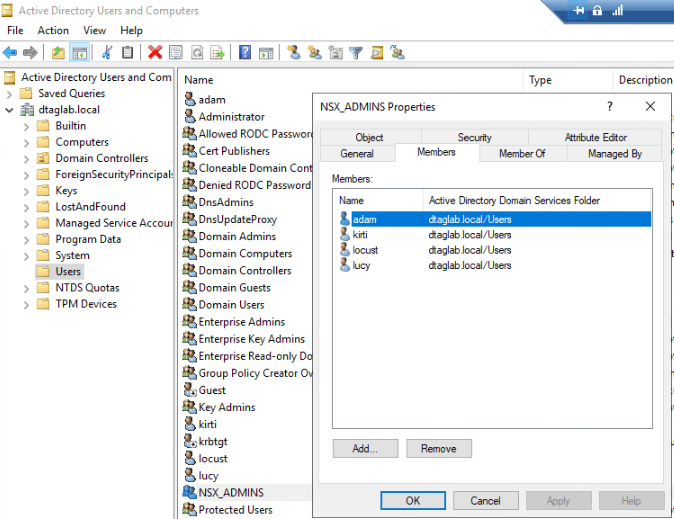
I have created ‘NSX_ADMINS’ Security Group in (Users OU) my Active Directory and added few users to it.

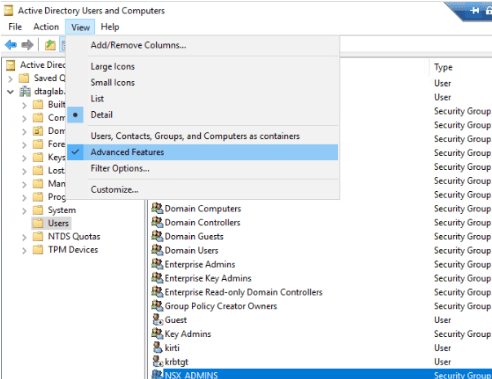
Next, Select ‘Users’ >View > Select Advance Features to get additional Attributes of ‘Users’ OU.

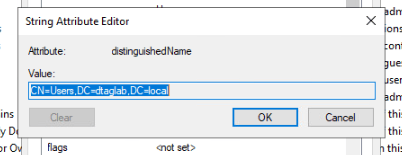
Right Click on ‘Users’ OU >Properties >Attribute Editor Tab.

View & Copy the ‘distinguishedName’ Value

We need this value while configuring Identity Source in NSX-T.

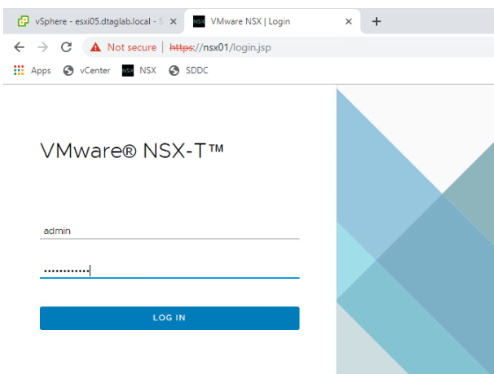
Next, Log into NSX-T Manager VIP with ‘admin’ account.

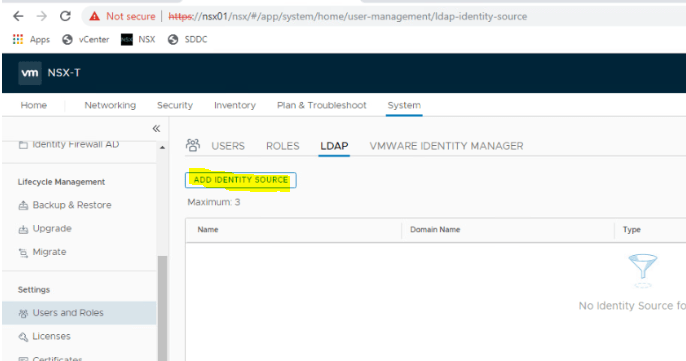
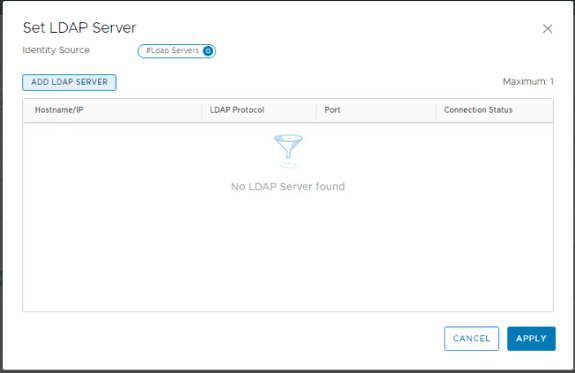
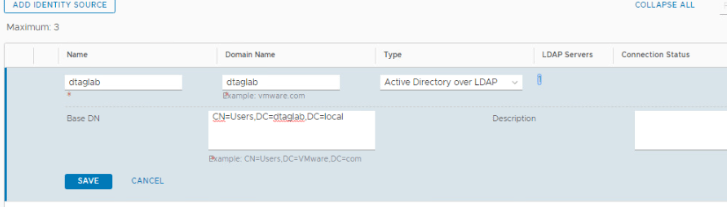
Navigate to System >Users & Roles >LADAP & Click on ‘ADD IDENTITY SOURCES’

Name: DTAGLAB
Domain Name: dtaglab.local
Type: Active Directory over LDAP.
Base DN: Paste the value that copied earlier.
LADAP Server: Click on ‘SET’

Note: ‘SET’ will only populate when you fill entire information.

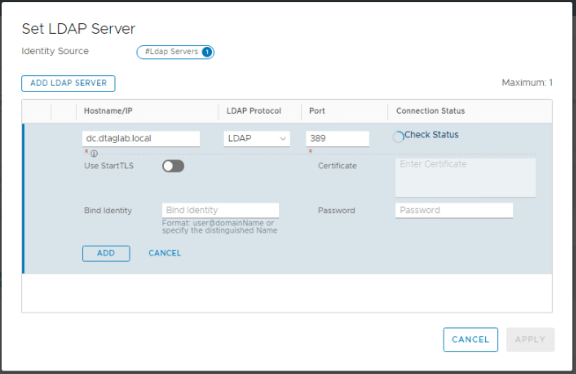
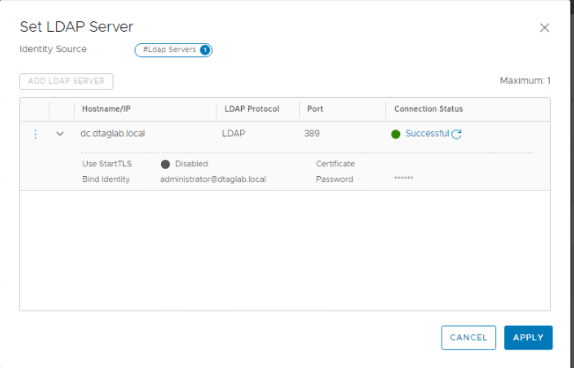
Click ADD LADAP SERVER

Hostname: dc.dtaglab.local
Protocol: LDAP
Port: Leave is to default.

Click on ‘Check Status’

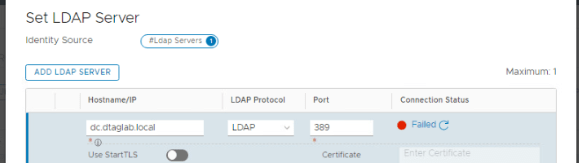
It Failed because we did not provide the username.

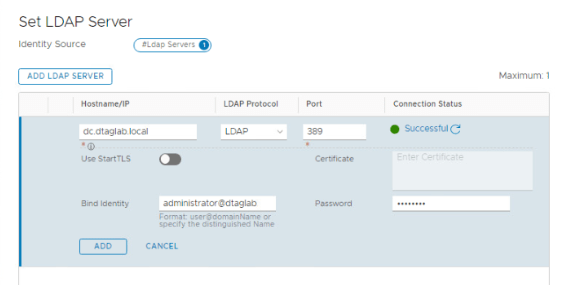
Note: Even though ‘Bind Identity’ & ‘Password’ does not show mandatory asterisk, it is mandatory for LDAP.

Provide the correct credentials and you should be good to go.

Click ADD

Apply.

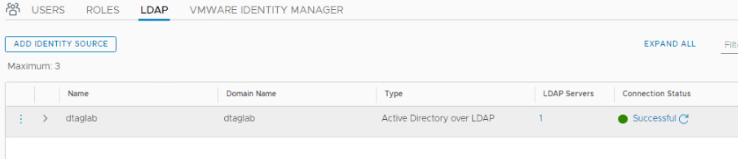
Verify that the ‘LDAP SERVERS’ shows ‘1’ and click on SAVE.

Click on ‘Check Status’ in Connection Type to verify.

We have added an identity source in NSX-T.
Next, move to adding users / groups from ‘Users’ OU.

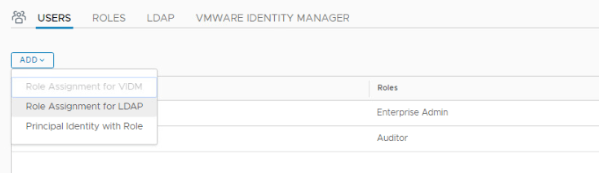
Click on ‘Users’

A message appears, ‘Çhecking Authentication providers connection status’. Wait for some time until message clears. Then click on ADD.

Note: ‘Role Assignment for LDAP’ does not show up until the above message clears.

Select your domain and type nsx in next box. The AD group will auto populate. Click on Roles and select ‘Enterprise Admin’ & SAVE.

We have added ‘NSX_ADMINS’ group to ‘Enterprise Admin’ role. Any user added to this group now gets full permission to NSX-T Env.

Logout and Log back in with the user in ‘NSX_ADMINS’ OU and you should be good to go.

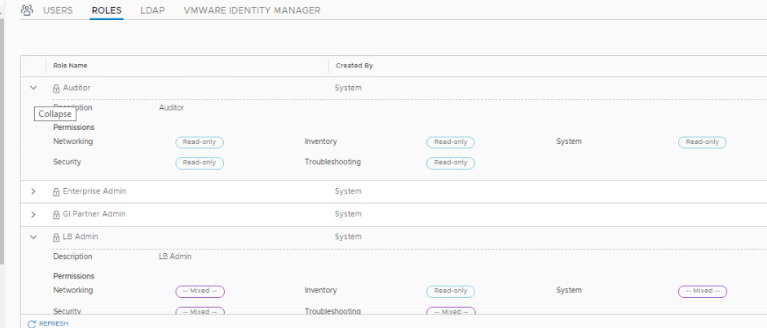
Additionally, NSX-T has built-in 11 Roles already added. Each Role has different permissions.

You can expand each Role to check what permissions it has.

That’s it for this post. Thank you for reading. 😊

Are you looking out for a lab to practice VMware products..? If yes, then click here to know more about our Lab-as-a-Service (LaaS).

Subscribe here to receive emails for new posts on this website.

NSX-T 3.0 Series: Part10-Testing NSX-T Environment

Hello Friends, We have completed all 9 parts and by now you should have your entire NSX-T 3.0 env up and running. This post will specifically focus on testing the env that we have deployed in this series.

NSX-T 3.0 Series: Part1-NSX-T Manager Installation
NSX-T 3.0 Series: Part2-Add additional NSX-T Manger & Configure VIP
NSX-T 3.0 Series: Part3-Add a Compute Manager (vCenter Server)
NSX-T 3.0 Series: Part4-Create Transport Zones & Uplink Profiles
NSX-T 3.0 Series: Part5-Configure NSX on Host Transport Nodes
NSX-T 3.0 Series: Part6-Depoy Edge Transport Nodes & Create Edge Clusters
NSX-T 3.0 Series: Part7-Add a Tier-0 gateway and configure BGP routing
NSX-T 3.0 Series: Part8-Add a Tier-1 gateway
NSX-T 3.0 Series: Part9-Create Segments & attach to T1 gateway
NSX-T 3.0 Series: Part10-Testing NSX-T Environment

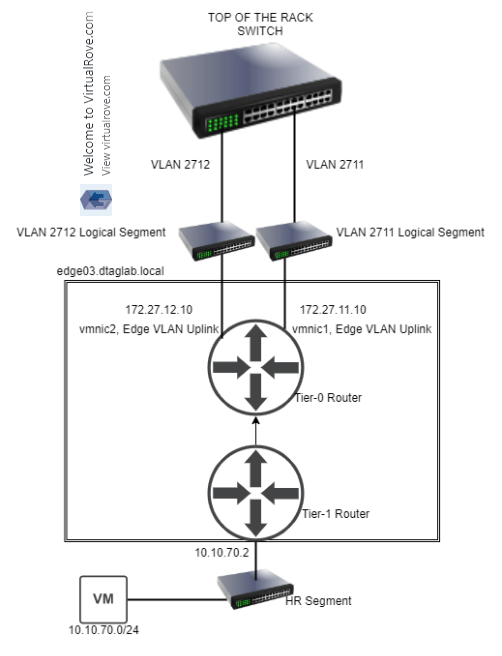
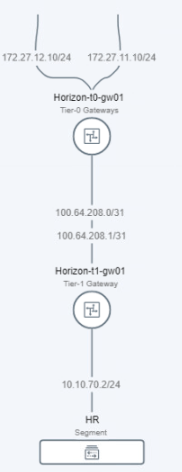
This is how our logical topology looks like after the deployment.

All topologies in the NSX-T env can be found on NSX Manager UI.

Log into NSX Manager VIP >Networking >Networking Topology

You can filter to check specific object. Like I have filtered it for HR segment.
Export it to have a closer look.

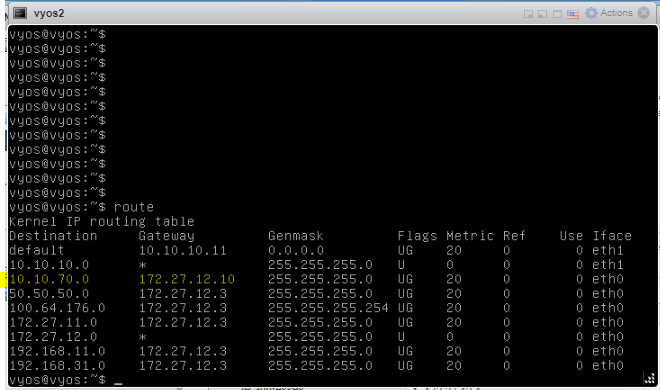
Let’s verify north-south routing in the environment. We need to verify if the HR segment network shows as BGP learned route from 172.27.11.10 & 172.27.12.10 on respective TOR (VyOS) switches.

VyOS1

‘10.10.70.0’ network learned from ‘172.27.11.10’ and this is our Edge uplink1.

VyOS2

‘10.10.70.0’ network learned from ‘172.27.12.10’ and this is our Edge uplink2.

All good. We see the network on our TOR, which means our routing is working perfectly fine. Now, any network that gets added to NSX-T env will show up on TOR and should be reachable from TOR. Let’s check the connectivity from TOR.

Voila, we are able to ping the gateway of HR segment from both TOR. End to End (North-South) routing working as expected.

IF you don’t see newly created HR segment network on the TOR, then you have to check if the route is reaching till your Tier-0 router.

Log into edge03.dtaglab.local via putty.

Enable SSH from the console if you are not able to connect.

‘get logical-router’

We need to connect to Service Router of Tier-0 to check further details. Note that the VRF ID for Tier-0 Service Router is ‘1’

‘vrf 1’

‘get route’

We see ’10.10.70.0/24’ network as t1c (Tier-1 Connected). That means, route is reaching till Edge. If its not, you know what to troubleshoot.

Next, if route is on the Edge and not on the TOR, then you need to check BGP neighborship.

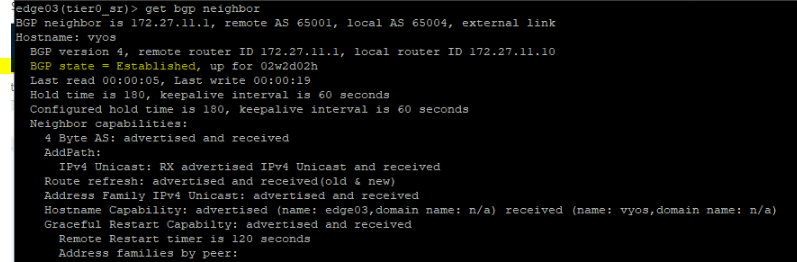
‘get bgp neighbor’

I see BGP state = Established for both BGP neighbor. (172.27.11.1 & 172.27.12.1). If not, then you need to recheck your BGP neighbor settings in NSX manager. Use ‘’traceroute’ command from vrf’s and edge to trace the packet.

That’s it for this series. I hope you enjoyed reading blogs from this series.

Happy Learning. 😊

Are you looking out for a lab to practice VMware products..? If yes, then click here to know more about our Lab-as-a-Service (LaaS).

Subscribe here to receive emails for new posts on this website.

NSX-T 3.0 Series: Part9-Create Segments & attach to T1 gateway

In Part 9, we move to creating a Segments (also known as logical switches in NSX-V).

NSX-T 3.0 Series: Part1-NSX-T Manager Installation
NSX-T 3.0 Series: Part2-Add additional NSX-T Manger & Configure VIP
NSX-T 3.0 Series: Part3-Add a Compute Manager (vCenter Server)
NSX-T 3.0 Series: Part4-Create Transport Zones & Uplink Profiles
NSX-T 3.0 Series: Part5-Configure NSX on Host Transport Nodes
NSX-T 3.0 Series: Part6-Depoy Edge Transport Nodes & Create Edge Clusters
NSX-T 3.0 Series: Part7-Add a Tier-0 gateway and configure BGP routing
NSX-T 3.0 Series: Part8-Add a Tier-1 gateway
NSX-T 3.0 Series: Part9-Create Segments & attach to T1 gateway
NSX-T 3.0 Series: Part10-Testing NSX-T Environment

Let me highlight logical switches / segments from the diagram in my earlier post.

App, Web & DB are segments in this diagram. And can have any network that you define while creating the segment. (.1) will be the gateway ip address for all VM’s that gets attached to these segments respectively. It’s a layer 2 domain since it has to cross the router to reach different network. Lets have a look at the types of Segments.

VLAN Baked Segments: In this type, you will define a VLAN ID for the segments, however you also have to make sure that the same vlan DOES exists on your physical infrastructure too.

Overlay Backed Segments: This segment can be configured without any configuration on the physical infrastructure. It gets attached to Overlay Transport Zone and traffic is carried by a tunnel between the hosts.

We will create an Overlay Backed Segment.

Log into NSX-T Manager VIP and navigate to Networking >Segments >Segments >ADD SEGMENT

Name: HR
Connectivity: Connect it to your Tier-1 Gateway that you created in earlier step.
Transport Zone: Select ‘Horizon-OverlayTZ’
Subnet: ’10.10.70.2/24’ You need to discuss this with your network admin beforehand.

Rest all parameters to be on default for now.

Click Save.

Likewise, You can create App, Web & DB segments and connect it to Tier-1 router. Attach a VM to respective segments and they should be able to ping to each other.

For example,
VM1 with an IP address 172.16.11.10/24 and gateway 172.16.11.1 – Connect it to App Segment.
VM2 with an IP address 172.16.12.10/24 and gateway 172.16.12.1 – Connect it to Web Segment.

Both of them should be able to ping each other. Here, we achieve East-West routing. Routing takes place at Tier-1 router without going North. Check the topology after creating those 3 segments.

That’s it. We have created new network for our VM’s to connect to.

Are you looking out for a lab to practice VMware products..? If yes, then click here to know more about our Lab-as-a-Service (LaaS).

Subscribe here to recevie emails for new posts on this website.

NSX-T 3.0 Series: Part8-Add a Tier-1 gateway

In this post, we will add a Tier-1 Gateway for our Segments (Logical Switches) to connect to.

NSX-T 3.0 Series: Part1-NSX-T Manager Installation
NSX-T 3.0 Series: Part2-Add additional NSX-T Manger & Configure VIP
NSX-T 3.0 Series: Part3-Add a Compute Manager (vCenter Server)
NSX-T 3.0 Series: Part4-Create Transport Zones & Uplink Profiles
NSX-T 3.0 Series: Part5-Configure NSX on Host Transport Nodes
NSX-T 3.0 Series: Part6-Depoy Edge Transport Nodes & Create Edge Clusters
NSX-T 3.0 Series: Part7-Add a Tier-0 gateway and configure BGP routing
NSX-T 3.0 Series: Part8-Add a Tier-1 gateway
NSX-T 3.0 Series: Part9-Create Segments & attach to T1 gateway
NSX-T 3.0 Series: Part10-Testing NSX-T Environment

Tier-1 Gateway:

It’s a gateway that connects to Tier-0 router via its uplink and to our segments through downlink. You can define on which routes to be advertise from Tier-1 Gateway. Check my previous blog for Tier-1 gateway topology.

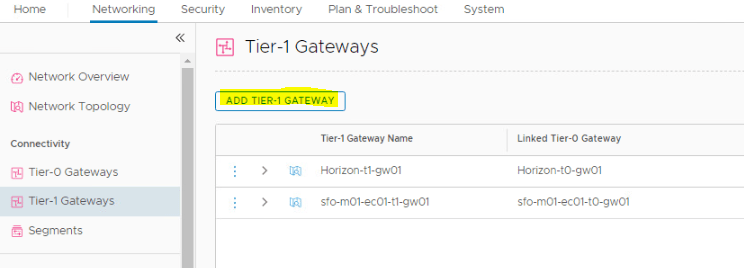
Log into NSX-T Manager VIP and navigate to Networking >Tier-1 Gateway > ADD TIER-1 GATEWAY

Name: Give an appropriate name.
Linked Tier-0 Gateway: Select the Tier-0 Gateway that we created in earlier post.
Edge Cluster: Select associated cluster.

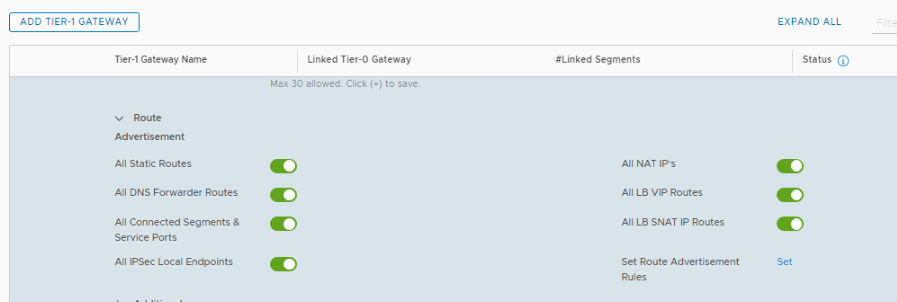
Scroll down to Route and make sure that all routes are selected.

Rest all option to be default & Click on Save.

That’s it. Short and Simple. 😊

Are you looking out for a lab to practice VMware products..? If yes, then click here to know more about our Lab-as-a-Service (LaaS).

Subscribe here to recevie emails for new posts on this website.