NSX-T 3.0 Series: Part7-Add a Tier-0 gateway and configure BGP routing

We have completed 6 parts of this series. Check my earlier posts to move to Tier-0 & Tier-1 gateway.

NSX-T 3.0 Series: Part1-NSX-T Manager Installation
NSX-T 3.0 Series: Part2-Add additional NSX-T Manger & Configure VIP
NSX-T 3.0 Series: Part3-Add a Compute Manager (vCenter Server)
NSX-T 3.0 Series: Part4-Create Transport Zones & Uplink Profiles
NSX-T 3.0 Series: Part5-Configure NSX on Host Transport Nodes
NSX-T 3.0 Series: Part6-Depoy Edge Transport Nodes & Create Edge Clusters
NSX-T 3.0 Series: Part7-Add a Tier-0 gateway and configure BGP routing
NSX-T 3.0 Series: Part8-Add a Tier-1 gateway
NSX-T 3.0 Series: Part9-Create Segments & attach to T1 gateway
NSX-T 3.0 Series: Part10-Testing NSX-T Environment

Tier-0 Gateway:

This Gateway is used to process traffic between logical segments and physical network (TOR) by using routing protocol or static route. Here is the logical topology of Tier-0 & Tier-1 router.

Tier-0 & Tier-1 are logical routers. And each logical router has Service Router (SR) & Distributed Router (DR). Service Router is required for the services which can not be distributed like NAT, BGP, LB and Firewall. It’s a service on the Edge Node. Whereas, DR runs as a kernel module in all hypervisors also known as transport nodes and provides east-west routing.

With that, let’s get started creating Tier-0 router.

While creating Tier-0 gateway, we will configure uplink interfaces to TOR to form BGP neighborship. To connect your Uplink to TOR we need VLAN based logical switches in place. You must connect a Tier-0 router to VLAN based logical switch. VLAN ID for logical switch & TOR port for EDGE uplink should match. Here is the topology.

All components except TOR will be in same VLAN Transport Zone.

Log into NSX-T Manager VIP and navigate to Networking >Segments >Segments >ADD SEGMENT

Segment Name: Give an appropriate name.
Transport Zone: ‘Horizon-Edge-VLAN-TZ’

VLAN ID: 2711

Follow the same process to create one more segment for VLAN ID 2712.

We now move to creating Tier-0 Gateway.

Log into NSX-T Manager VIP and navigate to Networking >Tier-0 Gateways >ADD GATEWAY >Tier-0

Tier-0 Gateway Name: Horizon
HA Mode: Active-Active (default mode).

In Active-Active mode, traffic traffic is load balanced aross all members whereas ‘Active-Standby’ elects active member for traffic flow. NAT, Load Balance, Firewall & VPN is only supported in ‘Active-Standby’ Mode.

Edge Cluster: ‘HorizonEdgeClust’
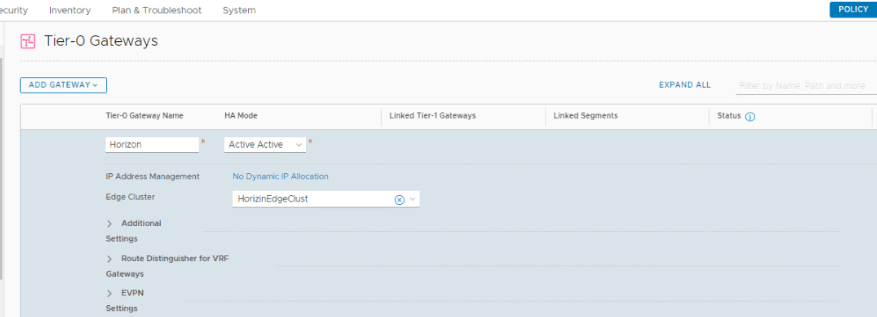
Scroll down to configure additional settigns.
Click on ‘SET’ under ‘Interfaces’

Add Interface
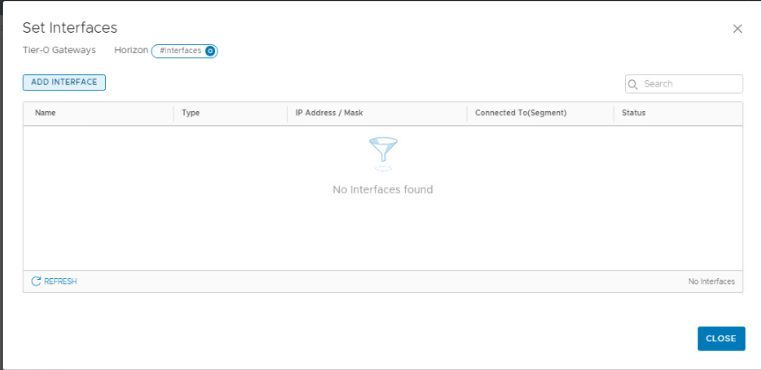
Name: Give an appropriate name.
Type: External
IP Address: 172.27.11.10/24
Conneted To: Select the Segment for VLAN ID 2711
Edge Node: Edge03 (Since each edge will have different uplink)
MTU: 9000

Rest paramenter to be default. Click on Save.

Follow the same process to add an 2nd uplink interface (172.27.12.10/24) for VLAN 2712.

Status for both the interfaces will show as ‘Uninitialized’ for few seconds. Click the Refresh and it should show ‘SUCCESS’
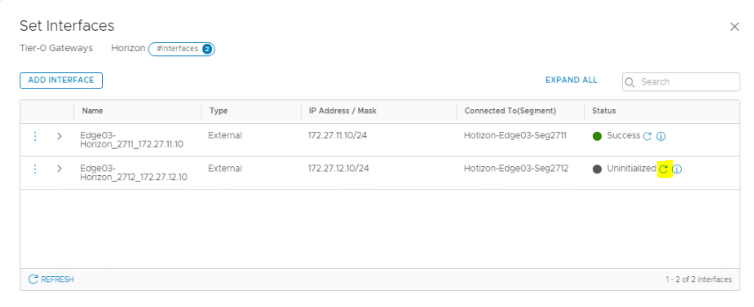
These two IP addresses will be configured on out TOR (VyOS) as a BGP neighbor.

Move to BGP section of Tier-0 Gateway to configure it further.

Local AS: 65004
InterSR iBGP: Enable (An iBGP peering gets established between both SR with Subnet (169.254.0.0/25) managed by NSX.
ECMP: Enabled
Graceful Restart: Graceful Restart & Helper.
By default, the Graceful Restart mode is set to Helper Only. Helper mode is useful for eliminating and/or reducing the disruption of traffic associated with routes learned from a neighbor capable of Graceful Restart. The neighbor must be able to preserve its forwarding table while it undergoes a restart.

BGP Neighbor: Click on Set.
IP Address: 172.27.11.1 (We have configured this as an interface IP on TOR (VyOS)
Remote AS: 65001 (Configured on TOR)
Source IP: 172.27.11.10 (Uplink IP)
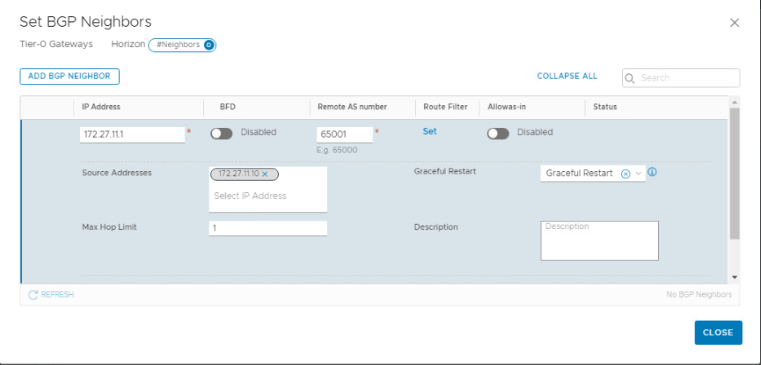
Follow the same process for IP address ‘172.27.12.1’

Both Neighbors will show status as ‘Down’ until you configure BGP on your TOR.
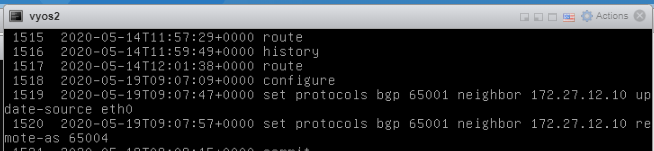
Ran following commands on my TOR to form a neighborship.

VyOS1

set protocols bgp 65001 neighbor 172.27.11.10 update-source eth4
set protocols bgp 65001 neighbor 172.27.11.10 remote-as ‘65004’

VyOS2

set protocols bgp 65001 neighbor 172.27.12.10 update-source eth0
set protocols bgp 65001 neighbor 172.27.12.10 remote-as ‘65004’
Click Refresh and it should show ‘Success’
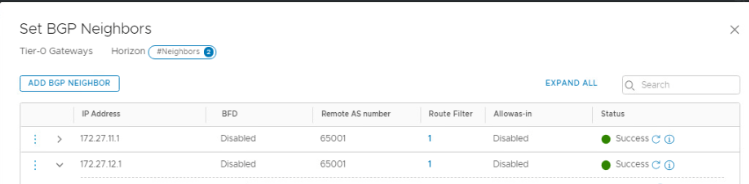
We have successfully deployed a Tier-0 Gateway and BGP has been established with TOR.

That’s it for this post. I hope you enjoyed reading. Comments are Welcome. 😊

Are you looking out for a lab to practice VMware products..? If yes, then click here to know more about our Lab-as-a-Service (LaaS).

Subscribe here to receive emails for my new posts on this website.
NSX-T 3.0 Series: Part6-Deploy Edge Transport Nodes & Create Edge Clusters

We need our NSX-T networks to communicate with outside world and some network should also reach to internet. To achieve this, we need NSX Edge VM. Edge VM can perform routing services, east west routing as well as north south routing. Edge along with Tier 0 & Tier 1 routers provides routing services. In this post, we will focus on Edge deployment types and its configuration.

NSX-T 3.0 Series: Part1-NSX-T Manager Installation
NSX-T 3.0 Series: Part2-Add additional NSX-T Manger & Configure VIP
NSX-T 3.0 Series: Part3-Add a Compute Manager (vCenter Server)
NSX-T 3.0 Series: Part4-Create Transport Zones & Uplink Profiles
NSX-T 3.0 Series: Part5-Configure NSX on Host Transport Nodes
NSX-T 3.0 Series: Part6-Deploy Edge Transport Nodes & Create Edge Clusters
NSX-T 3.0 Series: Part7-Add a Tier-0 gateway and configure BGP routing
NSX-T 3.0 Series: Part8-Add a Tier-1 gateway
NSX-T 3.0 Series: Part9-Create Segments & attach to T1 gateway
NSX-T 3.0 Series: Part10-Testing NSX-T Environment

NSX-T Edge VM can be deployed using following methods.

  • NSX Manager: This method is recommended by VMware and straight forward.
  • vSphere Web Client: This method requires you to download the OVA file from VMware site and deploy it manually. In this method, you must manually join the Edge VM with NSX Management plane. Rest configuration remains same.
  • Bare Metal Edge Server: In this method, you can install an ISO on physical server using PXE server and then join it to management plane.

We will continue with VMware recommended method. Additional information can be found on here.

https://docs.vmware.com/en/VMware-NSX-T-Data-Center/3.0/installation/GUID-E9A01C68-93E7-4140-B306-19CD6806199F.html

Let’s get started with the deployment.

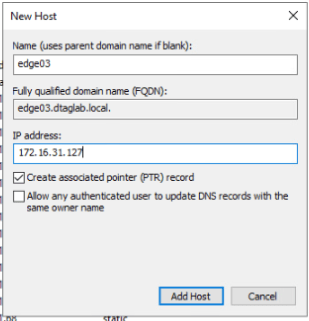
Create a DNS record for the new EDGE VM.

Log into NSX-T Manager VIP and navigate to System >Nodes >Edge Transport Nodes >Click on ‘ADD EDGE VM’

Provide Name, FQDN & Select Form Factor as ‘Medium’

Set the password for CLI and Root User. Make sure to set the password according to password policy.

At least 12 characters
At least one lower-case letter
At least one upper-case letter
At least one digit
At least one special character
At least five different characters

Allow SSH Login: Yes
Allow Root SSH Login: Yes

SSH Access is required for troubleshooting if routes doesn’t show up.

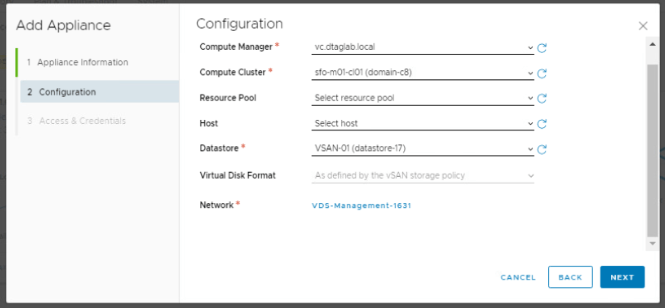
Select Compute Manager, Cluster & Datastore.

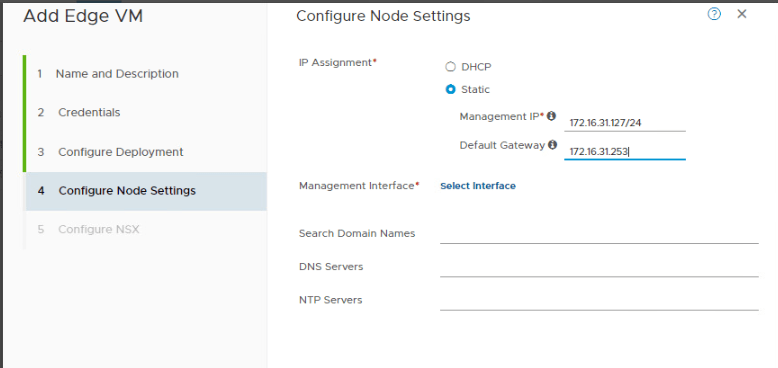
Select Static and enter Management IP & Gateway.

Click on ‘Select Interface’ and Select your management network.

Enter remaining information and click Next.

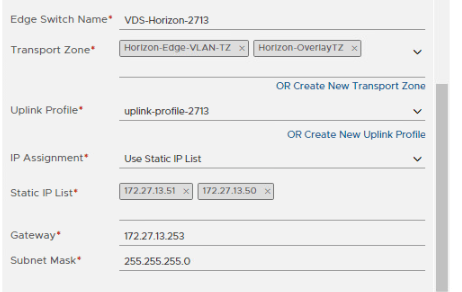
Edge Switch Name: Give an appropriate name.
Transport Zone:
Select ‘Horizon-OverlayTZ’. This is the same Overlay TZ that we selected for Host.
Select ‘Horizon-Edge-VLAN-TZ’. We created this for Edge. Check my earlier post.
Uplink Profile: ‘uplink-profile-2713’
IP Assignment: I have selected ‘Static’. You can also use Pool if it is per created. These will be your EDGE VM TEP IP’s.

Fill out gateway and subnet mask and move to next section.

Map you Edge uplinks with the Uplink portgroups that you have created in your vCenter. Make sure that these port groups are Trunk for all VLAN traffic to pass.

We will use an IP address from these uplink portgroups to form BGP neighborship with TOR when we create Tier-0 router. This part of the edge is little tricky and takes time understand. I have tried to keep it as simple as possible.

Click Finish and check if you see a VM getting deployed in vCenter.

Edge VM will appear under ‘Edge Transport Node’

Monitor the status.

Edge VM has been installed and configured successfully. We now move to Edge Cluster.

Navigate to System >Nodes >Edge Cluster >Click on ADD

Name: HorizonEdgeClust
Edge Cluster Profile: Default profile is selected automatically.
Transport Node: Move ‘edge03’ from Available to Selected.

Click Save.

We are done with creating Edge Cluster. This cluster will be used when we create Tier-0 Router.

You can deploy one more Edge VM and add it to edge cluster at a later stage.

That’s it for this post. I hope that the information was helpful. 😊

Are you looking out for a lab to practice VMware products..? If yes, then click here to know more about our Lab-as-a-Service (LaaS).

Subscribe here to recevie emails for new posts on this website.

NSX-T 3.0 Series: Part5-Configure NSX on Host Transport Nodes

In my previous post, we created Transport Zones & Uplink Profiles. We need this for configuring transport nodes (Hypervisors & Edge VM). In this post, we will configure Host Transport Node.

NSX-T 3.0 Series: Part1-NSX-T Manager Installation
NSX-T 3.0 Series: Part2-Add additional NSX-T Manger & Configure VIP
NSX-T 3.0 Series: Part3-Add a Compute Manager (vCenter Server)
NSX-T 3.0 Series: Part4-Create Transport Zones & Uplink Profiles
NSX-T 3.0 Series: Part5-Configure NSX on Host Transport Nodes
NSX-T 3.0 Series: Part6-Depoy Edge Transport Nodes & Create Edge Clusters
NSX-T 3.0 Series: Part7-Add a Tier-0 gateway and configure BGP routing
NSX-T 3.0 Series: Part8-Add a Tier-1 gateway
NSX-T 3.0 Series: Part9-Create Segments & attach to T1 gateway
NSX-T 3.0 Series: Part10-Testing NSX-T Environment

For demo purpose, I have created ‘Horizon’ cluster & a VDS with the same name. Till now, we have completed NSX-T manager installation, added a compute manager and created Transport Zones & Uplink Profiles. Lets configure NSX for my newly installed ESXi host (esxi05.dtaglab.local).

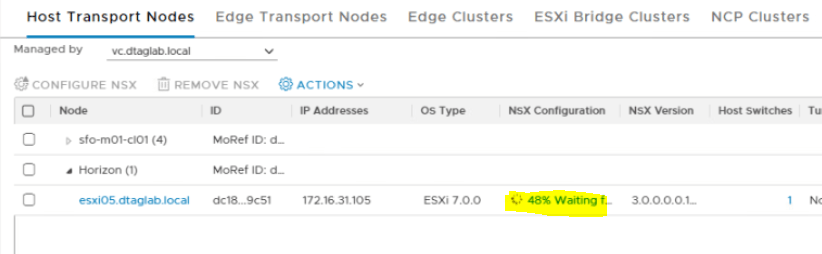
Newly added cluster and associated hosts will show up in NSX-T under System >Nodes >Host Transport Nodes. Notice that the ‘NSX Configuration’ shows ‘Not Configured’.

Select the Host & click on ‘Configure NSX’

Next, Verify the host name and click Next.

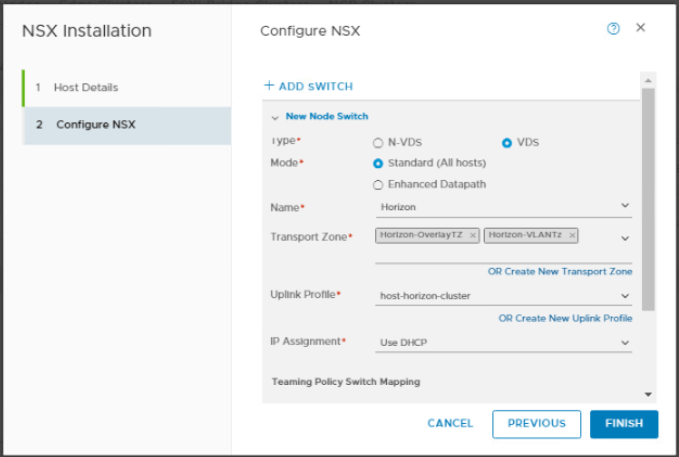
Type: VDS
Mode: Standard
Name: Select your VDS.
Transport Zone: Select Overlay and VLAN TZ that we created in earlier post.
Uplink Profile: Select Uplink profile for host that we created earlier.
IP Assignment: As I mentioned, I have enabled DHCP on VLAN 1634 (this VLAN ID is configured in our Uplink Profile)

Enhanced Datapath Mode: Some workload/application requires accelerated network performance. You can enable this if your host has application servers/workloads that generates lot of network traffic. N-VDS supports this by performing additional configuration. Checkout VMware official documentation here.

https://docs.vmware.com/en/VMware-NSX-T-Data-Center/2.5/installation/GUID-F459E3E4-F5F2-4032-A723-07D4051EFF8D.html

Teaming Policy Switch Mapping: This will show up as per the configuration under Teaming in ‘Uplink Profile’

Map the VDS uplink accordingly.

We have mapped N-VDS uplink with VDS uplink here. Click Finish.

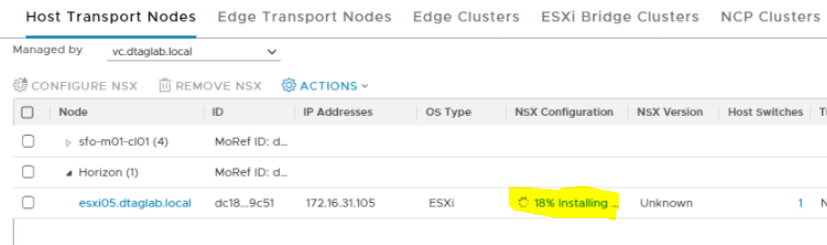
Monitor the ‘NSX Configuration’ status on UI.

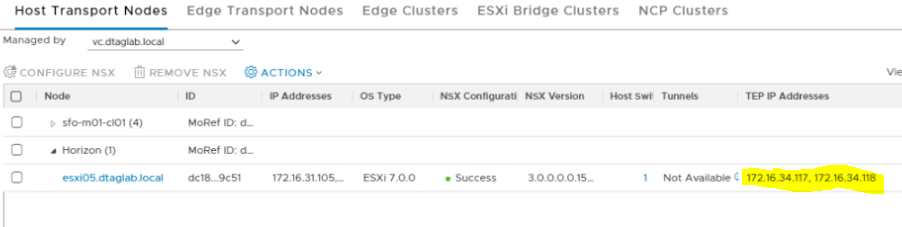
‘NSX Configuration’ Success and host showing UP.

We have configured NSX on ESXi05.dtaglab.local.

Check the TEP IP.

It is from VLAN ID 1634. Let’s verify on the ESXi host in vCenter. We should see vmkernel (vmk) adapters in the list & vxlan as a TCP/IP stack.

That’s it for this post. We will configure EDGE VM in my next post. Thank you for reading. 😊

Are you looking out for a lab to practice VMware products..? If yes, then click here to know more about our Lab-as-a-Service (LaaS).

Leave your email address in below box to receive notification on my new blogs.

NSX-T 3.0 Series: Part4-Create Transport Zones & Uplink Profiles

Let’s get to the interesting part of NSX-T. In this post, we will discuss types of Transport Zones and why it is required to create one.

NSX-T 3.0 Series: Part1-NSX-T Manager Installation
NSX-T 3.0 Series: Part2-Add additional NSX-T Manger & Configure VIP
NSX-T 3.0 Series: Part3-Add a Compute Manager (vCenter Server)
NSX-T 3.0 Series: Part4-Create Transport Zones & Uplink Profiles
NSX-T 3.0 Series: Part5-Configure NSX on Host Transport Nodes
NSX-T 3.0 Series: Part6-Depoy Edge Transport Nodes & Create Edge Clusters
NSX-T 3.0 Series: Part7-Add a Tier-0 gateway and configure BGP routing
NSX-T 3.0 Series: Part8-Add a Tier-1 gateway
NSX-T 3.0 Series: Part9-Create Segments & attach to T1 gateway
NSX-T 3.0 Series: Part10-Testing NSX-T Environment

My lab has fully collapsed vSphere Cluster NSX-T Deployment. I have configured NSX Manager, host transport nodes, and NSX Edge VMs on a single cluster. Each host in the cluster has two physical NICs that are configured for NSX-T. Here is the detailed design from VMware’s official site.

Check out complete documentation here…

https://docs.vmware.com/en/VMware-NSX-T-Data-Center/3.0/installation/GUID-3770AA1C-DA79-4E95-960A-96DAC376242F.html

It is very much important to understand Transport Zones and Uplink Profiles to configure NSX-T env.

Transport Zone:

All types of hypervisors (that gets added to nsx-t env) as well as EDGE VM are called as transport nodes and these transport nodes needs to be a part of transport zones to see particular networks. All transport nodes can not see all segments (aka logical switches) in NSX-T env unless they are part of transport zones that segments are connected to. Transport zones is technique to tie infrastructure together. Let’s have a look at the types of TZ.

Overlay TZ: This transport zone is used by host as well as Edge. You can configure N-VDS (NSX Managed VDS) and VDS when a host gets added to Overlay TZ. However, you can only configure N-VDS when a edge VM gets added to Overlay TZ.
VLAN TZ: This TZ primarily focuses on VLAN uplinks used by Edge and Host transport nodes. A VLAN N-VDS gets installed when you add a node to this TZ.

With all that theory, let’s get to the lab and start configuring things.

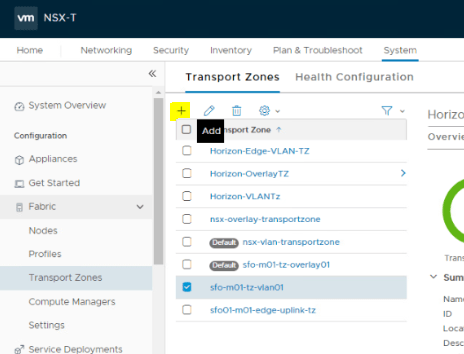
Log into NSX-T Manager cluster VIP and navigate to System >Transport Zones >Click on + sign.

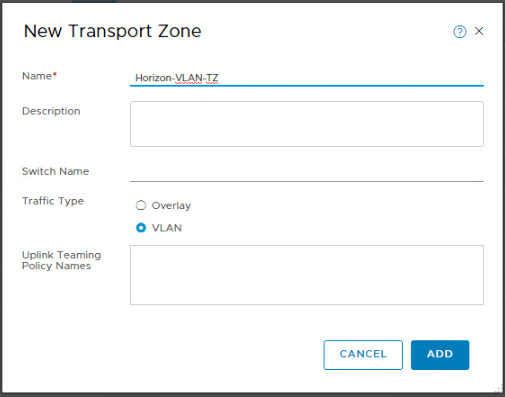
Give an appropriate name and select ‘Overlay’  

Follow the same process for VLAN TZ.

NSX-T Edge and Host transport node will be added to Horizon-Overlay-TZ, however both of them will in different VLAN-TZ. We have created ‘Horizon-VLAN-TZ’ for the host. Let’s create one for the EDGE.

Switch name is optional. You can also define Named Uplink Teaming Policy here.

Named teaming policy:  A named teaming policy means that for every VLAN-based logical switch or segment, you can define a specific teaming policy mode and uplinks names. This policy type gives you the flexibility to select specific uplinks depending on the traffic steering policy, for example, based on bandwidth requirement.

  • If you define a named teaming policy, N-VDS uses that named teaming policy if it is attached to the VLAN-based transport zone and finally selected for specific VLAN-based logical switch or segment in the host.
  • If you do not define any named teaming policies, N-VDS uses the default teaming policy.

I have left this blank for now.

We will now move to creating uplink profiles for Host & Edge Transport Nodes.

An uplink profile defines how you want your network traffic to go outside of NSX-T env. This helps in consistent configuration of the network adaptors.

Let’s create one for the host transport node. Navigate to System >Profiles >Uplink Profile >Click on +

Name the profile.

Scroll down to ‘Teamings’

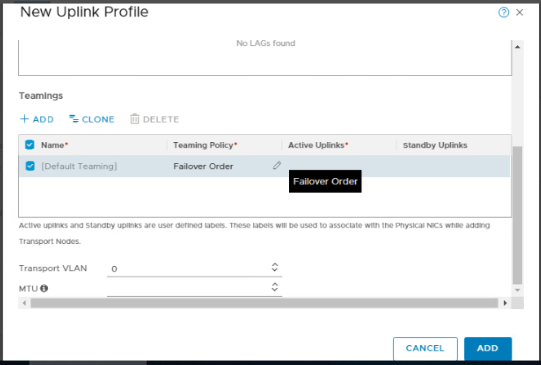
In ‘Default Teaming’ policy type, Click on little pencil shape edit icon.

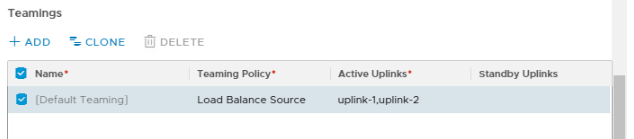
 Select Load Balanced Source. And type ‘uplink-1,uplink-2’ in ‘Active Uplink’ field.

This allows multiple Active uplinks on N-VDS and each uplink can have an IP address from the mentioned VLAN id below. VMware recommends Load Balanced Source teaming policy for traffic load balancing.

MTU can be left blank here. It picks up default value of 1600.

Verify the profile.

Transport VLAN 1634 mean, all hosts attached to this uplink profile will get a Tunnel Endpoint IP from this VLAN. I have configured DHCP for this VLAN on my TOR. Will talk more about it when we create host transport node.

We must create one more uplink profile for Edge Transport Node. Follow the same process except VLAN ID as 2713. So, we have two different VLAN ID’s for Host TEP as well as Edge TEP.

Verify the EDGE Uplink profile.

That’s it for this post. We are done with crating Transport Zones and Uplink Profiles. Thank you for reading. I hope that the blog was helpful. 😊

Are you looking out for a lab to practice VMware products..? If yes, then click here to know more about our Lab-as-a-Service (LaaS).

Leave your email address in below box to receive notification on my new blogs.

NSX-T 3.0 Series: Part3-Add a Compute Manager (vCenter Server)

We have covered 2 parts till now, let’s get to the Part 3 of the series.

NSX-T 3.0 Series: Part1-NSX-T Manager Installation
NSX-T 3.0 Series: Part2-Add additional NSX-T Manger & Configure VIP
NSX-T 3.0 Series: Part3-Add a Compute Manager (vCenter Server)
NSX-T 3.0 Series: Part4-Create Transport Zones & Uplink Profiles
NSX-T 3.0 Series: Part5-Configure NSX on Host Transport Nodes
NSX-T 3.0 Series: Part6-Depoy Edge Transport Nodes & Create Edge Clusters
NSX-T 3.0 Series: Part7-Add a Tier-0 gateway and configure BGP routing
NSX-T 3.0 Series: Part8-Add a Tier-1 gateway
NSX-T 3.0 Series: Part9-Create Segments & attach to T1 gateway
NSX-T 3.0 Series: Part10-Testing NSX-T Environment

Unlike NSX-V (one to one relation with vCenter), you can add multiple compute managers to your NSX-T environment. NSX-T polls all compute managers to detect changes such as new hosts, clusters etc. You can also add standalone ESXi hosts as well as KVM hypervisor. Here is the list of standalone hosts that can be added to NSX-T env.

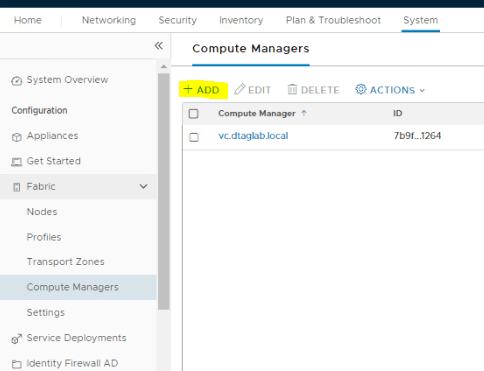
Log into NSX-T VIP and navigate to System >Fabric >Compute Managers and click on ADD

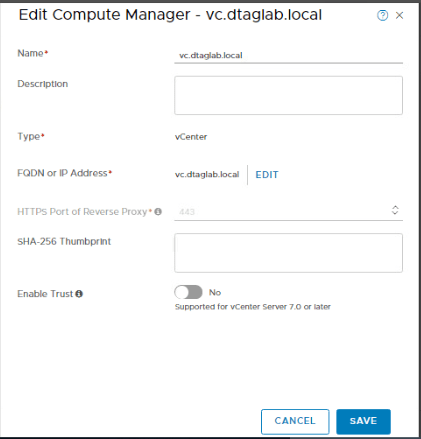
Fill out the required information and click on Save.

If you left the thumbprint value blank, you are prompted to accept the server provided thumbprint.

After you accept the thumbprint, it takes a few seconds for NSX-T Data Center to discover and register the vCenter Server resources.

It takes some time for NSX-T to register the vCenter and pull all the objects. Make sure to check the status as ‘Registered’ and connection status as ‘UP’.

All hosts from compute manager (vCenter) appears in ‘Host Transport Nodes’. You should also see all clusters from the vCenter. Let’s verify the same.

System >Fabric >Nodes >Host Transport Nodes

Change the ‘Managed by’ drop down to your vCenter.

Verify all clusters and hosts.

We are good here.

Change the ‘Managed by’ drop down to ‘None: Standalone Hosts’ to add standalone ESXi hosts and KVM hypervisors.

That’s it. We have added a compute manager to NSX-T env. Will continue the configuration in my next blog.

Hope the blog was information. Thank you.

Are you looking out for a lab to practice VMware products..? If yes, then click here to know more about our Lab-as-a-Service (LaaS).

Subscribe for my latest blogs…

NSX-T 3.0 Series: Part2-Add additional NSX-T Mangers & Configure VIP

In earlier post, we discussed Part1 from the NSX-T 3.0 series. This post will focus on Part2 of the series.

NSX-T 3.0 Series: Part1-NSX-T Manager Installation
NSX-T 3.0 Series: Part2-Add additional NSX-T Mangers & Configure VIP
NSX-T 3.0 Series: Part3-Add a Compute Manager (vCenter Server)
NSX-T 3.0 Series: Part4-Create Transport Zones & Uplink Profiles
NSX-T 3.0 Series: Part5-Configure NSX on Host Transport Nodes
NSX-T 3.0 Series: Part6-Depoy Edge Transport Nodes & Create Edge Clusters
NSX-T 3.0 Series: Part7-Add a Tier-0 gateway and configure BGP routing
NSX-T 3.0 Series: Part8-Add a Tier-1 gateway
NSX-T 3.0 Series: Part9-Create Segments & attach to T1 gateway
NSX-T 3.0 Series: Part10-Testing NSX-T Environment

We have completed NSX-T manager installation in my previous post. Let’s add an additional NSX-T manager for high availability.

Log in to NSX-T manager and navigate to System >Appliances and click on Add Appliance.

Enter the appliance information. Make sure that the DNS record is created.

Enter the DNS as well as NTP server. Choose the deployment form factor & click Next.

Compute information and network.

Enable SSH & Root. Enter the password as per the password policy. And install the appliance.

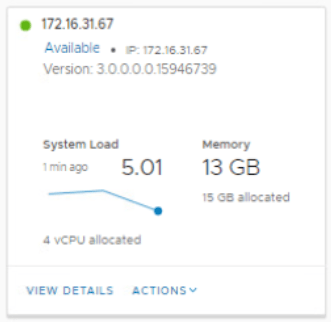
Check the status of the appliance in UI once it is up and running.

 Click on View Details and make sure that everything shows UP here.

Follow the same procedure for 3rd (nsx01c.dtaglab.local) appliance.

Next, Set the VIP (Virtual IP) for the cluster. NSX-T Managers Cluster offer a built-in VIP for high availability. The VIP will be connected automatically to the active NSX Manager and rest two will be on stand by.

Enter the IP add >Save.

Create a DNS records for the VIP too.

Check the cluster status. It should show stable with all 3 appliances up and running.

Let’s check it on CLI.

SSH to VIP or any NSX-T manager IP and run few commands.

‘get managers’

‘get cluster config’

All 3 nodes should show up here with the node status as ‘JOINED’

‘get cluster status’

Overall status: Stable

All 3 members status: UP

‘get cluster status verbose’ This command will give you detailed information on each node.

We are done with the NSX-T configuration here. Will move further in my next post. Thank you for checking, I hope it was informational.

Share it if you like it.

Are you looking out for a lab to practice VMware products..? If yes, then click here to know more about our Lab-as-a-Service (LaaS).

Subscribe for my latest blogs…

NSX-T 3.0 Series: Part1-NSX-T Manager Installation

VMware NSX-T 3.0 is a newly launched product version of NSX-T. It is highly scalable network virtualization platform. Unlike NSX-V, it can be configured for multi-hypervisor & workloads running in public could. This blog is divided into series of parts, which will help you to successfully install and configure NSX-T 3.0 environment. Like my other blogs, even this blog will focus on practical with limited theoretical information. Here is the VMware official documentation for your reference.

https://docs.vmware.com/en/VMware-NSX-T-Data-Center/index.html

With that lets get started…

I have nested vSphere 7 and VSAN 7 configured in my existing setup. I will use this lab to deploy and configure NSX-T env.

This series of NSX-T 3.0 includes following parts.

NSX-T 3.0 Series: Part1-NSX-T Manager Installation
NSX-T 3.0 Series: Part2-Add additional NSX-T Manger & Configure VIP
NSX-T 3.0 Series: Part3-Add a Compute Manager (vCenter Server)
NSX-T 3.0 Series: Part4-Create Transport Zones & Uplink Profiles
NSX-T 3.0 Series: Part5-Configure NSX on Host Transport Nodes
NSX-T 3.0 Series: Part6-Depoy Edge Transport Nodes & Create Edge Clusters
NSX-T 3.0 Series: Part7-Add a Tier-0 gateway and configure BGP routing
NSX-T 3.0 Series: Part8-Add a Tier-1 gateway
NSX-T 3.0 Series: Part9-Create Segments & attach to T1 gateway
NSX-T 3.0 Series: Part10-Testing NSX-T Environment

Let’s start with Part1-NSX-T Manager Installation.

NSX Manager provides a web-based UI to manage your NSX-T env. Let’s check the NSX Manager VM form factor and its compute requirements.

Procedure:

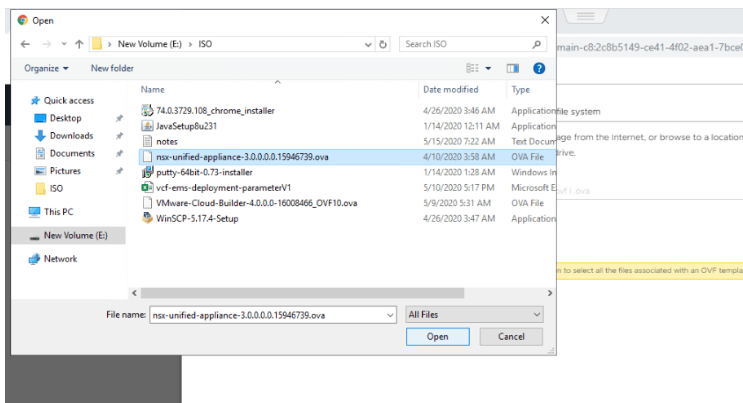
Obtain NSX-T Data Center OVA file from VMware downloads and deploy it into your vSphere env.

Upload the downloaded OVA file here.

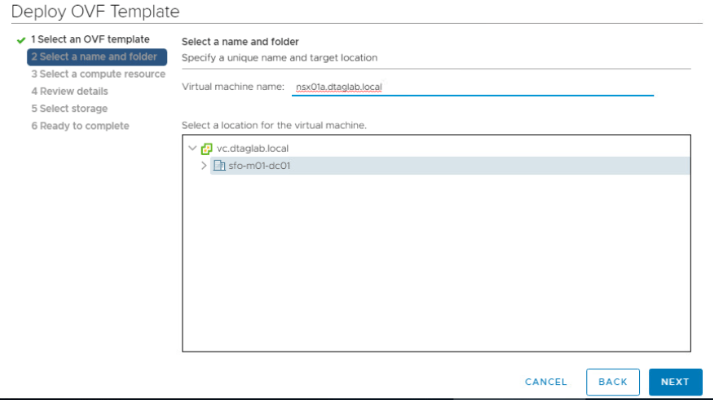
Select appropriate name and location of the VM.

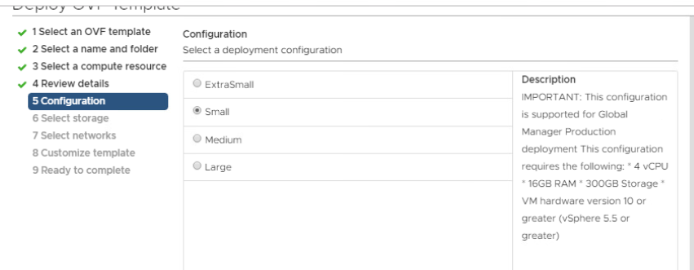
Select the form factor here.

Storage

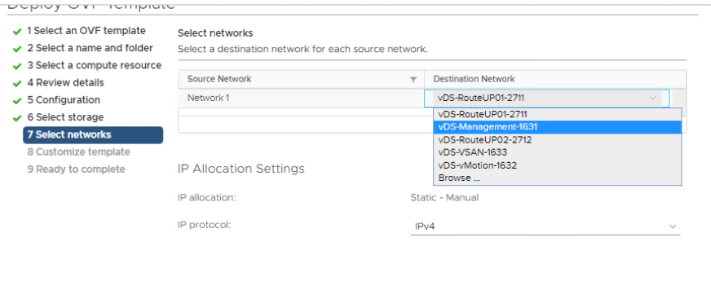
Select your management network here.

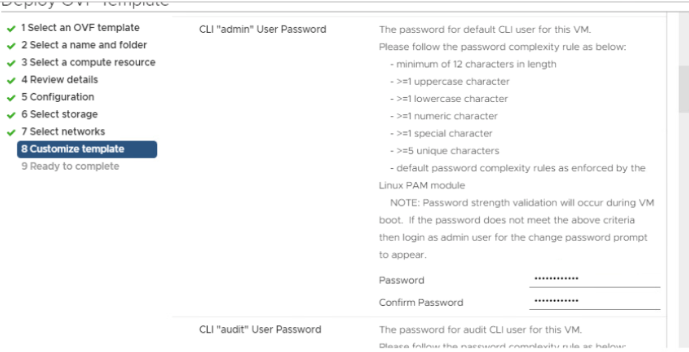
Enter the password for Root and Admin user. Make sure your password meets the complexity rule or the deployment will fail.

Fill out network and DNS info. Make sure to create a DNS record for your FQDN. Leave the Role name to default.

No need to fill anything here.

Next & Finish.

Browse to the NSX Manager FQDN once it is up and running. We are good to configure it further. That’s it for this post.

Share it if you like it.      

Are you looking out for a lab to practice VMware products..? If yes, then click here to know more about our Lab-as-a-Service (LaaS).

Subscribe for my latest blogs…